> For the complete documentation index, see [llms.txt](https://docs.fulfillmenttools.com/documentation/llms.txt). Markdown versions of documentation pages are available by appending `.md` to page URLs; this page is available as [Markdown](https://docs.fulfillmenttools.com/documentation/integrations/openid-connect/configure-microsoft-entra-id-azure-active-directory.md).
# Configure Microsoft Entra ID/Azure Active Directory
In this article, we'll take you through how to connect fulfillmenttools with Microsoft Entra ID.
{% hint style="success" %}
#### Prerequisites
* Adminstrator role in Microsoft Entra
* Logged into the [Microsoft Entra admin center](https://entra.microsoft.com/)
* Administrator role in a fulfillmenttools tenant
{% endhint %}
## **Create app registration**
{% stepper %}
{% step %}
**Start the app registration**
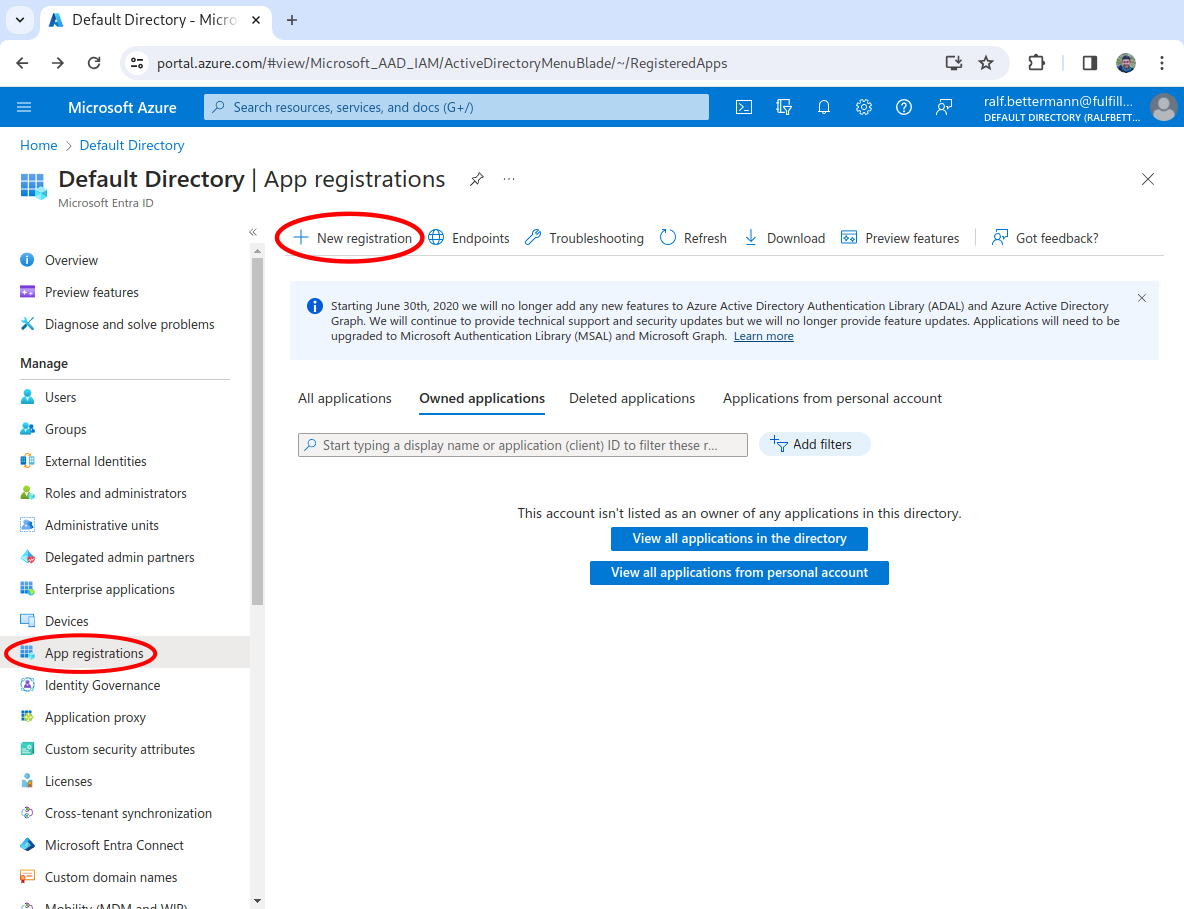
In the left-hand navigation, select **App registrations**, then click **New registration**. This will open app configuration wizard.
{% endstep %}
{% step %}
**Input the details for the app**
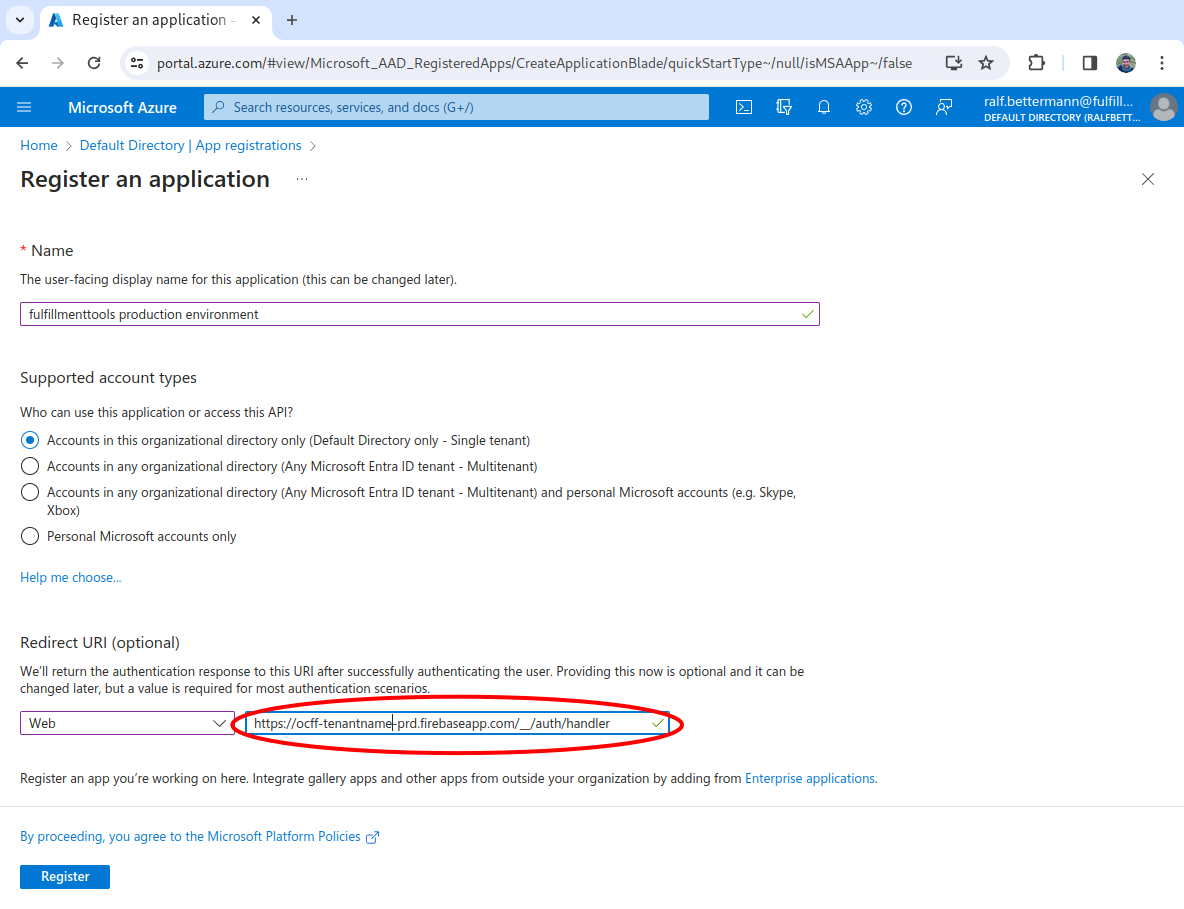
Input a name (for example, fulfillmenttools production environment), leave the supported account types as is, then input a **Redirect URI.** This has to follow the pattern: `https://ocff-{YOUR_PROJECT_ID}-{pre|prd}.firebaseapp.com/__/auth/handler`. For example, `https://ocff-myproject-prd.firebaseapp.com/__/auth/handler`. Then click the **Register** button.
{% hint style="info" %}
A separate app registration must be created for each fulfillmenttools environment (for example, one for pre-production and one for production).
{% endhint %}
{% endstep %}
{% step %}
**Add two more redirect URIs**
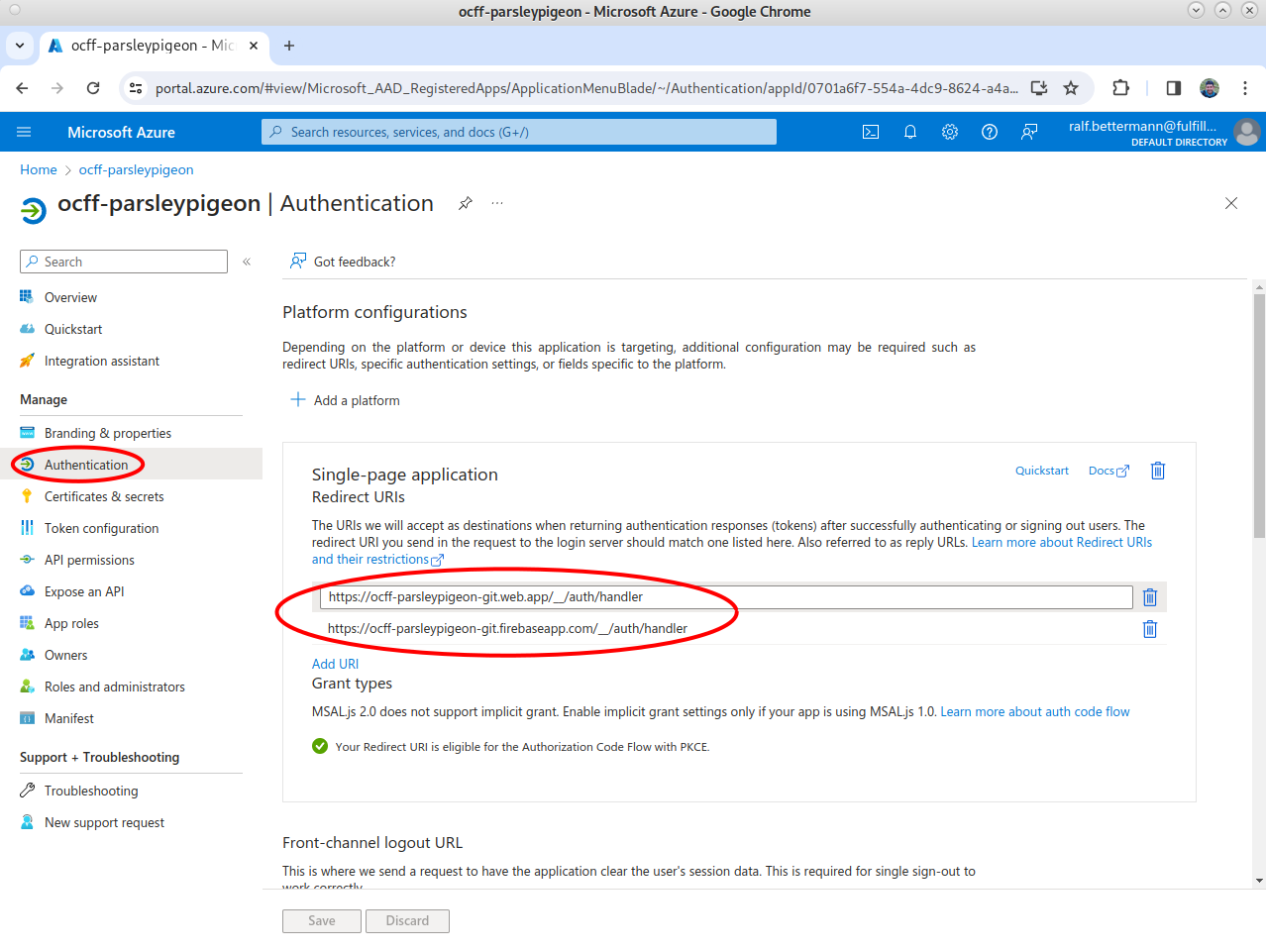
Select **Authentication** in the left-hand navigation, then select **Add URI**, and input a second URI. This has to follow the pattern: `https://ocff-{YOUR_PROJECT_ID}-{pre|prd}.web.app/__/auth/handler`. For example, `https://ocff-myproject-prd.web.app/__/auth/handler`.
Select **Add URI** again, and input a third URI. This has to follow the pattern: `https://pick-{YOUR_PROJECT_ID}-{pre|prd}.web.app/__/auth/handler`. For example, `https://pick-myproject-prd.web.app/__/auth/handler`.
Then, click **Save**.
{% endstep %}
{% step %}
**Copy the Directory and Application IDs**
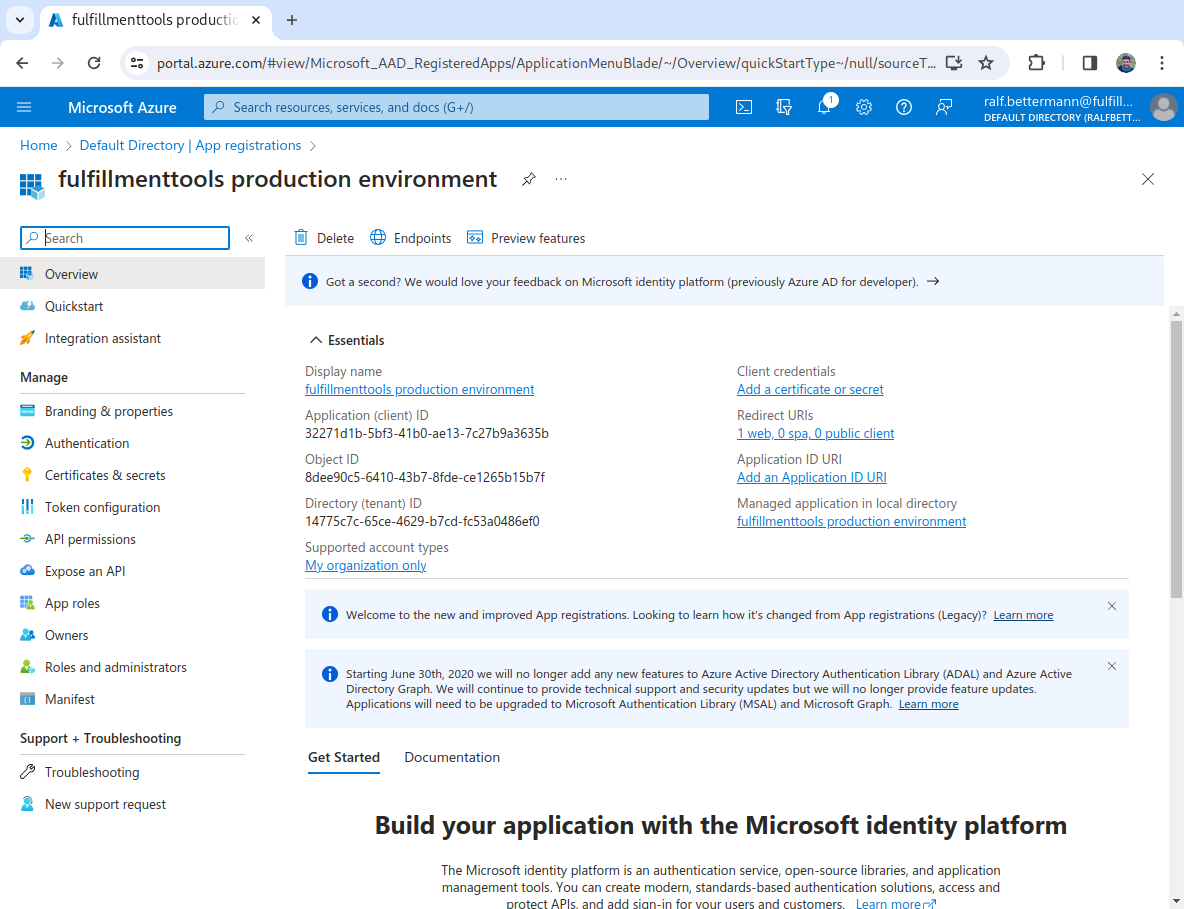
The OAuth application was successfully created. You'll be shown a landing page with the general information about the set up. You need to copy the **Directory (tenant) ID** and the **Application (client) ID**. These needs to be supplied to fulfillmenttools via API (we'll go through this in a later step).
{% endstep %}
{% step %}
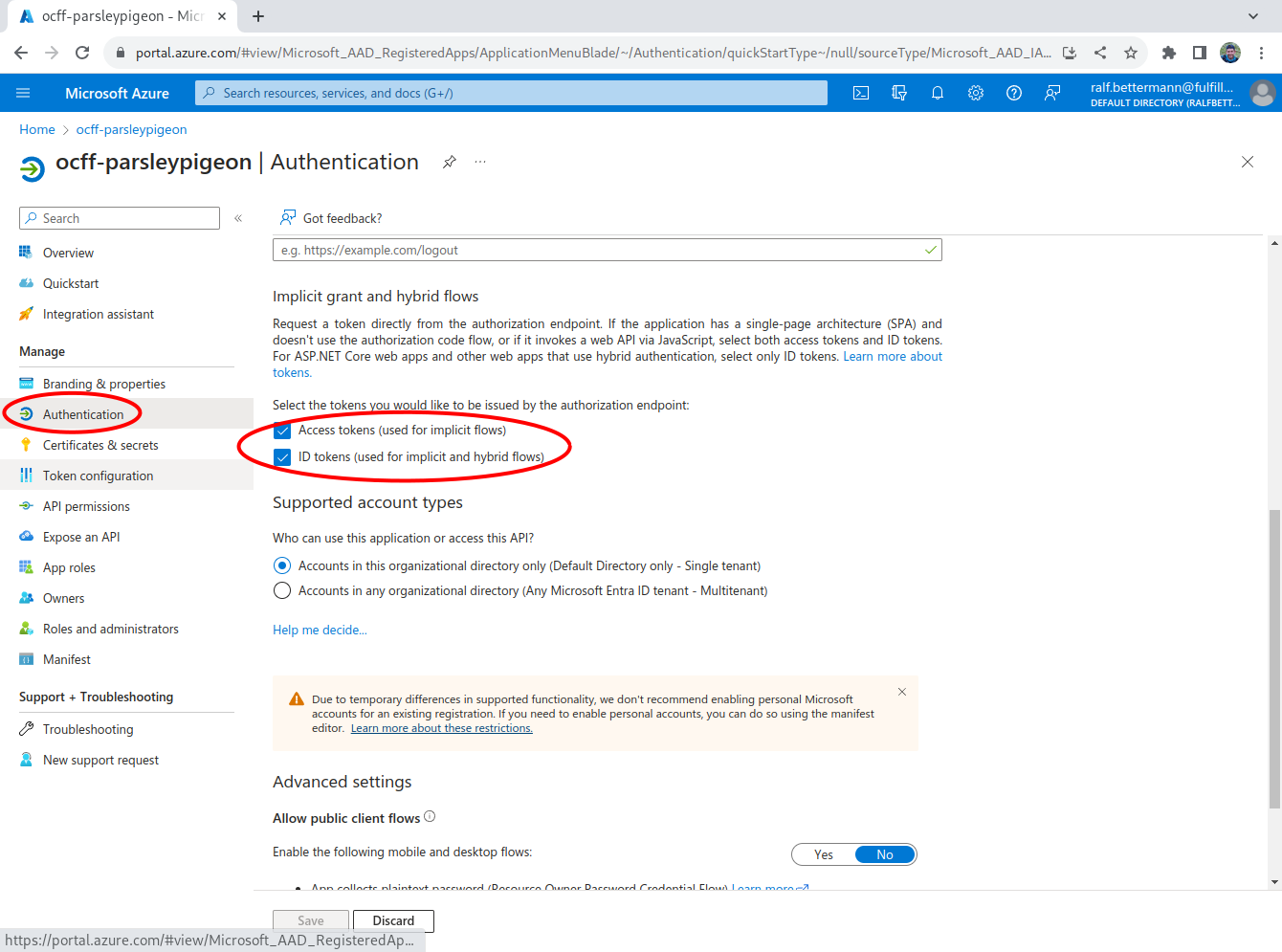
**Activate the ID and access tokens**
Select **Authentication** in the left-hand navigation, scroll down the page, and check the check boxes for **Access tokens** and **ID tokens**. Then, click **Save**.
{% endstep %}
{% endstepper %}
Now we have everything set up for the main connection, we can create the app roles.
## **Create app roles**
We need to create app roles that correspond to the fulfillmenttools roles. To do this, follow the steps below.
{% stepper %}
{% step %}
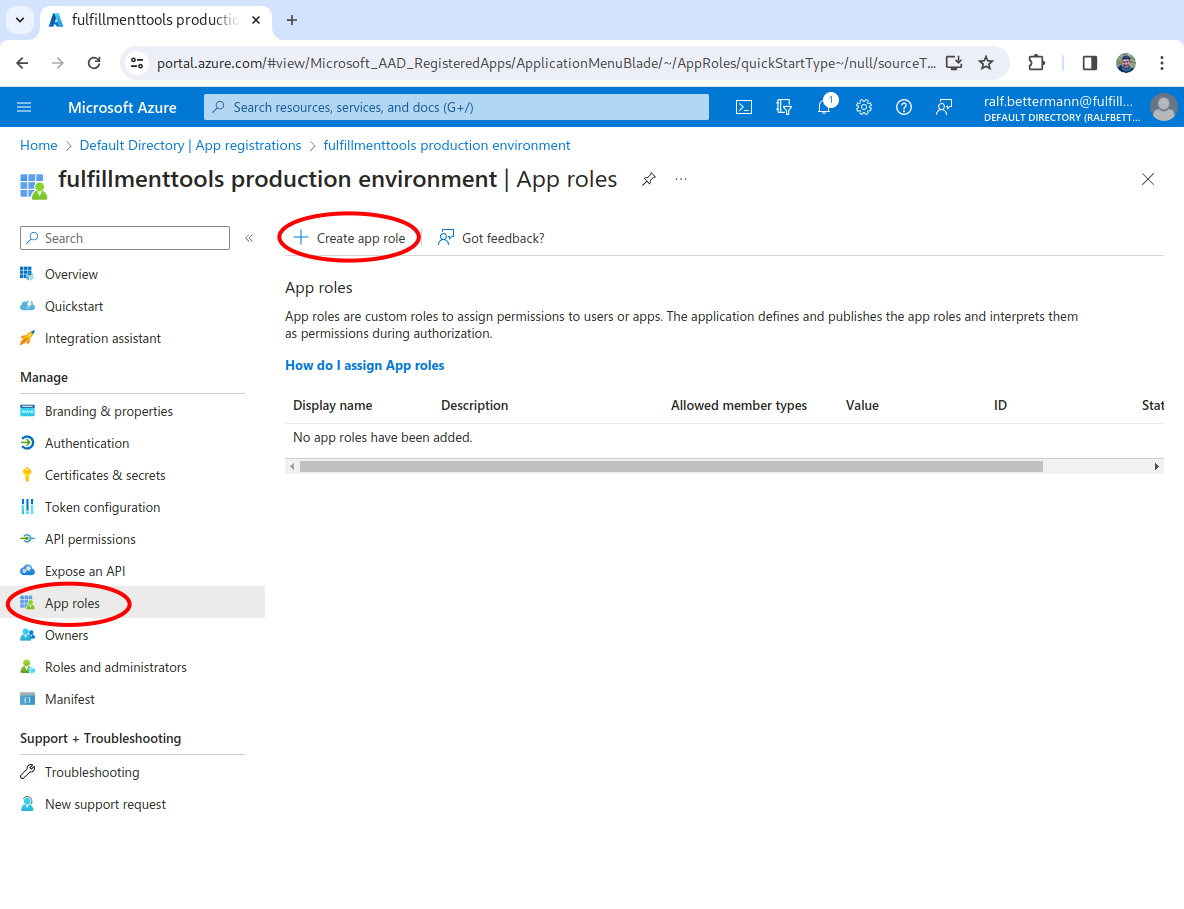
**Start the creation process**
In the left-hand navigation, select **App roles**. Then, click the **Create app role** button.
{% endstep %}
{% step %}
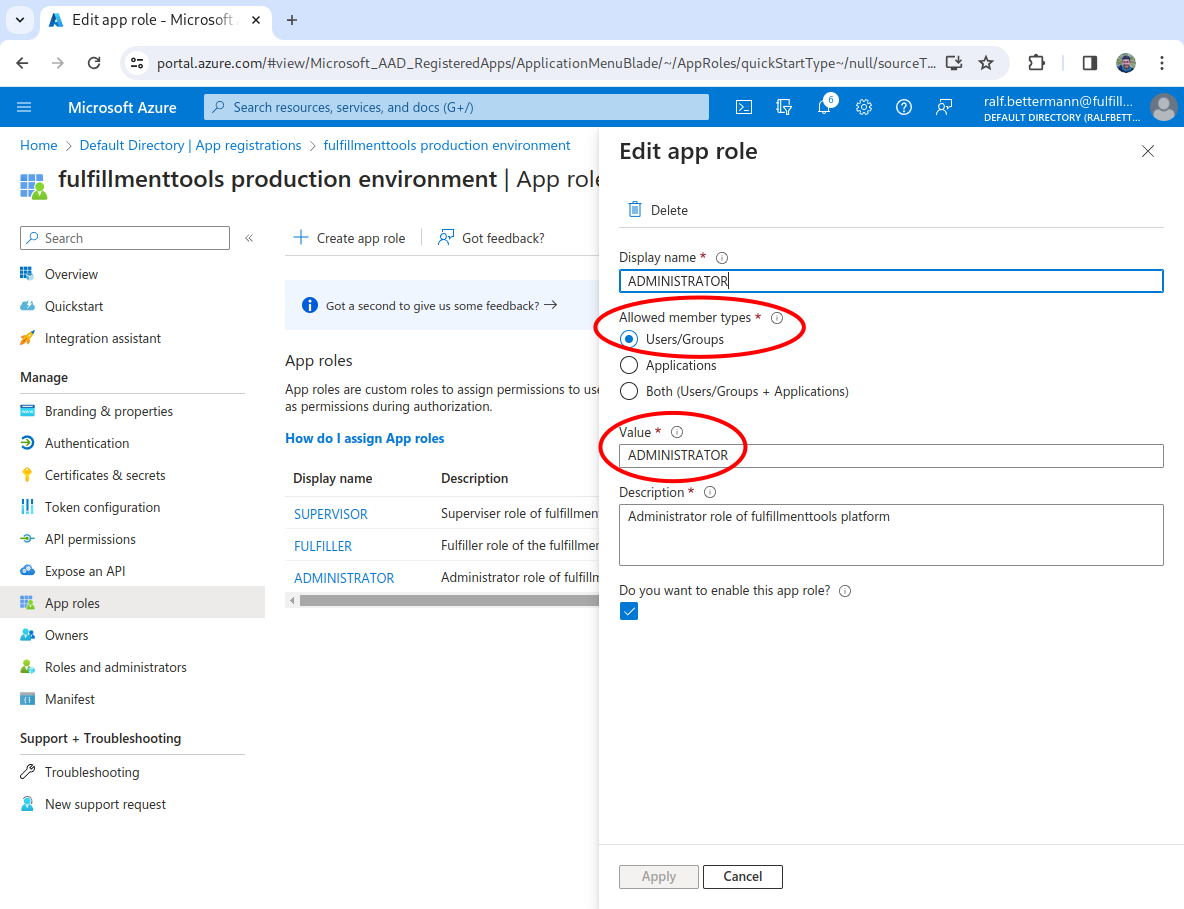
**Create the default fulfillmenttools roles**
Input the **Display name** of `ADMINISTRATOR`, select **Users/Groups** as the **Allowed member types**, input a **Value** of `ADMINISTRATOR`, input a **Description** of `Administrator role for fulfillmenttools`, check the **Do you want to enable this app role?** check box, then click **Save**.
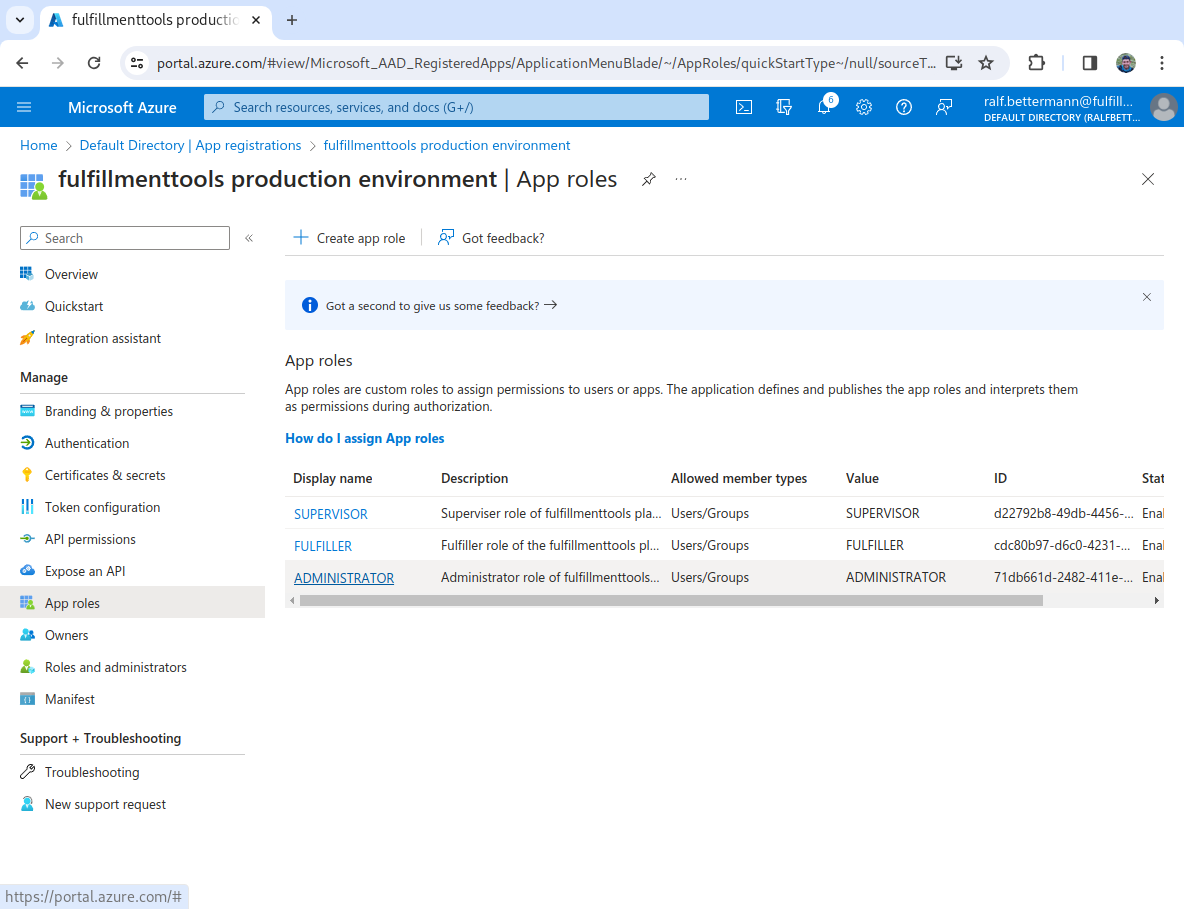
Repeat this for `SUPERVISOR` and `FULFILLER`.
Afterward, the app roles should look similar to this:
{% endstep %}
{% endstepper %}
{% hint style="info" %}
If you're using [custom roles](/documentation/backoffice/network-view/users-roles-and-permissions.md#custom-roles), you'll also need to create these.
{% endhint %}
Now we've created the roles, we can assign users or groups to the roles.
## **Linking app roles to users/groups**
{% hint style="info" %}
The official documentation can be found in the [Assign users and groups to roles](https://learn.microsoft.com/en-us/entra/identity-platform/howto-add-app-roles-in-apps#assign-users-and-groups-to-roles) article.
{% endhint %}
There are two options to assign roles, either add individual users to roles or assign groups to roles.
{% stepper %}
{% step %}
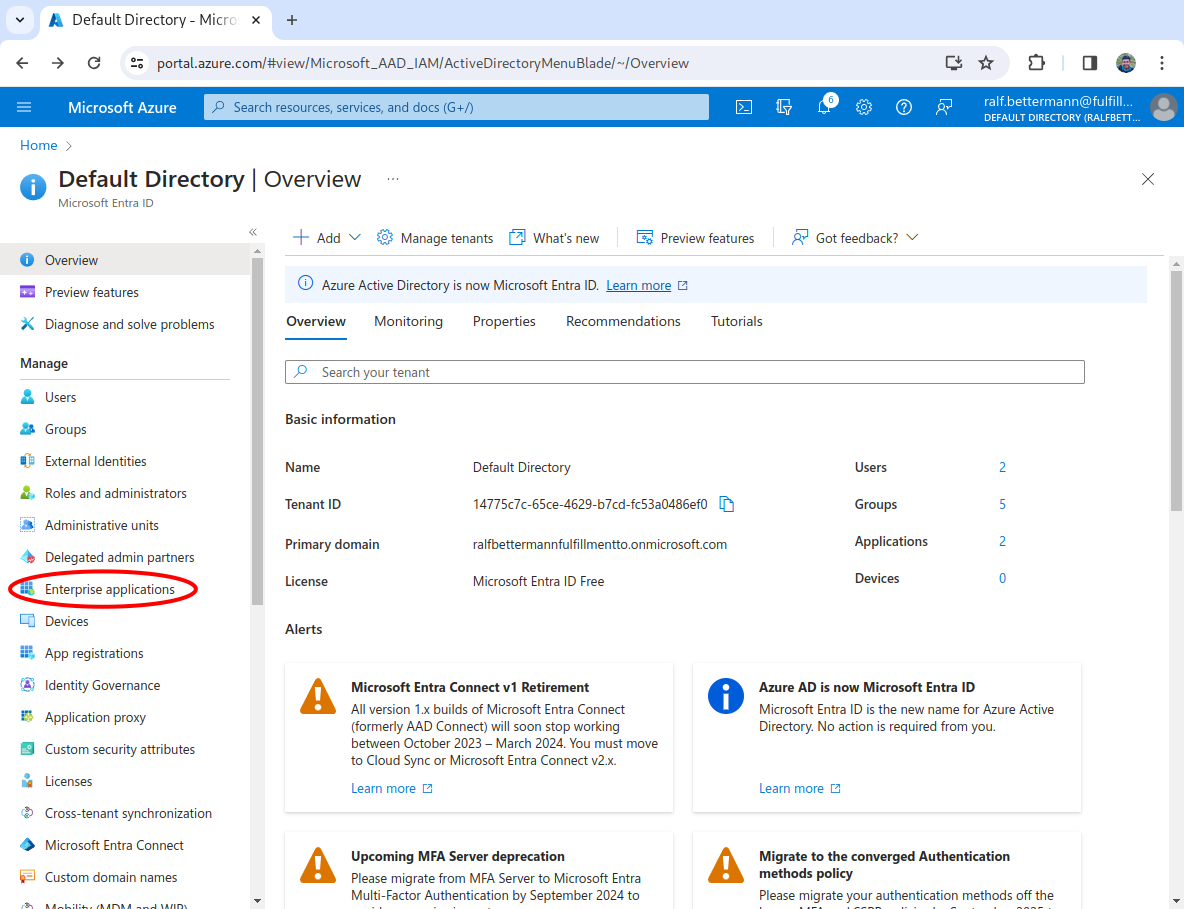
**Navigate to Enterprise applications**
From the landing page of the application, select **Enterprise applications** from the left-hand navigation.
{% endstep %}
{% step %}
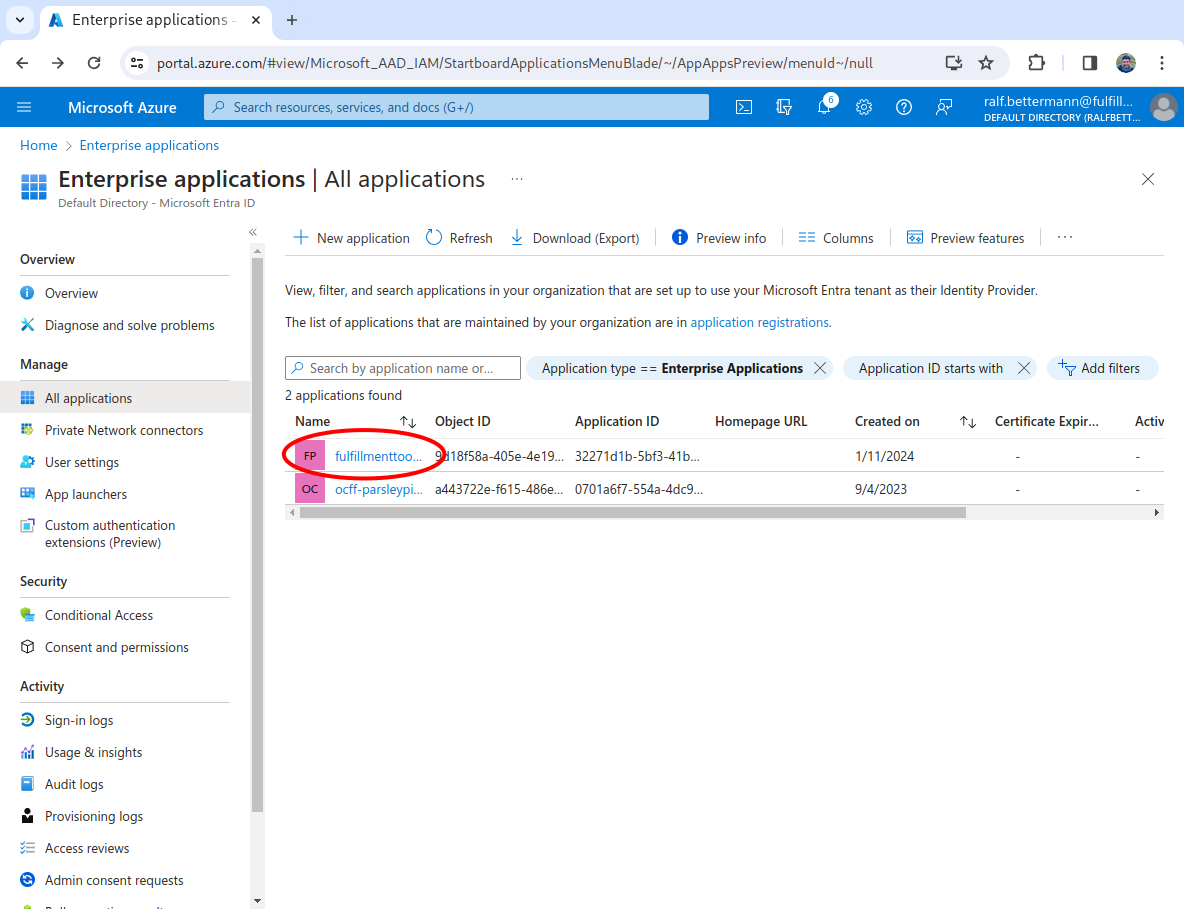
**Select the app created earlier**
From the application list, click on the appplication you created at the beginning of this article.
{% endstep %}
{% step %}
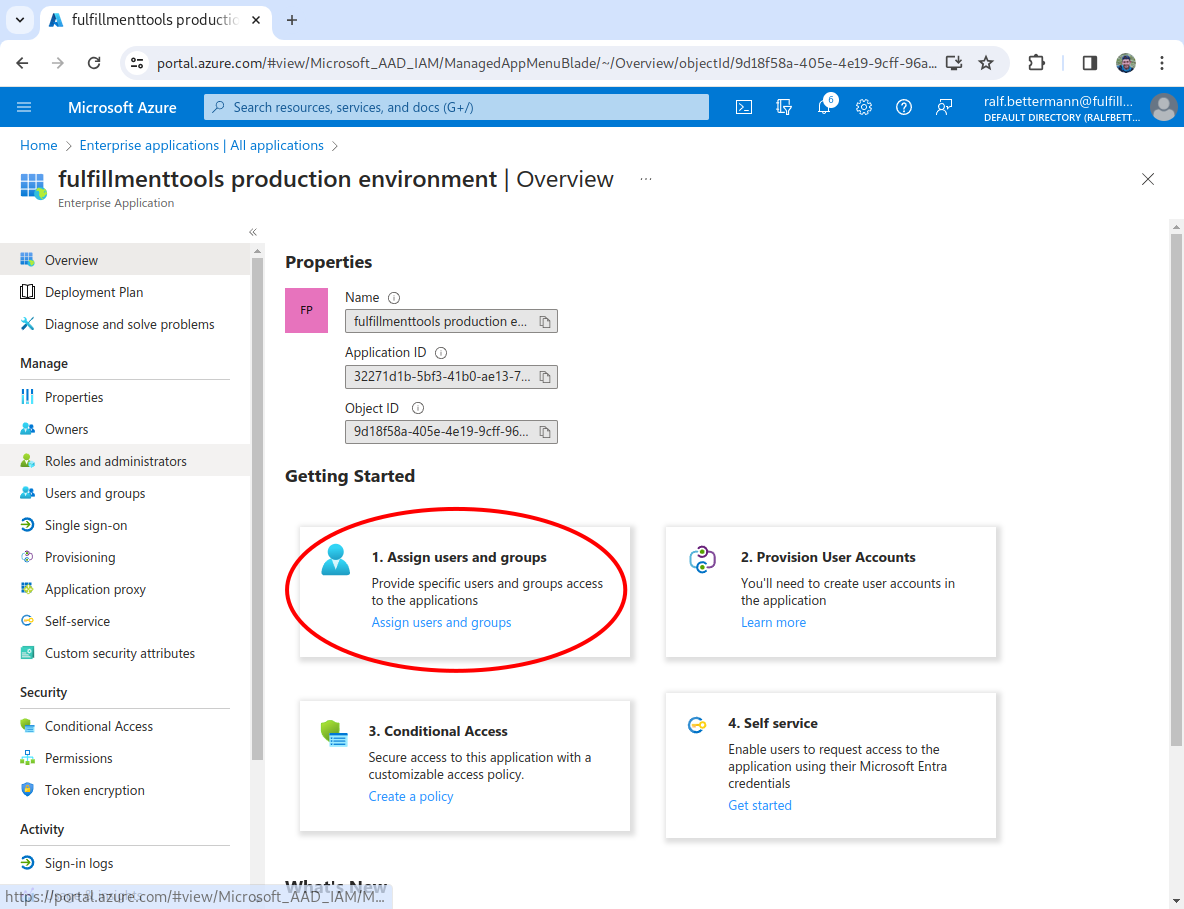
**Select Assign users**
In the **Getting started** section, select **1. Assign users and groups**.
{% endstep %}
{% step %}
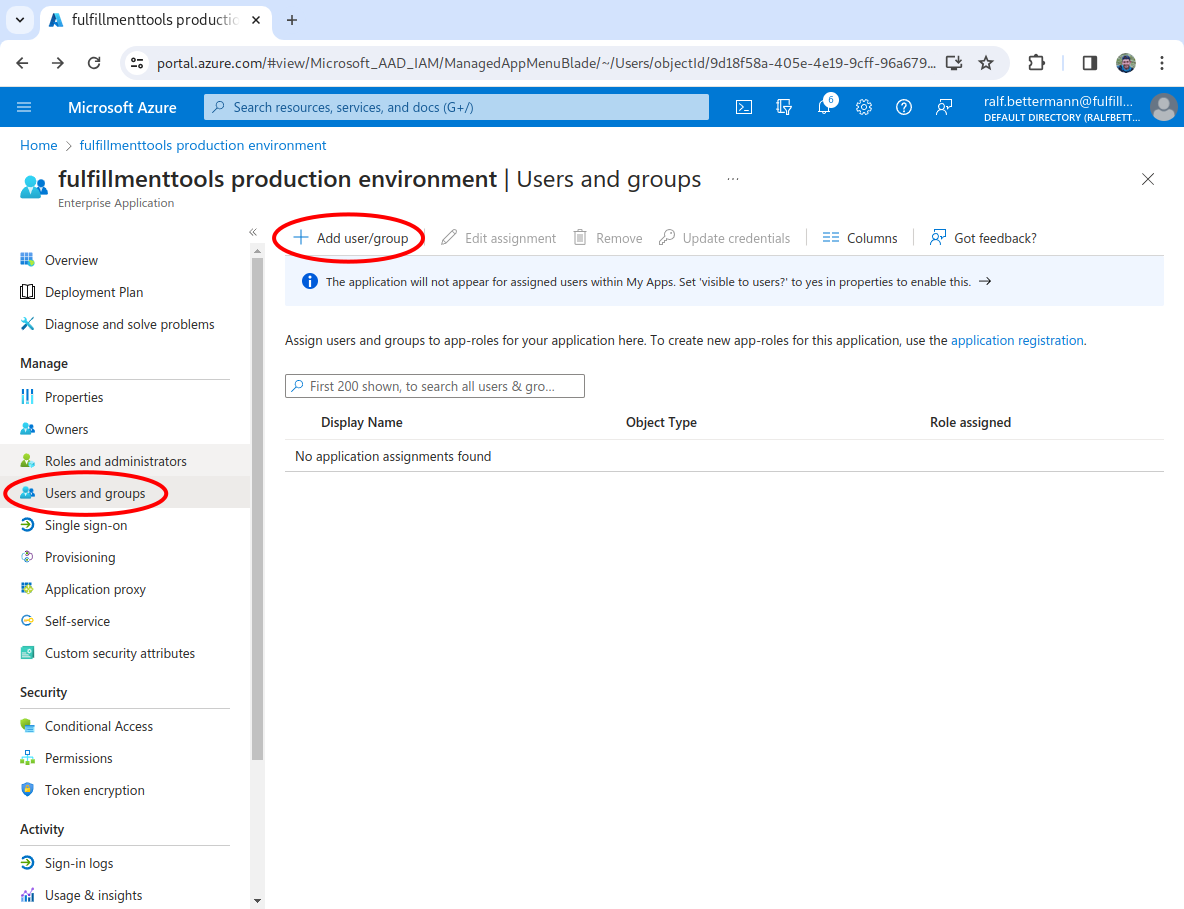
**Add users or groups**
Click the **Add user/group** button, then select a user, and assign a role to that user. You can also do this for user groups.
{% hint style="info" %}
In a production environment, always add users, and don't assign groups.
{% endhint %}
You can change a users role at any time.
{% hint style="warning" %}
Once a user's role has been changed, this won't take effect within fulfillmenttools clients until the user has logged out and logged in again.
{% endhint %}
{% endstep %}
{% endstepper %}
## **Adding (facility) groups to the token**
You can create an Entra ID group to align to a [facility group](/documentation/getting-started/facilities/facility-groups.md). Model the assigned facilities to a user using Entra ID groups.
{% stepper %}
{% step %}
**Create a token configuration**
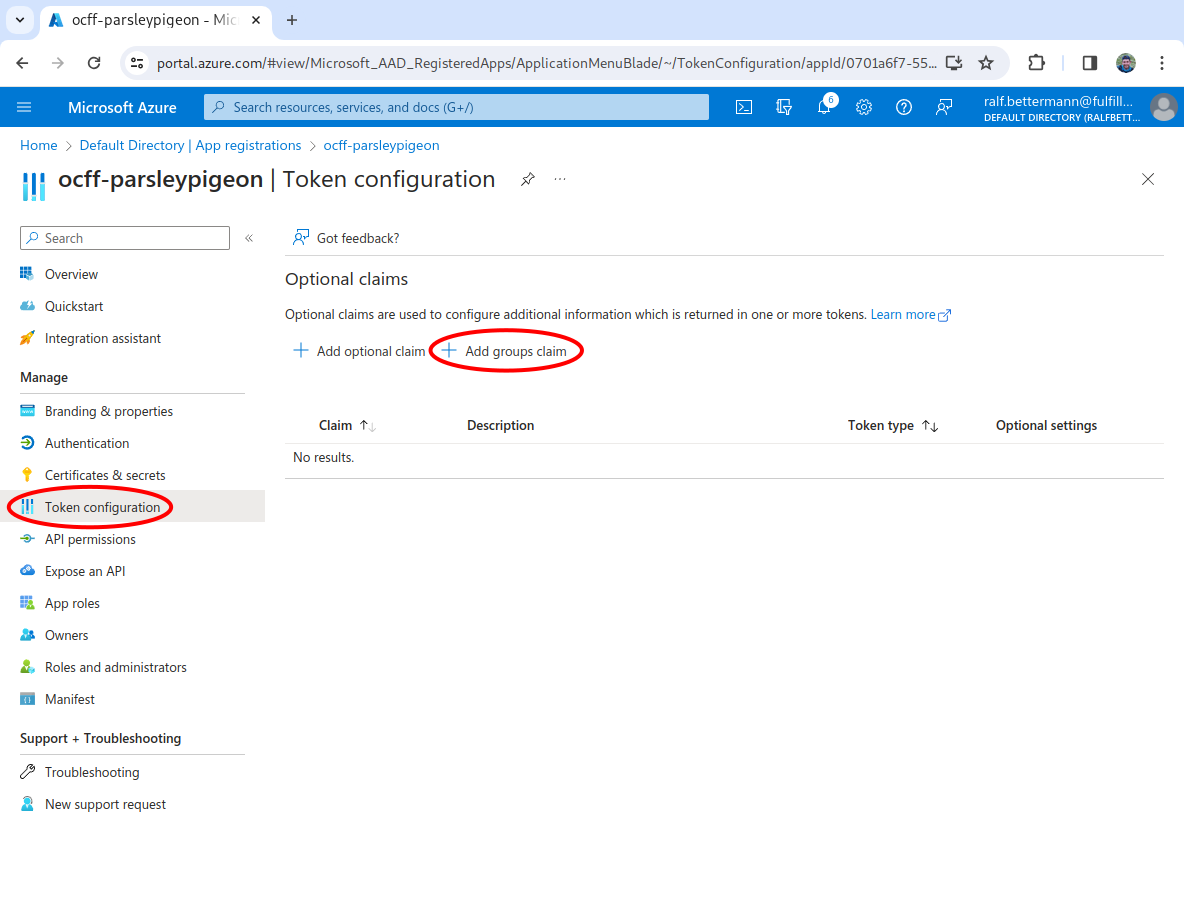
From the App registrations screen, select **Token configuration** from the left-hand navigation and then click the **Add groups claim** button.
{% endstep %}
{% step %}
**Add groups claim**
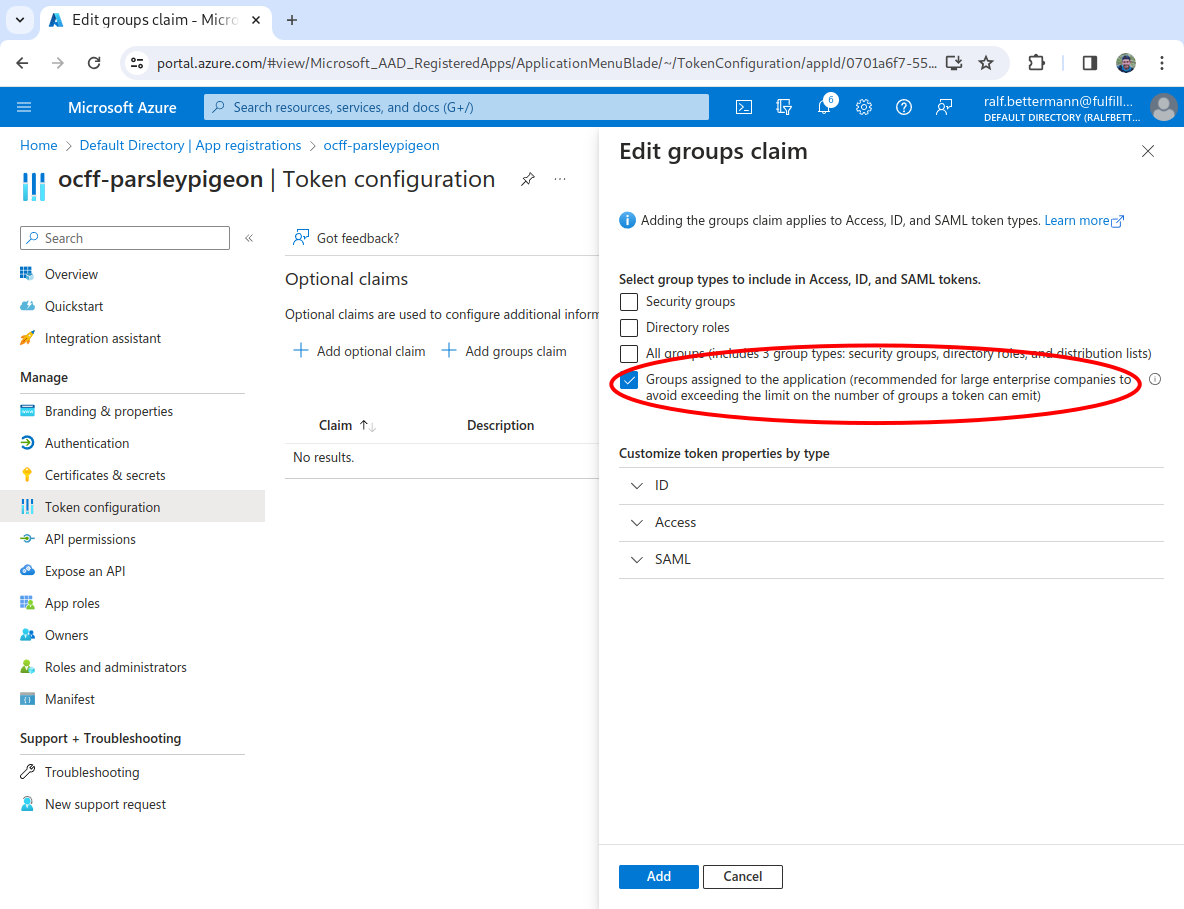
Click the check box next to Groups assigned to the application, then click the **Add** button.
To change the groups assigned to the application, select the application from the Enterprise applications list. Select **Users and Groups** and then **Add user/group**. Select the group(s) which should be added to the application from Users and Groups.
{% endstep %}
{% endstepper %}
## **Adding optional claims to the token**
You can also add optional claims to add user information like first name and last name into the token.
{% stepper %}
{% step %}
**Create a token configuration**
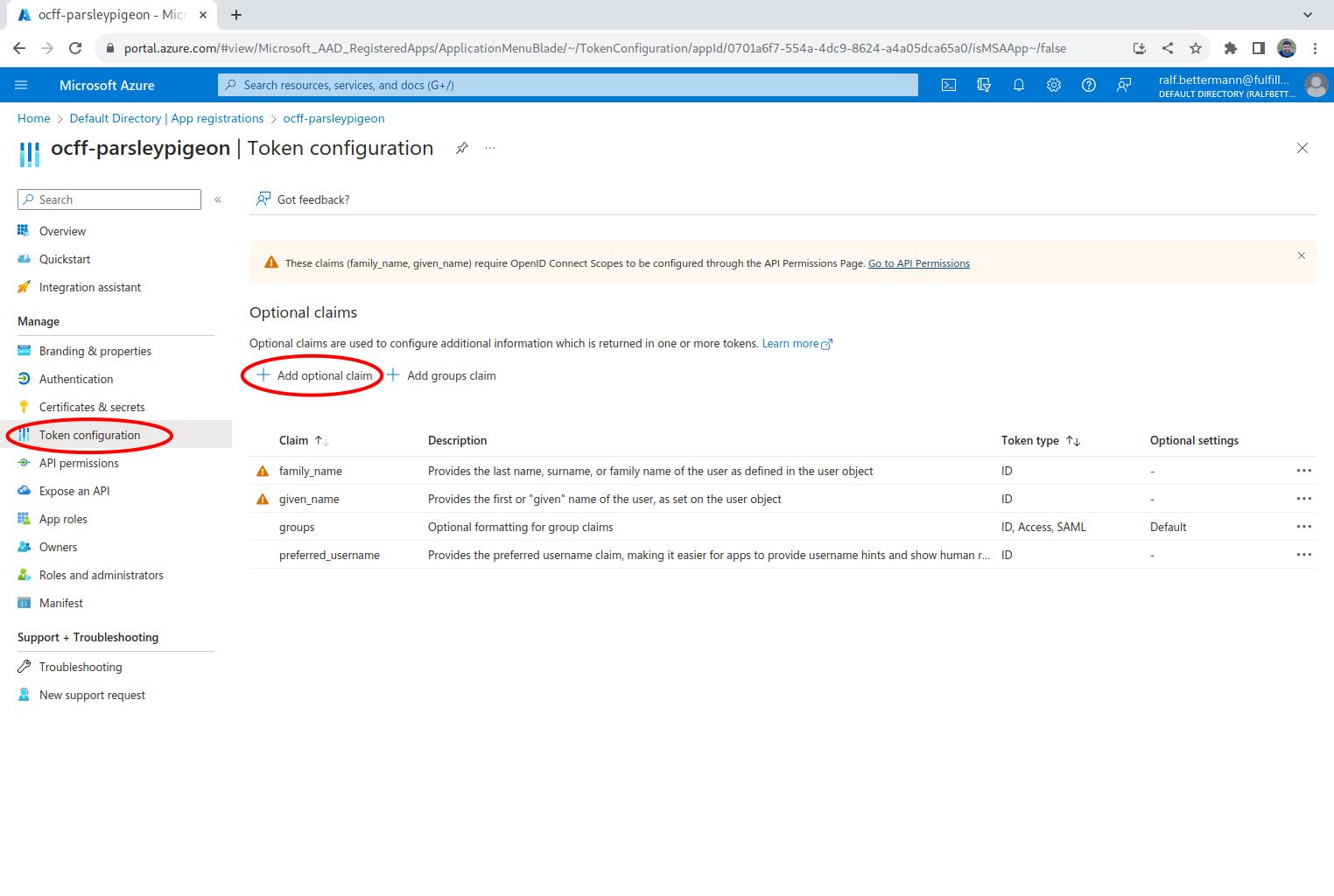
From the App registrations screen, select **Token configuration** from the left-hand navigation and then click the **Add optional claim** button.
{% endstep %}
{% step %}
**Select the relevant entities**
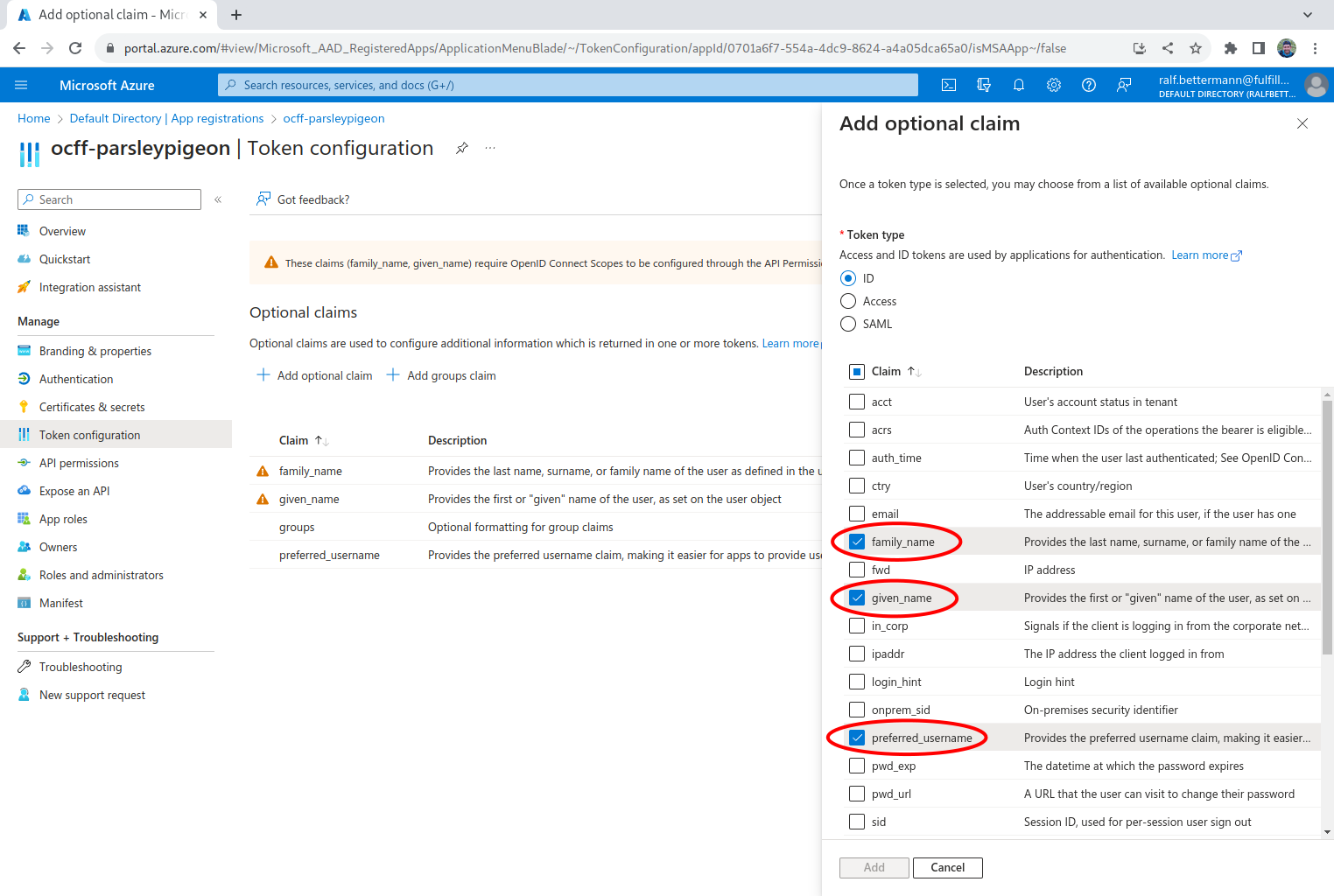
Using the checkboxes, check which entities you want to use, we suggest `family_name`, `given_name`, and `preferred_username`, then click the **Add** button.
{% endstep %}
{% endstepper %}
## **Create secret**
Finally, you need to create a secret which needs to be transferred to fulfillmenttools.
{% stepper %}
{% step %}
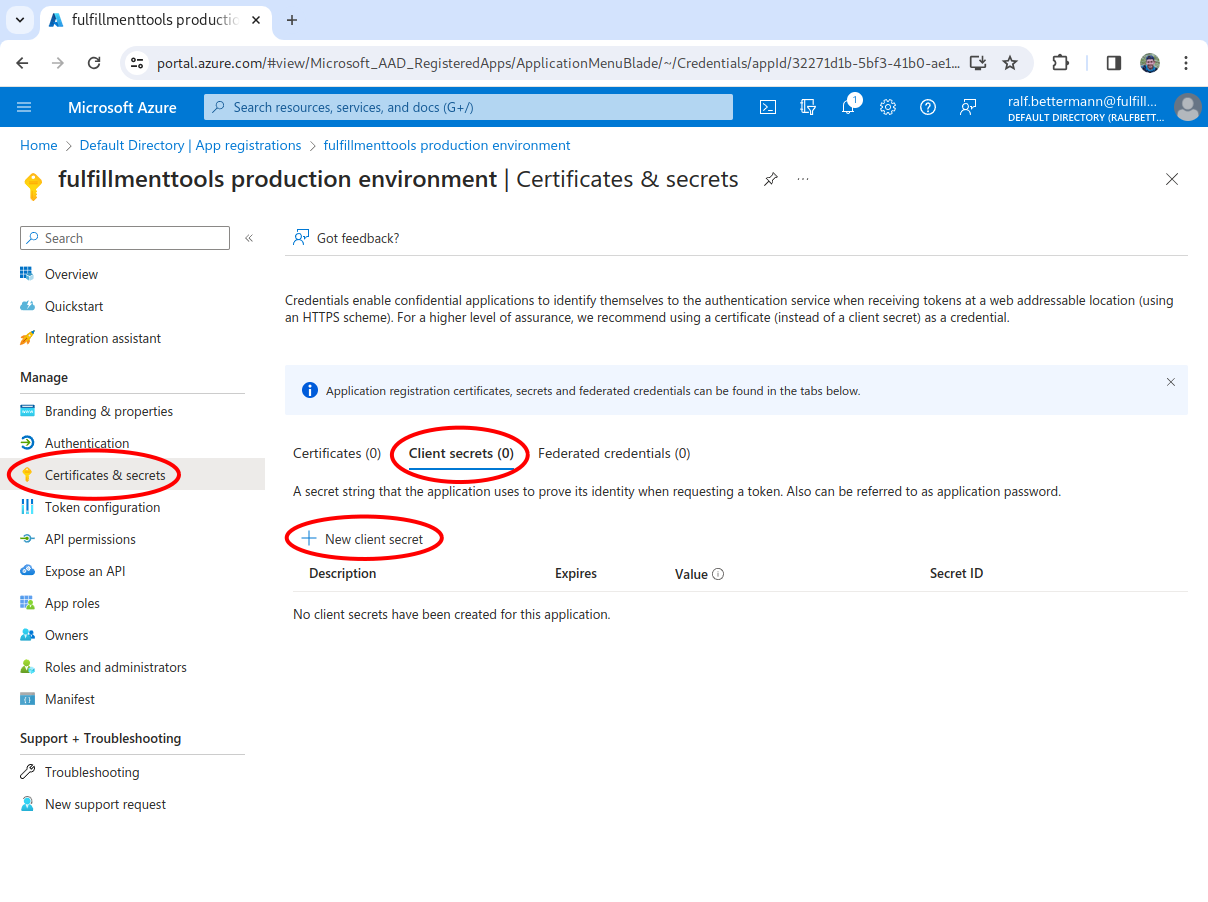
**Add a secret**
In the left-hand navigation, select **Certificates & secrets**, select the **Client secrets** tab, and then click the **New client secret** button.
{% endstep %}
{% step %}
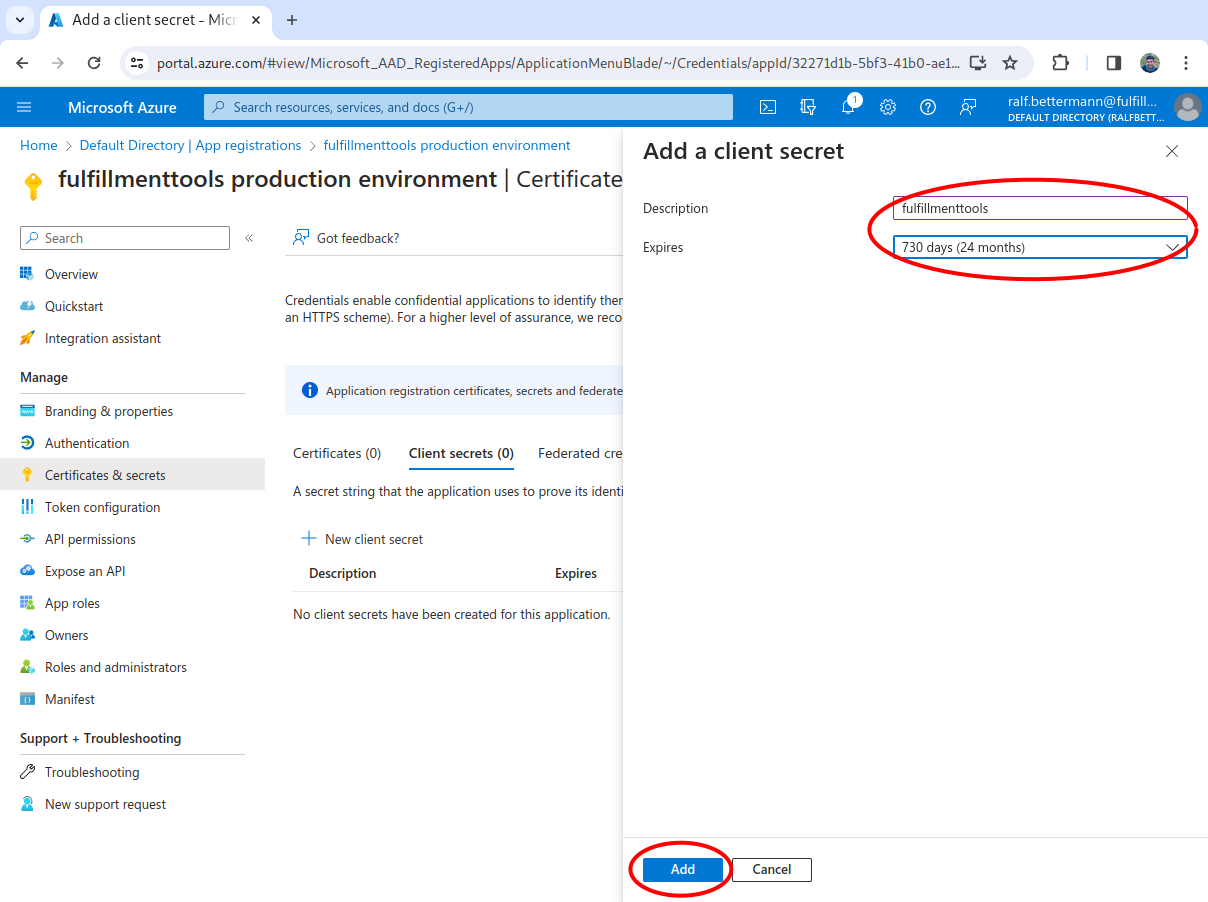
**Add a description**
Input a name as the **Description**, select an expiry time, and then click **Add**.
{% endstep %}
{% step %}
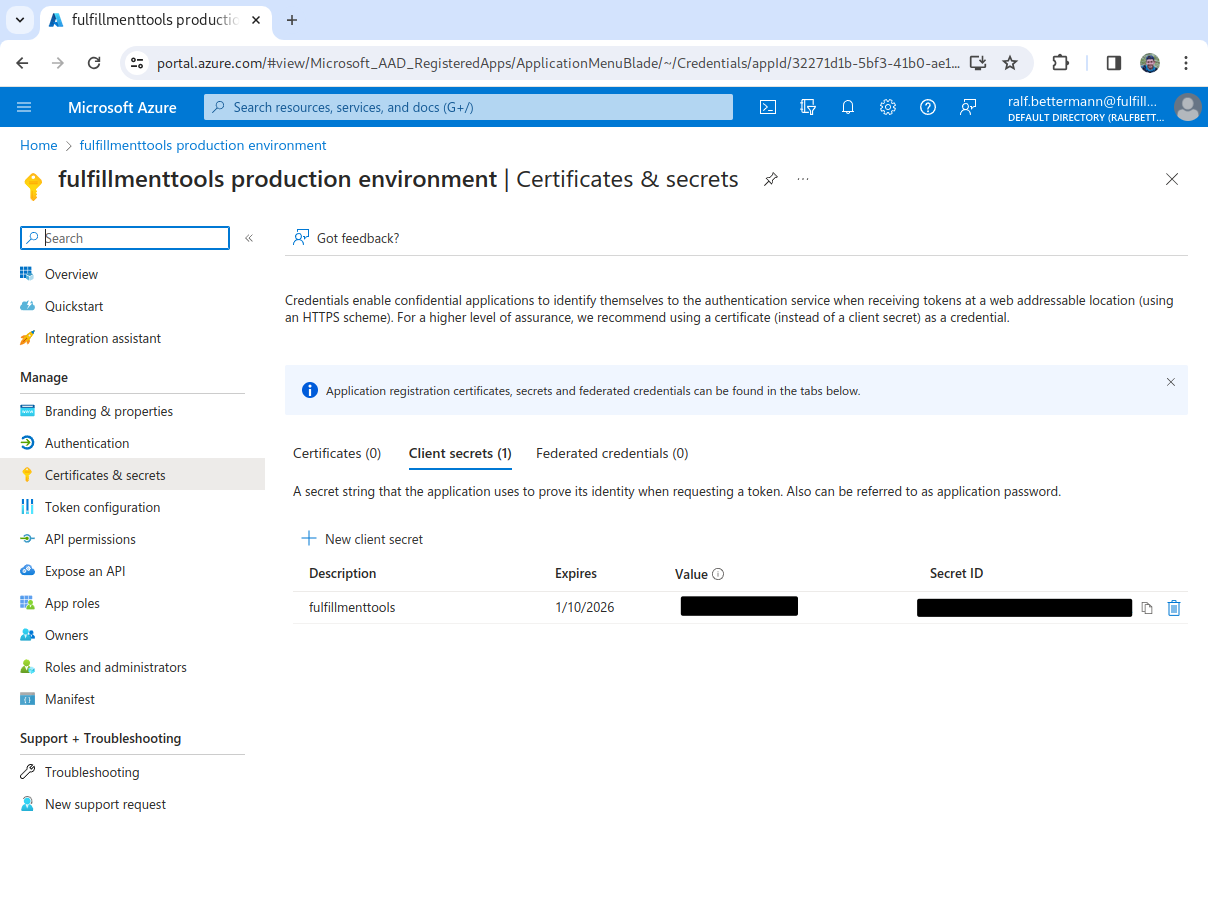
**Copy the secret values**
Copy the **Value** and the **Secret ID** and send them to fulfillmenttools.
{% endstep %}
{% endstepper %}
In summary following information is needed:
* `CLIENT_ID`
* This is the `Application (client) ID` of the Enterprise application in Entra (from step 4 in [Create app registration](#create-app-registration))
* `CLIENT_SECRET`
* This is the value of the secret created in the last step (from step 3 in [Create secret](#create-secret))
* `IDP_GROUP_ID`
* ID of the Entra group that should have access to one or more facilities (if you're using facily groups)
* `FACILITY_ID_1`, `FACILITY_ID_2`
* ID of the facilities in fulfillmenttools that this group should have access to
* `TENANT_ID`
* This is the `Directory (tenant) ID` of the Enterprise application in Entra (from step 4 in [Create app registration](#create-app-registration))
## Custom parameters for Microsoft Entra ID/Azure Active Directory
When using Microsoft Entra ID/Azure Active Directory IdP, add the following custom parameter to make sure that only users of the specific Microsoft Entra ID tenant can log in:
```json
{
...
"customParameters": [
{
"key": "tenant",
"value": "azure-tenant-id"
}
]
}
```
To register the OIDC provider to the fulfillmenttools platform, the following call needs to be utilized:
```http
POST https://{YOUR_TENANT_NAME}.api.fulfillmenttools.com/api/configurations/oidcproviders
```
```json
{
"name": "MS Entra",
"status": "ACTIVE",
"clientId": "{CLIENT_ID}",
"clientSecret": "{CLIENT_SECRET}",
"issuer": "https://sts.windows.net/{TENANT_ID}",
"customParameters": [
{
"key": "tenant",
"value": "azure-tenant-id"
}
],
"assignedGroups": [
{
"group": "{IDP_GROUP_ID}",
"facilityRefs": [
"{FACILITY_ID_1}",
"{FACILITY_ID_2}"
]
}
]
}
```
---
# Agent Instructions
This documentation is published with GitBook. GitBook is the documentation platform designed so that both humans and AI agents can read, navigate, and reason over technical content effectively. Learn more at gitbook.com.
## Querying This Documentation
If you need additional information that is not directly available in this page, you can query the documentation by asking a question.
Perform an HTTP GET request on the following URL with the `ask` and `goal` query parameters:
```
GET https://docs.fulfillmenttools.com/documentation/integrations/openid-connect/configure-microsoft-entra-id-azure-active-directory.md?ask=&goal=
```
`ask` is the immediate question: it should be specific, self-contained, and written in natural language.
`goal` is what the user is ultimately trying to achieve, the reason they need the answer. Sharing it helps GitBook give you a better, more relevant answer. A goal is most helpful when it describes the outcome the user wants rather than restating the question. For example, with `ask=how do I create an API token`, a goal like `automate deployments from our CI pipeline` lets GitBook tailor the answer to that use case.
The response will contain a direct answer to the question and relevant excerpts and sources from the documentation.
Use this mechanism when the answer is not explicitly present in the current page, you need clarification or additional context, or you want to retrieve related documentation sections.