> For the complete documentation index, see [llms.txt](https://docs.fulfillmenttools.com/documentation/llms.txt). Markdown versions of documentation pages are available by appending `.md` to page URLs; this page is available as [Markdown](https://docs.fulfillmenttools.com/documentation/by-pillar/store-operations/carrier-management/custom-carrier.md).
# Custom carrier
Custom carriers represent carriers that aren't natively supported by fulfillmenttools, but are connected by an external service or operative process.
You can create a custom carrier that's connected through an external service or operational process. This mechanism enables you to integrate:
* Local delivery partners (for example, bike couriers)
* Store operators who hand parcels to local drop-off points at flexible times
* Internal delivery fleets with independent routing systems and apps
This configuration is handled through the [Custom Carrier API](https://fulfillmenttools.github.io/fulfillmenttools-api-reference-ui/#post-/api/carriers). Each custom carrier requires a unique key that begins with `CUSTOM_` (for example, `CUSTOM_BOSSONBIKE`). This ensures uniqueness and simplifies operational identification. The key must be unique within the tenant. Reusing a key isn't allowed.
Custom carriers must be connected to facilities to be considered during routing and shipment creation.
## Multiple custom carriers
While it's not possible to have more than one provided carrier in fulfillmenttools, it's possible to configure multiple custom carriers. Since the carrier `key` is used for identification and so must be unique, a custom carrier must have the key starting with `CUSTOM_` followed by any appendix (for example, `CUSTOM_BOSSONBIKE`) to ease identification.
## Create custom carrier
In this section, we'll describe the end-to-end integration flow for custom carriers with external label creation and tracking updates, and how you can implement this. The flow applies to carriers that are configured with external label creation enabled.
{% hint style="success" %}
#### Prerequisites
* Access to fulfillmenttools API
* Valid API credentials and authentication token
* A `facilityId` where the carrier will be connected
* A custom carrier has been created with a key starting with `CUSTOM_`
* Webhook endpoint configured to receive `PARCEL_CARRIER_REQUESTED` events
* Integration layer capable of generating shipping labels and tracking information via the carrier system
{% endhint %}
Below is the visual representation of the custom carrier integration flow:
Once an order is created, the process begins. To set up an already created custom carrier to follow this flow, follow the steps below.
Operational processes and client-specific behavior aren't included in this article.
{% stepper %}
{% step %}
**Connect the custom carrier to the facility**
Use the endpoint below to connect the carrier to the facility.
```http
POST https://{YOUR_TENANT_NAME}.api.fulfillmenttools.com/api/facilities/{YOUR_FACILITY_ID}/carriers/{YOUR_CARRIER_ID}
```
{% tabs %}
{% tab title="Example request" %}
{% code title="Create a carrier facility connection " %}
```json
{
"status": "ACTIVE",
"configuration": {
"manualParcelHandlingActive": true
}
}
```
{% endcode %}
{% endtab %}
{% tab title="Example response" %}
```json
{
"carrierRef": "{CARRIER_ID}",
"facilityRef": "{FACILITY_ID}",
"status": "ACTIVE",
"configuration": {
"manualParcelHandlingActive": true
},
"version": 0
}
```
{% endtab %}
{% endtabs %}
After an order is processed and packed at the facility, a parcel is created in fulfillmenttools.\
If `manualParcelHandlingActive` is set to `true` for the facility carrier connection, the parcel is created with status `PROCESSING`, and the event `PARCEL_CARRIER_REQUESTED` is emitted. This event indicates that the integration layer is responsible for label creation.
If `manualParcelHandlingActive` is set to `false`, the parcel is created with status `DONE` without a label.
{% hint style="info" %}
`manualParcelHandlingActive` only exists for custom carriers. For native carriers, when creating a parcel, the parcel will always be set to status `PROCESSING` during the parcel handling process and the event `PARCEL_CARRIER_REQUESTED` is emitted.
{% endhint %}
The emitted event contains, among others:
* The parcel identifier
* Carrier reference and carrier key
* Delivery address information
* Parcel dimensions and item information
The `PARCEL_CARRIER_REQUESTED` event indicates that the integration layer must create labels and update the parcel.
{% endstep %}
{% step %}
**Receive parcel creation events for external label generation**
Based on the received parcel information, the integration layer creates the shipment in the carrier system.
The integration layer obtains the required label and tracking data from the carrier system and provides it to fulfillmenttools.
For the `ADD_LABELS_TO_PARCEL` action, the following data is required for `sendLabel`:
* File
* `content` as a base64-encoded PDF
* `type` with value PDF
* `type` either `SEND_LABEL` or `RETURN_LABEL`
* `trackingNumber`
* `trackingUrl` as a fully qualified URL
Optionally, the same structure can be provided for `returnLabel`. If required, a `customsDocument` can be provided as a base64-encoded PDF.
{% endstep %}
{% step %}
**Inject the shipping and return labels into parcels**
After the integration layer has generated the required label and tracking data, the parcel is updated using the `ADD_LABELS_TO_PARCEL` action.
As part of the label injection, an optional `tenantParcelId` can be provided to reference the parcel in external systems.
If the label injection is successful and `closeParcel` is set to `true`, the parcel is closed and becomes eligible for handover processing.
```http
POST https://{YOUR_TENANT_NAME}.api.fulfillmenttools.com/api/parcels/{YOUR_PARCEL_ID}/actions
```
{% tabs %}
{% tab title="Example request (shipping and return label, and optional customs document)" %}
```json
{
"version": 1,
"name": "ADD_LABELS_TO_PARCEL",
"tenantParcelId": "{tenantParcelId}", // a parcel ID that can be freely selected
"closeParcel": true,
"labels": [
{
"labelType": "SEND_LABEL",
"labelFile": {
"content": "{sendLabel}",
"type": "PDF"
},
"trackingNumber": "1b6da28d-5a48-40eb-9ad2-5307b58db10d",
"trackingUrl": "https://track.example.com/1b6da28d-5a48-40eb-9ad2-5307b58db10d"
},
{
"labelType": "RETURN_LABEL",
"labelFile": {
"content": "{returnLabel}",
"type": "PDF"
},
"trackingNumber": "7d7ea081-71ec-4f68-b010-7c1d5527a22c",
"trackingUrl": "https://track.example.com/7d7ea081-71ec-4f68-b010-7c1d5527a22c"
},
],
"customsDocument": {
"labelFile": {
"content": "{customsDoc}",
"type": "PDF"
}
}
}
```
{% endtab %}
{% tab title="Example response (simplified)" %}
```json
{
"id": "{PARCEL_ID}",
"version": 2,
"status": "DONE",
"result": {
// --- Send Label Data ---
// labels[type = SEND_LABEL].trackingNumber
"carrierTrackingNumber": "1b6da28d-5a48-40eb-9ad2-5307b58db10d"
// labels[type = SEND_LABEL].trackingUrl
"trackingUrl": "https://track.example.com/1b6da28d-5a48-40eb-9ad2-5307b58db10d"
// Uploaded label
"sendLabelUrl": "/api/parcels/{PARCEL_ID}/labels/send.pdf"
// --- Return Label Data ---
// labels[type = RETURN_LABEL].trackingNumber
"returnLabelId": "7d7ea081-71ec-4f68-b010-7c1d5527a22c"
// labels[type = RETURN_LABEL].trackingUrl
"returnTrackingUrl": "https://track.example.com/7d7ea081-71ec-4f68-b010-7c1d5527a22c"
// Uploaded label
"returnLabelUrl": "/api/parcels/{PARCEL_ID}/labels/return.pdf"
// --- Customs Document Data ---
// Uploaded label
"customsDocumentUrl": "/api/parcels/{PARCEL_ID}/labels/customs.pdf"
}
}
```
{% hint style="warning" %}
This functionality is currently a work in progress. The **parcel response payload** might be extended in the future. Integrations that persist data from the response should be prepared to adjust their connector logic accordingly.
{% endhint %}
{% endtab %}
{% endtabs %}
We also recommend adding error handling at this stage using the same endpoint.
If label creation fails in the integration layer, the `ADD_LABELS_TO_PARCEL` action can be used to persist the error state. Error information is provided per label via `sendLabel` and `returnLabel`, using `errorDescription` and an optional `errorCode`. This allows fulfillmenttools to reflect the error state without attaching label content.
{% tabs %}
{% tab title="Example request (error case)" %}
```json
{
"version": 1,
"name": "ADD_LABELS_TO_PARCEL",
"labels": [
{
"type": "SEND_LABEL",
"errorDescription": "Human-readable send error description",
"errorCode": "Optional send error code"
},
{
"type": "RETURN_LABEL",
"errorDescription": "Human-readable return error description",
"errorCode": "Optional return error code"
}
],
}
```
{% endtab %}
{% tab title="Example response (simplified)" %}
```json
{
"id": "{PARCEL_ID}",
"version": 2,
"status": "FAILED",
// currently, api will change in the future
"result": {
// Consolidated Error code from the call
"summary": "Label Error: 'Human readable send error description (Code: Optional send error code), Label Error: 'Human readable return error description (Code: Optional return error code)'"
}
}
```
{% hint style="warning" %}
This functionality is currently a work in progress. The parcel response payload may be extended in the future. Integrations that persist data from the response should be prepared to adjust their connector logic accordingly.
{% endhint %}
{% endtab %}
{% endtabs %}
{% endstep %}
{% step %}
**Update tracking data during the shipment lifecycle**
After labels have been attached, tracking data can be updated during the shipment lifecycle.
Tracking updates are applied using the `UPDATE_TRACKING_DATA` action. The action supports updates for `SEND_LABEL` and `RETURN_LABEL` independently.
Each update can include status, an optional `carrierStatus`, and `trackingNumber`. Multiple updates can be applied over time to reflect shipment progress until the parcel reaches the end customer.
Tracking data updates can reference a parcel either by its `parcelID` or by a `tenantParcelId`. Both options use the same parcel actions endpoint. The distinction is made via the URL, while the request body and response remain unchanged.
{% code title="Parcel ID endpoint" %}
```http
POST https://{YOUR_TENANT_NAME}.api.fulfillmenttools.com/api/parcels/{YOUR_PARCEL_ID}/actions
```
{% endcode %}
{% code title="Tenant parcel ID endpoint" %}
```http
POST https://{YOUR_TENANT_NAME}.api.fulfillmenttools.com/api/parcels/urn:fft:parcel:tenantParcelId:{YOUR_TENANT_PARCEL_ID}/actions
```
{% endcode %}
{% tabs %}
{% tab title="Example request" %}
```json
{
"version": 2,
"name": "UPDATE_TRACKING_DATA",
"trackingData": [
{
"type": "SEND_LABEL",
"status": "PICKED_UP",
"carrierStatus": "Optional free text",
"trackingNumber": "74224272-962b-467d-b44a-07a85ff9479c"
}
]
}
```
{% endtab %}
{% tab title="Example response (simplified)" %}
```json
{
"id": "{PARCEL_ID}",
"version": 3,
"result": {
// mapped tracking status after update
"trackingStatus": "delivered"
}
}
```
{% hint style="warning" %}
This functionality is currently a work in progress. The parcel response payload may be extended in the future. Integrations that persist data from the response should be prepared to adjust their connector logic accordingly.
{% endhint %}
{% endtab %}
{% endtabs %}
{% endstep %}
{% endstepper %}
## Use case: Headless carrier connection
A custom carrier enables a proprietary carrier integration with fulfillmenttools. This tutorial showcases a possible solution for integrating an unsupported carrier, detailing the required processes and clients.
The integration model allows for a headless connection by using fulfillmenttools [eventing](/documentation/getting-started/eventing.md) and [API](/documentation/apis/api-reference.md) interactions. This enables an external service, implemented and operated by a partner or customer, to manage the complexities of requesting a shipping label from an arbitrary carrier.
The following diagram and explanation describe the overall approach.
1. **Subscribe to a fulfillmenttools event.** The process is triggered by an event subscription. The specific event chosen depends on the customer's process, but a logical trigger would be an event that occurs after packing is complete, such as `PACK_JOB_CREATED`. fulfillmenttools sends this event to the external service that handles the label request from the Carrier API.
2. **The external service gathers data and makes decisions.** The external service receives the event and uses its payload to make decisions, such as selecting the exact carrier or carrier product, determining the necessary insurance value, and so on. This data can be sourced from other services, a database, or fetched from fulfillmenttools via its API.
3. **Request a label from the Carrier API.** Similar to the native fulfillmenttools mechanism, the external service uses the gathered data to request a label and negotiate a pickup with the carrier. The service receives the label and other data (for example, pickup dates, transit times) from the carrier.
4. **Store the carrier label and data in fulfillmenttools.** Once the label, track-and-trace information, and any additional data are received, the external service uploads this data to fulfillmenttools for seamless process integration. For example, the label is uploaded to `documentsets`, and the track-and-trace data is stored as a result on the `parcel` entity.
5. **Set handover states based on track-and-trace data.** fulfillmenttools can set the handover status of shipped parcels to handed over. The external service can perform this action by connecting to the carrier's track-and-trace API and deciding when to set the `handoverJob` status in fulfillmenttools to `HANDED_OVER`, according to the desired process.
### Proof of concept: Connecting Uber Direct
As a proof of concept, this section demonstrates how to connect the carrier Uber Direct to fulfillmenttools. We'll create an external service, the `Uber Connector Service`, to manage the integration.
This example uses Uber Direct due to its straightforward technical connection. It can be substituted with any other carrier. For this proof of concept, specific parameters are chosen, such as the trigger event, required data, and handover timing. This represents one of many possible implementation strategies. The approach can be adapted with different event triggers or more complex logic as needed.
In this example, the `Parcel` (with its label PDF) is automatically ordered when a `PackJob` is created for a given `Process`. The following diagram illustrates the components and events involved.
A sequence diagram showing the interaction between fulfillmenttools, the Uber Connector Service, and the Uber Direct API.
#### Necessary steps
The integration connects to Uber Direct as the carrier, which offers a simple API for requesting pickups and deliveries.
The external service is hosted within a **Google Cloud Project** as a **Cloud Run** service, which scales to zero and responds to HTTP requests from a fulfillmenttools subscription.
#### Prepare the service infrastructure
This proof of concept is written in Kotlin. To create a running service, refer to the official [Google Cloud documentation](https://cloud.google.com/run/docs/quickstarts/build-and-deploy/deploy-kotlin-service) for deploying a Kotlin service to Cloud Run.
{% hint style="info" %}
**Platform Independence**
The choice of hosting platform (e.g., GCP, Azure, AWS, on-premise) is irrelevant from an architectural standpoint. Any platform capable of hosting and operating the service may be used.
{% endhint %}
After completing this step, a live Cloud Run service is deployed and reachable via the internet without authentication on its endpoints.
{% hint style="danger" %}
**Production security**
This proof of concept omits security measures for simplicity. A production-ready service must implement robust authentication and authorization mechanisms to protect its endpoints.
{% endhint %}
{% stepper %}
{% step %}
**Create the custom carrier**
Use the below endpoint to create a carrier with the request information.
{% tabs %}
{% tab title="Endpoint" %}
```http
POST https://{YOUR_TENANT_NAME}.api.fulfillmenttools.com/api/carriers
```
{% endtab %}
{% tab title="Request" %}
```json
{
"key": "CUSTOM_UBER",
"name": "Uber Direct",
"status": "ACTIVE"
}
```
{% endtab %}
{% tab title="Response" %}
```json
{
"id": "26de36d7-883d-456a-91ef-ed9526cd5835",
"key": "CUSTOM_UBER",
"name": "Uber Direct",
"status": "ACTIVE",
...
}
```
{% endtab %}
{% endtabs %}
{% endstep %}
{% step %}
**Connect the carrier to the facility**
{% tabs %}
{% tab title="Endpoint" %}
```http
POST https://{YOUR_TENANT_NAME}.api.fulfillmenttools.com/api/facilities/{YOUR_FACILITY_ID}/carriers/{YOUR_CARRIER_ID}
```
This request requires the `id` of the previously created carrier and the `id` of the target facility.
{% endtab %}
{% tab title="Request" %}
A custom carrier `name` and `key` must start with `CUSTOM_`.
```json
{
"status": "ACTIVE",
"name": "CUSTOM_UBER",
"configuration": {
"key": "CUSTOM_UBER"
}
}
```
{% endtab %}
{% tab title="Response" %}
```json
{
"id": "",
"version": 1,
"name": "CUSTOM_UBER",
"status": "ACTIVE",
"carrierRef": "",
"key": "CUSTOM_UBER",
"deliveryType": "DELIVERY",
"facilityRef": "",
"configuration": {
"key": "CUSTOM_UBER"
},
...
}
```
{% endtab %}
{% endtabs %}
{% endstep %}
{% step %}
**Implement the carrier connector service**
The service is designed as a standalone application that does not require a database or other external components besides its container engine. This requires making practical decisions about which event to use and how much processing to perform during the event handling.
The created service is now extended with the following functionality. Only subsets of the implementation are described here.
{% endstep %}
{% step %}
**Implement functionality for the Uber Direct API**
An Uber account with access to the Uber Direct API is required. The following credentials must be obtained:
* A customer ID (`UBER_CUSTOMER_ID`)
* A valid Client ID (`UBER_CLIENT_ID`)
* A matching client secret (`UBER_CLIENT_SECRET`)
For simplicity, a new [Bearer Token for the Uber API](https://developer.uber.com/docs/deliveries/guides/authentication) (`UBER_TOKEN`, valid for 30 days) is generated via `curl` and provided as a configuration variable to the service. This call obtains the token:
```bash
> curl --location 'https://login.uber.com/oauth/v2/token' \
--form 'client_id="UBER_CLIENT_ID"' \
--form 'client_secret="UBER_CLIENT_SECRET"' \
--form 'grant_type="client_credentials"' \
--form 'scope="eats.deliveries direct.organizations"'
< 200 OK
{
"access_token": "UBER_TOKEN",
"token_type": "Bearer",
"expires_in": 2592000,
"scope": "eats.deliveries direct.organizations"
}
```
Next, the service must implement a call to Uber for the [creation of a delivery ](https://developer.uber.com/docs/deliveries/api-reference/daas#tag/Quotes/paths/~1customers~1%7Bcustomer_id%7D~1delivery_quotes/post)(pickup at location A, drop-off at location B). To accomplish this, a new Uber API object and the implementation for the delivery creation endpoint are created:
```kotlin
Apis.kt
class Api {
companion object Factory {
fun createUberApi():UberApi = Retrofit.Builder()
.addConverterFactory(GsonConverterFactory.create())
.baseUrl("https://api.uber.com/v1/customers/UBER_CUSTOMER_ID/")
.build().create(UberApi::class.java)
}
}
UberApi.kt
interface UberApi {
@Headers(
"Authorization: Bearer UBER_TOKEN",
)
@POST("deliveries")
fun createDelivery(@Body createDelivery: CreateDelivery): Call
}
```
In addition, model classes for the request and response bodies, a repository, and a service are implemented for better code structure and readability.
{% endstep %}
{% step %}
**Implement connections for the fulfillmenttools REST API**
Functionality is also required to interact with fulfillmenttools to create `parcels` and set results. The following endpoints are the most important ones:
```kotlin
FFTApi.kt
interface FFTApi {
@POST("shipments/{shipmentId}/parcels")
fun createParcel(@Path("shipmentId") shipmentId: String, @Body parcelForCreation: ParcelForCreation): Call
@GET("shipments")
fun getShipments(@Query("pickJobRef") pickJobId: String): Call
@PATCH("parcels/{parcelId}")
fun patchParcel(@Path("parcelId") parcelId: String, @Body parcelPatch: ParcelPatch): Call
@GET("handoverjobs")
fun getHandoverJobs(@Query("shipmentRef") shipmentRef: String): Call
@POST("documentsets/{documentSetId}/documents")
fun createDocument(@Path("documentSetId") documentSetId: String, @Body documentForCreation: DocumentForCreation): Call
...
}
```
In addition to creating a `parcel` in fulfillmenttools containing the result of the Uber delivery, the service also needs the ability to set the `HandoverJob` created in the process to `HANDED_OVER`:
```kotlin
interface FFTApi {
...
@PATCH("handoverjobs/{handoverJobId}")
fun patchHandoverJob(@Path("handoverJobId") handoverJobId: String, @Body handoverJobPatch: HandoverJobPatch): Call
}
```
{% endstep %}
{% step %}
**Provide endpoints for fulfillmenttools and Uber events**
With the functionality in place, the web endpoints can be defined to receive events from fulfillmenttools and Uber. An event from fulfillmenttools will trigger the creation of a delivery, while track-and-trace events from Uber will trigger further processing later in the flow.
```kotlin
@SpringBootApplication
@RestController
class Application {
private val fftService: FulfillmenttoolsService = FulfillmenttoolsService() //the service to connect to fulfillmenttools
private val uberService: UberService = UberService() //the service to connect to Uber direct
private val pdfService: PdfService = PdfService() //a service that is able to create a PDF as base64
/**
* Callback for fulfillmenttools when a packJob was created.
*/
@PostMapping("/requestPickupCallback")
suspend fun requestPickupCallback(@RequestBody packJobCreatedEvent: demo.fft.model.PackJobCreatedEvent) = run {
//Authenticate @ fulfillmenttools
if (!fftService.authenticate()) {
return@run
}
val shipments: List? = fftService.getShipmentsForPickjob(pickJobId = packJobCreatedEvent.payload.pickJobRef)
if (shipments.isNullOrEmpty()) {
logger.info { "No shipment found for Pickjob ${packJobCreatedEvent.payload.pickJobRef} - Aborting." }
return@run
}
val shipment: Shipment = shipments.first()
if (packJobCreatedEvent.event == "PACK_JOB_CREATED" &&
shipment.sourceAddress != null &&
shipment.targetAddress != null &&
shipment.sourceAddress.phoneNumbers.isNotEmpty() &&
shipment.targetAddress.phoneNumbers.isNotEmpty()
) {
logger.info { "Processing PACK_JOB_CREATED Event from fulfillmenttools..." }
val parcel: Parcel = fftService.createProcessingParcel(shipment) ?: return@run
val sourceAddress = shipment.sourceAddress
val targetAddress = shipment.targetAddress
//the UberService implementation puts shipment & parcelId to the created delivery at Uber for later use
val createdDelivery : CreatedDelivery? = uberService.createDelivery(
...
)
if (createdDelivery == null) {
logger.error { "Failed to create delivery." }
return@run
}
val labelBase64 = pdfService.createLabel(
...
)
if (parcel.documentsRef == null) {
logger.error { "No documentsRef found on Parcel." }
return@run
}
val document = fftService.uploadLabel(packJobCreatedEvent.payload.documentsRef,labelBase64)
if (document == null) {
logger.error { "No label could be created." }
return@run
}
fftService.setParcelToDone(parcel, createdDelivery, document.id)
} else {
logger.error { "Missing parameters in callback. Aborting." }
return@run
}
}
/**
* Called from Uber for delivery tracking updates
*/
@PostMapping("/deliveryStatusCallback")
suspend fun deliveryStatusCallback(@RequestBody deliveryStatusEvent: DeliveryStatusEvent) = run {
if (deliveryStatusEvent.status != "pickup_complete") {
logger.info { "Discarding Uber Event: ${deliveryStatusEvent.status}. Processing stopped." }
return@run
}
logger.info { "Trigger Event ${deliveryStatusEvent.status} received from Uber Direct: ${Gson().toJson(deliveryStatusEvent)}" }
val ids: List = deliveryStatusEvent.data.external_id?.split("####") ?: emptyList()
if (ids.size != 2) {
logger.error { "Wrong count (${ids.size}) of params in Uber external_id." }
return@run
}
val shipmentId: String = ids[0]
val parcelId: String = ids[1]
val handoverJob = fftService.getHandoverForParcelInShipment(parcelId,shipmentId)
if(handoverJob == null){
throw Exception("No HandoverJob found for Parcel $parcelId after 5 retries!")
}
fftService.setHandoverToHandedOver(handoverJob)
logger.info { "Process completed SUCCESSFULLY for Delivery ${deliveryStatusEvent.id}. Done." }
}
```
{% endstep %}
{% step %}
**Deploy the service to Google Cloud Run**
Issuing the command `gcloud run deploy headlesscarrierservice` in the console triggers the deployment of the service from its source code. After the build completes, the container is available at its assigned URL, for instance: `https://headlesscarrierservice-558061097749.europe-west1.run.app`.
This host URL is required for the remaining configuration steps in fulfillmenttools and Uber.
{% endstep %}
{% step %}
**Create a fulfillmenttools subscription**
To connect the service to a fulfillmenttools instance, create an HTTP subscription for the desired event. This is done by issuing the following API call, as detailed in the [eventing documentation](/documentation/getting-started/eventing.md):
```bash
curl --location 'https://{YOUR-TENANT-NAME}.api.fulfillmenttools.com/api/subscriptions/' \
--header 'Content-Type: application/json' \
--header 'Authorization: ••••••' \
--data '{
"callbackUrl": "https://headlesscarrierservice-558061097748.europe-west1.run.app/requestPickupCallback",
"event": "PACK_JOB_CREATED",
"headers": [
{
"key": "Content-Type",
"value": "application/json"
}
],
"name": "Uber Carrier Connector Service - Request Pickup after Picking Completed"
}'
< 201 Created
{
"callbackUrl": "https://headlesscarrierservice-558061097748.europe-west1.run.app/requestPickupCallback",
"event": "PACK_JOB_CREATED",
"headers": [
{
"key": "Content-Type",
"value": "application/json"
}
],
"name": "Uber Carrier Connector Service - Request Pickup after Picking Completed",
"lastModified": "2024-09-24T09:27:53.833Z",
"id": "b0eee1d0-ae92-4723-8a67-e73ef60d7ac7",
"created": "2024-09-24T09:27:53.833Z"
}
```
From this point on, every `PACK_JOB_CREATED` event within fulfillmenttools will be received and processed by the created service.
{% endstep %}
{% step %}
**Configuration of Ubera**
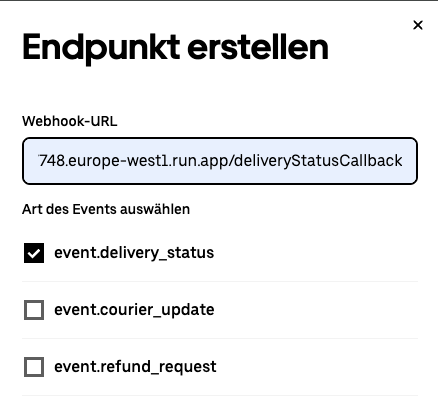
Uber offers a [webhook mechanism](https://developer.uber.com/docs/deliveries/guides/webhooks) similar to the subscription pattern in fulfillmenttools. A connection from Uber to the created service can be established by creating a webhook for `event.delivery_status` events in the Uber developer dashboard (example UI shown in German):
Ensure that the correct service URL and endpoint are used. Once saved, Uber will send tracking events to the specified endpoint, where they will be handled by the service.
When an order is processed in the configured facility, this mechanism will trigger the creation of the delivery, upload a self-generated PDF to fulfillmenttools, and process the track-and-trace events.
{% endstep %}
{% endstepper %}
---
# Agent Instructions
This documentation is published with GitBook. GitBook is the documentation platform designed so that both humans and AI agents can read, navigate, and reason over technical content effectively. Learn more at gitbook.com.
## Querying This Documentation
If you need additional information that is not directly available in this page, you can query the documentation by asking a question.
Perform an HTTP GET request on the following URL with the `ask` and `goal` query parameters:
```
GET https://docs.fulfillmenttools.com/documentation/by-pillar/store-operations/carrier-management/custom-carrier.md?ask=&goal=
```
`ask` is the immediate question: it should be specific, self-contained, and written in natural language.
`goal` is what the user is ultimately trying to achieve, the reason they need the answer. Sharing it helps GitBook give you a better, more relevant answer. A goal is most helpful when it describes the outcome the user wants rather than restating the question. For example, with `ask=how do I create an API token`, a goal like `automate deployments from our CI pipeline` lets GitBook tailor the answer to that use case.
The response will contain a direct answer to the question and relevant excerpts and sources from the documentation.
Use this mechanism when the answer is not explicitly present in the current page, you need clarification or additional context, or you want to retrieve related documentation sections.