> For the complete documentation index, see [llms.txt](https://docs.fulfillmenttools.com/documentation/llms.txt). Markdown versions of documentation pages are available by appending `.md` to page URLs; this page is available as [Markdown](https://docs.fulfillmenttools.com/documentation/backoffice/network-view/orders/order-records.md).
# Order records
Order records provide read-only visibility into completed or external orders within Backoffice.
{% hint style="info" %}
You'll only see this view if you have the role and permission to select this view. See the [Backoffice permissions article](/documentation/backoffice/network-view/users-roles-and-permissions/backoffice-permissions.md) for more information.
{% endhint %}
Order records are primarily used for:
* Audit and compliance
* Reporting and analytics
* Customer support and lookup scenarios
Unlike operational orders, order records:
* Don't trigger fulfillment processes
* Don't have a lifecycle
* Can't be modified
They represent what has already happened, not what needs to happen next.
## Data availability
Order records only display the information that was provided during creation.
Depending on the data source (for example, POS, external systems, or imports), some fields or sections can be partially filled or empty.
For example:
* Customer information might be missing if it wasn't collected
* Payments can vary depending on the transaction setup
* Item details depend on the available product data
Backoffice doesn't enrich or infer missing data. All values reflect the original transaction as provided.
{% hint style="info" %}
For a full definition of available fields and data structure, see the [Order records article](/documentation/by-pillar/order-management/order-records.md).
{% endhint %}
## Order records overview
The overview page provides a searchable and filterable list of all order records.
### **Search, filter, and sort**
The following fields are searchable:
* Order ID
* Facility
* Customer (for example, last name or company name)
* Customer ID
* Receipt number
* Transaction ID
* POS terminal ID
* POS cashier ID
* Article ID (from line items)
Records can be filtered by:
* Facility
* Order date
You can sort order records by columns such as order date.
### **Columns and displayed information**
The table provides a structured overview of each record. Available columns include:
* Origin type (for example, POS)
* Order ID
* Order date
* Facility
* Number of line items
* Order total
* Payment method
* Payment status
* Receipt number
* Transaction ID
* POS terminal
* POS cashier ID
* Facility country
* Consumer
* Consumer city
* Consumer country
### **Customization**
You can customize the order records page to suit your needs. You can choose to include or exclude certain columns in the relevant table view. Use the customize icon at the end of the table headers. You can also rearrange the columns using the more icon next to each column header.
Using the **Reset** button resets the view to the default ordering and visibility.
## Order record detail view
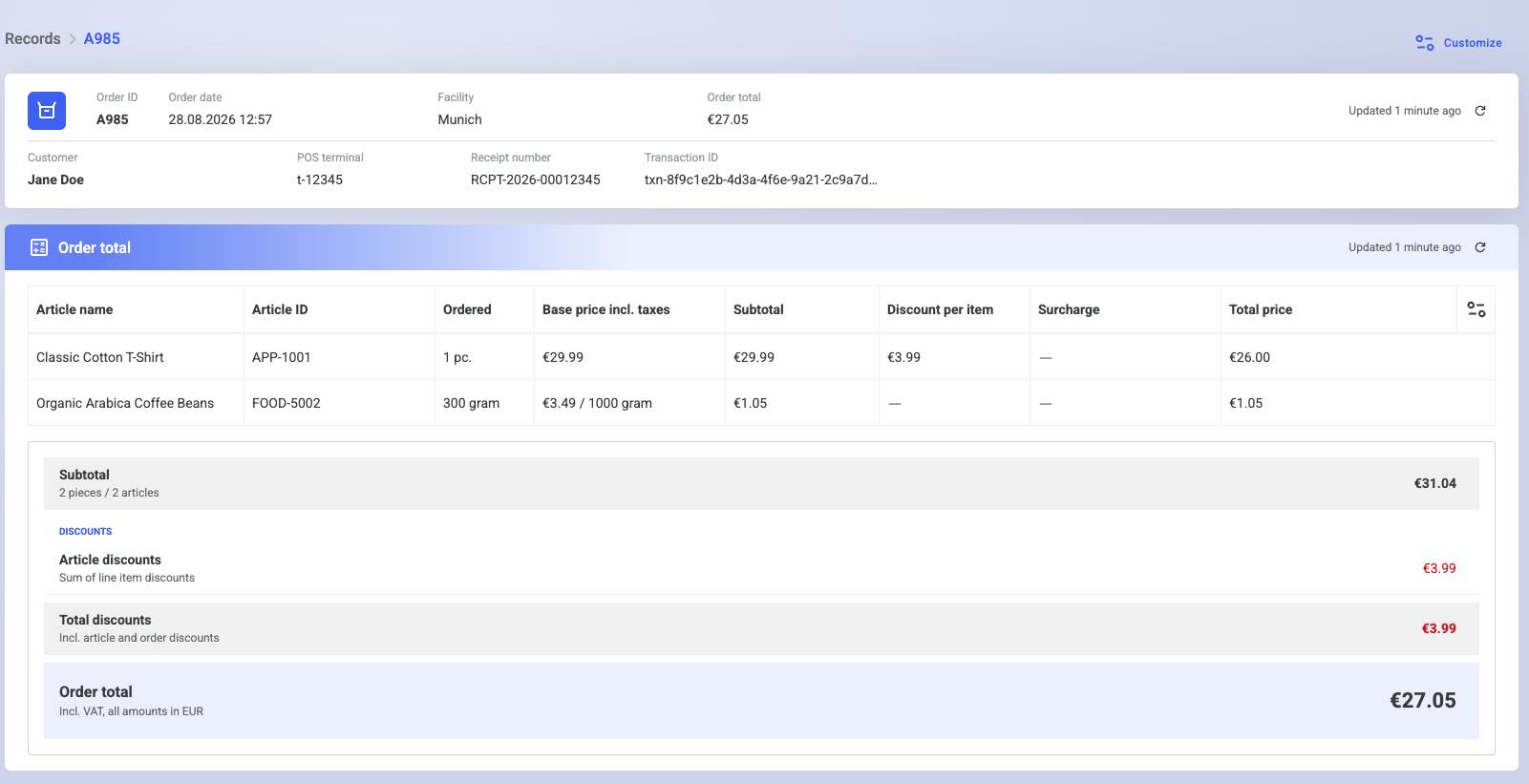
The detail view provides a complete, read-only representation of a single order record. It's designed to give full visibility into the original transaction.
### Header overview
The header overview is at the top of the page. It provides a quick summary of the order record with key transaction details:
* Order ID
* Order date
* Facility
* Order total
Other transaction identifiers are also provided:
* Consumer name
* POS terminal ID
* Receipt number
* Transaction ID
### Transaction details
The **Transaction details** section reflects where and how the order was created:
* Type (for example, POS)
* Cashier ID
* Terminal ID
#### Consumer
The **Consumer** section contains the name of the consumer and address information:
* Consumer ID
* Email
* First name and last name
* Company name (if available)
Address details:
* Street
* Additional address information
* Postcode
* City and country
Multiple entries can be present if more than one address is associated with the record.
#### Items
The **Items** section lists all the purchased products included in the transaction:
* Article ID
* Title
* Quantity and unit
* Article attributes (for example, size, material, and so on)
* Pricing information
### Payments
The **Payments** section shows all associated payments. Multiple payments can be listed for a single order record. Values included are:
* Payment method (for example, cash, card)
* Payment status (for example, completed, failed, refunded)
* Receipt number
* Transaction ID
* Amount
* Tax amount
### Totals
The **Totals** section provides a summarized pricing breakdown. All values reflect the final transaction state. Values included are:
* Subtotal
* Discounts
* Fees
* Taxes
* Total
---
# Agent Instructions
This documentation is published with GitBook. GitBook is the documentation platform designed so that both humans and AI agents can read, navigate, and reason over technical content effectively. Learn more at gitbook.com.
## Querying This Documentation
If you need additional information that is not directly available in this page, you can query the documentation by asking a question.
Perform an HTTP GET request on the following URL with the `ask` and `goal` query parameters:
```
GET https://docs.fulfillmenttools.com/documentation/backoffice/network-view/orders/order-records.md?ask=&goal=
```
`ask` is the immediate question: it should be specific, self-contained, and written in natural language.
`goal` is what the user is ultimately trying to achieve, the reason they need the answer. Sharing it helps GitBook give you a better, more relevant answer. A goal is most helpful when it describes the outcome the user wants rather than restating the question. For example, with `ask=how do I create an API token`, a goal like `automate deployments from our CI pipeline` lets GitBook tailor the answer to that use case.
The response will contain a direct answer to the question and relevant excerpts and sources from the documentation.
Use this mechanism when the answer is not explicitly present in the current page, you need clarification or additional context, or you want to retrieve related documentation sections.