# Order details view

The order detail view contains multiple modules, each providing insight into distinct stages of the order processing lifecycle.

## Modules

### Header

The header contains comprehensive information about the order, including details about when and by whom the order was placed, its status, the number of items, the carrier, and how many times it may have been split. The address in the header shows the destination address for shipping orders.

<figure><img src="https://4170739437-files.gitbook.io/~/files/v0/b/gitbook-x-prod.appspot.com/o/spaces%2FLrrr5jgTsDuR38gNJIrm%2Fuploads%2FknUtFmetMuvcnFsaQO1B%2FBildschirmfoto%202025-06-26%20um%2014.38.05.png?alt=media&#x26;token=27ff9fb6-4968-439f-b5f2-46bd245092c4" alt=""><figcaption></figcaption></figure>

### Order history

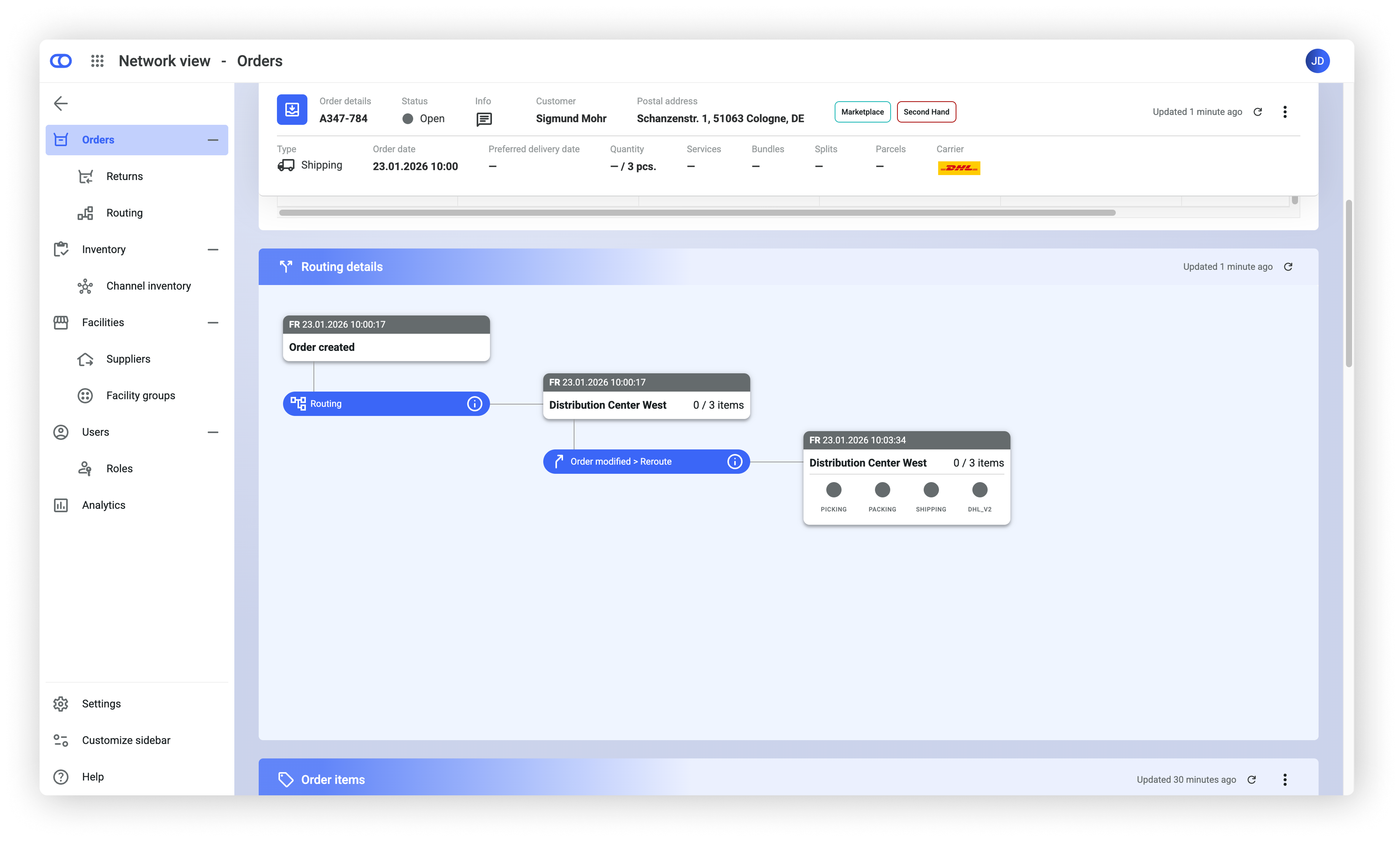
The order history provides insights into the processes an order has undergone within the platform. It shows the facilities assigned to the order and operational processes such as picking and packing. Additionally, this section makes the routing decision for an order transparent, which helps to understand why an order was routed to a particular facility or why it became unroutable. The routing decision is accessible via the info icon on the right side of the routing bar.

<figure><img src="https://4170739437-files.gitbook.io/~/files/v0/b/gitbook-x-prod.appspot.com/o/spaces%2FLrrr5jgTsDuR38gNJIrm%2Fuploads%2F2g8mjLrLndU2A0DDcaFw%2FBildschirmfoto%202025-06-26%20um%2014.36.28.png?alt=media&#x26;token=52645e96-4f22-4a12-acb9-30741d68ca4d" alt=""><figcaption></figcaption></figure>

### Routing details

{% hint style="warning" %}
This view is only available when “complex routing with combinatorics” is enabled.&#x20;

If you'd like to use these functionalities, [contact our Support team](https://ocfulfillment.atlassian.net/servicedesk/customer/portal/1/group/4) for more information and activation support.
{% endhint %}

The **Routing details** section provides comprehensive insights into the routing process applied to an order. The information is available for all orders created within the last 30 days. It's divided into two parts:

* Routing decision
* Routing strategy

These views help explain **how** the system determined the sourcing path and **why** this path was selected over alternative options.

{% hint style="info" %}
For an overview of routing concepts, see the [Advanced Order Routing section](https://docs.fulfillmenttools.com/documentation/by-pillar/advanced-order-routing) in the product documentation.&#x20;
{% endhint %}

<figure><img src="https://4170739437-files.gitbook.io/~/files/v0/b/gitbook-x-prod.appspot.com/o/spaces%2FLrrr5jgTsDuR38gNJIrm%2Fuploads%2FNJAdOHVwUxZjDJGX3GC4%2F02.png?alt=media&#x26;token=509b904b-b881-4bb8-a0db-afa51b33dc77" alt=""><figcaption></figcaption></figure>

#### Routing decision

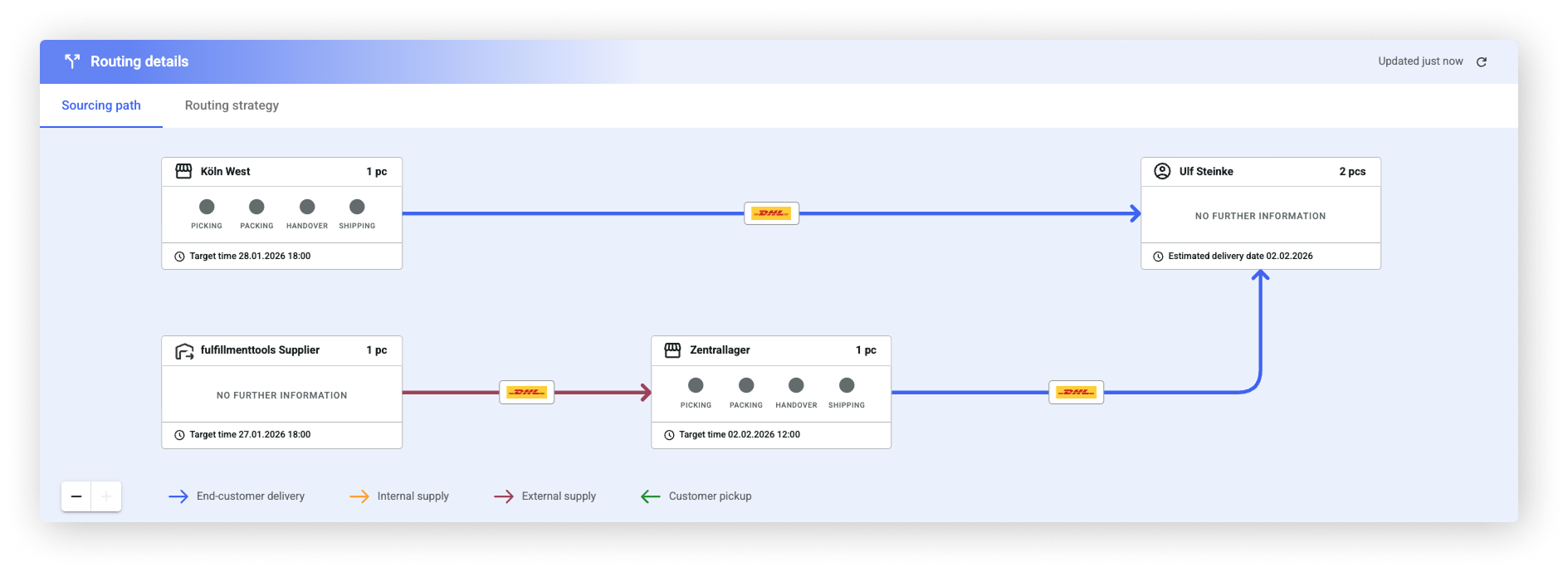
The **Routing decision** section displays the routing result, including the complete sourcing path determined for the order. This representation includes all facilities involved in the routing decision, as well as all transfers that form part of the route.

The routing decision includes:

* All facilities participating in fulfillment
* All transfers between facilities
* Calculated timestamps for intermediate and target milestones
* Carrier information when available
* Calculated packages, depending on configuration

These details provide transparency into the operational steps required to fulfill the order.

If the routing decision contains facilities of the type `managedFacility`, the system displays their current operational statuses. These statuses depend on the enabled features.

Facilities of the type `Supplier` don't expose operational status information.

{% hint style="info" %}
Operational statuses are only displayed for facilities of the type `managedFacility`.&#x20;
{% endhint %}

#### Routing strategy

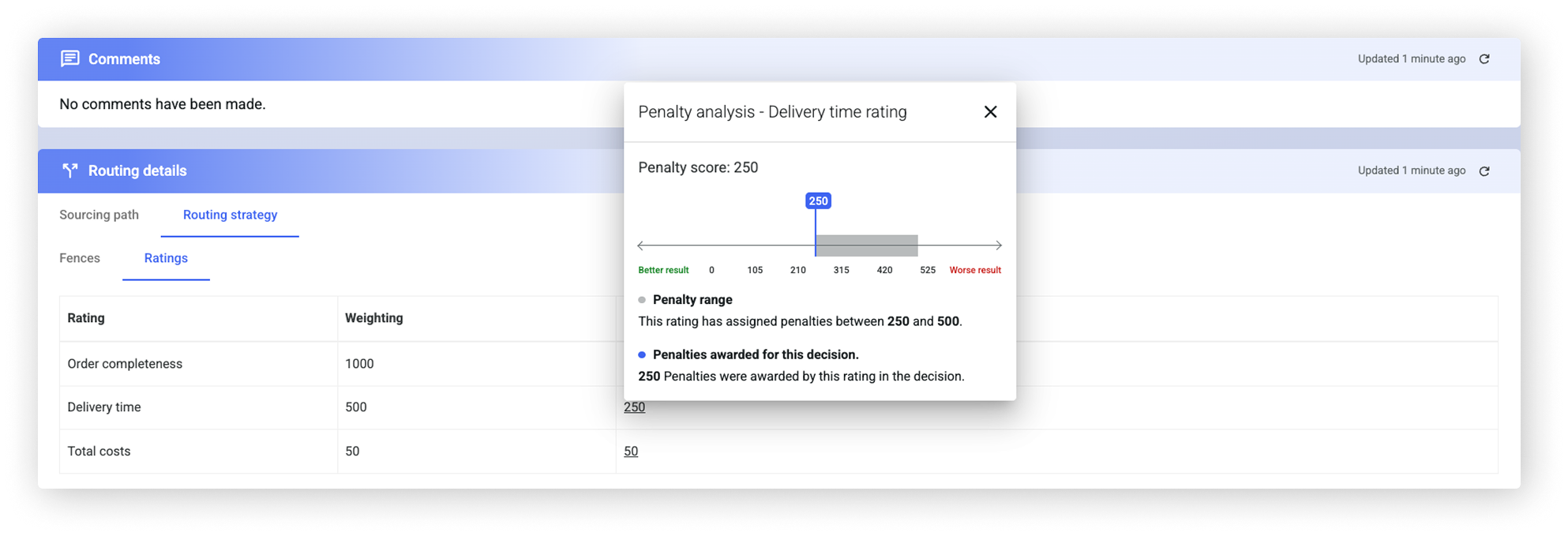
The **Routing strategy** section displays the routing rules that were applied to determine the routing result for the order. The rule set shown is the outcome of the [routing strategy](https://docs.fulfillmenttools.com/documentation/by-pillar/advanced-order-routing/routing-strategy) evaluation, which identifies the appropriate rule set based on the order parameters.

The view includes:

* The **fences** applied during routing
* The **ratings** and their respective weightings

<figure><img src="https://4170739437-files.gitbook.io/~/files/v0/b/gitbook-x-prod.appspot.com/o/spaces%2FLrrr5jgTsDuR38gNJIrm%2Fuploads%2F9FFsSCRcoVV9jZniyOiC%2F01.png?alt=media&#x26;token=0b336d36-b3a8-49d0-82f4-60517b9b34cf" alt=""><figcaption></figcaption></figure>

A detailed statistical overview is provided for each rating. This overview explains how the available options in the solution space differed with respect to the individual routing parameters. It highlights why the selected routing result outperformed alternative options.

### Fulfillment status

This module gives details on the operational process at the routed facility, indicating which items from the order were routed to which location and the current status of the order process at those locations.

<figure><img src="https://4170739437-files.gitbook.io/~/files/v0/b/gitbook-x-prod.appspot.com/o/spaces%2FLrrr5jgTsDuR38gNJIrm%2Fuploads%2FDmhw7KWkr8hkQFg6ZdrT%2FBildschirmfoto%202025-11-26%20um%2013.07.02.png?alt=media&#x26;token=adb1288f-0fc8-4739-b627-d0a8415bfd17" alt=""><figcaption></figcaption></figure>

#### Table explanation

All table contents refer to the article on the left-hand side, detailing information such as:

<table><thead><tr><th valign="top">Ordered</th><th valign="top">Picked</th><th valign="top">Packed</th><th valign="top">Shipped</th><th valign="top">Services</th><th valign="top">Parcel ID</th><th valign="top">Short-pick reason</th><th valign="top">Refusal reason</th><th valign="top">Shipping ID</th></tr></thead><tbody><tr><td valign="top">The ordered quantity of the item fulfilled at the named facility.</td><td valign="top">The picked quantity, with the status icon comparing the picked versus ordered quantity within the facility-related <a href="broken-reference"><code>picking task</code></a>.</td><td valign="top">The packed quantity, with the status icon comparing the packed versus picked quantity within the facility-related <a href="https://docs.fulfillmenttools.com/documentation/developer-docs/getting-started/integration-tutorial/local-fulfillment-configuration#packing"><code>packing task</code></a>.</td><td valign="top">Shows the picked up quantity. The status icon compares the picked up (by carrier or consumer) versus picked quantity within the facility-related <a href="https://docs.fulfillmenttools.com/documentation/developer-docs/getting-started/integration-tutorial/local-fulfillment-configuration#packing"><code>handover task</code></a>.</td><td valign="top">Any <a href="broken-reference"><code>custom service</code></a> associated with the item.</td><td valign="top">The ID of the parcel that contains the article.</td><td valign="top">Displays <a href="broken-reference"><code>configured reasons</code></a> for missing items during picking, such as damage, stock unavailability, or expiry.</td><td valign="top">Displays <a href="broken-reference"><code>configured customer refusals</code></a> at handover, such as the item not being liked, the wrong product, or damaged packaging.</td><td valign="top">Displays the tracking number of  generated parcels and provides direct links to the respective carrier’s tracking page.</td></tr></tbody></table>

#### Table notes

{% tabs %}
{% tab title="Unroutables" %}

<div align="left"><figure><img src="https://4170739437-files.gitbook.io/~/files/v0/b/gitbook-x-prod.appspot.com/o/spaces%2FLrrr5jgTsDuR38gNJIrm%2Fuploads%2F0lymkb3eDn4wjPMe2g0w%2FBildschirmfoto%202025-06-26%20um%2014.11.40.png?alt=media&#x26;token=7a4a1b45-6da0-4aa1-894b-cc6b2c97a288" alt=""><figcaption></figcaption></figure></div>

This table note displays articles that could not be rerouted. Subsequent actions are possible via the three-dot menu: trigger new routing, assign manually, or cancel the item.
{% endtab %}

{% tab title="Waiting" %}

<div align="left"><figure><img src="https://4170739437-files.gitbook.io/~/files/v0/b/gitbook-x-prod.appspot.com/o/spaces%2FLrrr5jgTsDuR38gNJIrm%2Fuploads%2FE7p1SBuDocTbd7KjQscQ%2FBildschirmfoto%202025-06-26%20um%2014.03.43.png?alt=media&#x26;token=7344eb34-e3a7-47cc-a7a6-738011a77de7" alt=""><figcaption></figcaption></figure></div>

This table note displays articles that are still waiting top be routed, because they belong to a [preorder or backorder](https://docs.fulfillmenttools.com/documentation/by-pillar/advanced-order-routing/pre-and-backorders).
{% endtab %}

{% tab title="Routing pending" %}

<div align="left"><figure><img src="https://4170739437-files.gitbook.io/~/files/v0/b/gitbook-x-prod.appspot.com/o/spaces%2FLrrr5jgTsDuR38gNJIrm%2Fuploads%2FDkTCn1pEmsXyQrliGAGt%2FBildschirmfoto%202025-06-26%20um%2014.27.32.png?alt=media&#x26;token=4f73069b-03ad-4062-a768-4e39b6e02512" alt=""><figcaption></figcaption></figure></div>

This note indicates that routing is still ongoing.
{% endtab %}
{% endtabs %}

### Parcels

This module contains all information related to a package after it is packed.

#### Parcel status

<table><thead><tr><th width="206.28515625">Status</th><th width="107.7421875">Status Color</th><th>Description</th></tr></thead><tbody><tr><td>Open</td><td>gray</td><td>The package has been created, but no label has been requested.</td></tr><tr><td>Label Requested</td><td>orange</td><td>The label has been requested.</td></tr><tr><td><p></p><p>Pickup Pending</p><p></p></td><td>orange</td><td>The label has been successfully registered and is ready for the carrier to be picked up.</td></tr><tr><td>In Transit</td><td>orange</td><td>The carrier has indicated that the parcel has been picked up and is on its way.</td></tr><tr><td>Delivered</td><td>green</td><td>The carrier has confirmed that the parcel was successfully delivered.</td></tr><tr><td>Canceled</td><td>red</td><td>The parcel was canceled, possibly because the order was canceled.</td></tr><tr><td><p></p><p>Label Request Error</p><p></p></td><td>red</td><td>An error occurred with the label request. Check the label error message for details.</td></tr><tr><td><p></p><p>Delivery Error</p></td><td>red</td><td>The carrier reports an issue with the delivery. Contact the carrier for more information.</td></tr><tr><td>Unknown</td><td>orange</td><td>The status is unknown due to technical problems or an unrecognized state from the carrier.</td></tr></tbody></table>

### Services

This module contains all [service tasks](https://docs.fulfillmenttools.com/documentation/by-pillar/store-operations/services/custom-services) related to the order.

<figure><img src="https://4170739437-files.gitbook.io/~/files/v0/b/gitbook-x-prod.appspot.com/o/spaces%2FLrrr5jgTsDuR38gNJIrm%2Fuploads%2FcQ6m3Xjhr3WfgvKtlPvJ%2FBildschirmfoto%202025-06-26%20um%2014.41.33.png?alt=media&#x26;token=0d713dbb-3bee-4d51-8916-a1a30d085082" alt=""><figcaption></figcaption></figure>

### Comments

This module appears when comments are created via [external actions](https://docs.fulfillmenttools.com/documentation/integrations/external-actions). Additional comments can be added in this module.

<figure><img src="https://4170739437-files.gitbook.io/~/files/v0/b/gitbook-x-prod.appspot.com/o/spaces%2FLrrr5jgTsDuR38gNJIrm%2Fuploads%2F7Q1RHmdZdBWOWYlKLH7e%2FBildschirmfoto%202025-06-26%20um%2014.48.02.png?alt=media&#x26;token=8e171374-c2c8-467a-9962-84b324a58040" alt=""><figcaption></figcaption></figure>

### Addresses

This module contains all addresses specified in the order, regardless of parcel destination. Optional address types can include parcel locker, postal address, and invoice address. If no address type is specified, the address type defaults to postal.

<figure><img src="https://4170739437-files.gitbook.io/~/files/v0/b/gitbook-x-prod.appspot.com/o/spaces%2FLrrr5jgTsDuR38gNJIrm%2Fuploads%2FB05LaccjZUkuIBzm8t4L%2FBildschirmfoto%202025-06-26%20um%2014.42.39.png?alt=media&#x26;token=8208c741-6ae2-4cd5-8f5e-11633d6dec68" alt=""><figcaption></figcaption></figure>

### Custom attributes

This module includes all [custom attributes](https://docs.fulfillmenttools.com/documentation/getting-started/custom-attributes) of the order.

<figure><img src="https://4170739437-files.gitbook.io/~/files/v0/b/gitbook-x-prod.appspot.com/o/spaces%2FLrrr5jgTsDuR38gNJIrm%2Fuploads%2F3V0GMGGs3l1Ks1EC1rZu%2FBildschirmfoto%202025-06-27%20um%2009.14.53.png?alt=media&#x26;token=78835a9f-cddb-4247-b299-1ffe3e760f86" alt=""><figcaption></figcaption></figure>

### Documents

This module provides access to all documents associated with an order, including shipping labels and [external documents](https://docs.fulfillmenttools.com/documentation/by-pillar/store-operations/external-documents) such as invoices.

<figure><img src="https://4170739437-files.gitbook.io/~/files/v0/b/gitbook-x-prod.appspot.com/o/spaces%2FLrrr5jgTsDuR38gNJIrm%2Fuploads%2FRjZGuAbFEgpzUUTRPYHD%2FBildschirmfoto%202025-09-16%20um%2012.20.18.png?alt=media&#x26;token=9f3caf32-860c-42b5-959e-4e4a9dcc160c" alt=""><figcaption></figcaption></figure>

### Customization

* Table columns can be rearranged or made sticky on either side. The action is available via the three-dot menu in each column header.
* Table columns can be shown or hidden using the edit button located at the right end of the table. The reset button restores the visibility of all columns and reverts the table to its original sorting order.
* To rearrange or hide specific modules on the detail page, click the **Customize** button located at the top of the detail page.

{% hint style="info" %}
A reset re-displays all columns and containers, clears any sticky settings, and resets the sorting.
{% endhint %}

<figure><img src="https://4170739437-files.gitbook.io/~/files/v0/b/gitbook-x-prod.appspot.com/o/spaces%2FLrrr5jgTsDuR38gNJIrm%2Fuploads%2FyzlTYHels816lFH7O3wN%2FBildschirmfoto%202025-07-25%20um%2008.33.31.png?alt=media&#x26;token=4795e87d-fd84-4f10-a83b-323dceba11a7" alt="" width="188"><figcaption></figcaption></figure>

### Operational actions

The three-dot menu in each module provides actions to change the process or order, such as updating addresses, rerouting tasks, or resetting tasks. If certain actions are not displayed, this may be due to insufficient [permissions](https://docs.fulfillmenttools.com/documentation/getting-started/authentication-and-authorization/user-management) or because the fulfillment process has progressed too far. All available actions are also listed in the header, but may appear greyed out if the selected action affects multiple tasks.

{% hint style="info" %}
All available actions and their preconditions are listed in the [operational actions section](https://docs.fulfillmenttools.com/documentation/backoffice/network-view/orders/..#operational-status).
{% endhint %}

<figure><img src="https://4170739437-files.gitbook.io/~/files/v0/b/gitbook-x-prod.appspot.com/o/spaces%2FLrrr5jgTsDuR38gNJIrm%2Fuploads%2Fid333rM3C5IgGzo53Bc4%2FBildschirmfoto%202025-10-15%20um%2010.06.29.png?alt=media&#x26;token=4fbcb859-8900-4a02-b3d2-cdd420e07149" alt=""><figcaption></figcaption></figure>

he order detail view contains multiple modules, each providing insight into distinct stages of the order processing lifecycle.

## Modules

### Header

The header contains comprehensive information about the order, including details about when and by whom the order was placed, its status, the number of items, the carrier, and how many times it may have been split. The address in the header shows the destination address for shipping orders.

<figure><img src="https://4170739437-files.gitbook.io/~/files/v0/b/gitbook-x-prod.appspot.com/o/spaces%2FLrrr5jgTsDuR38gNJIrm%2Fuploads%2FknUtFmetMuvcnFsaQO1B%2FBildschirmfoto%202025-06-26%20um%2014.38.05.png?alt=media&#x26;token=27ff9fb6-4968-439f-b5f2-46bd245092c4" alt=""><figcaption></figcaption></figure>

### Order items

This lists all items included in the order, along with their key attributes such as article name, ID, and quantity.

### Fulfillment status

This module provides details on the operational process at the routed facility, indicating which items from the order were routed to which locations and the current status of the order at those locations.

#### Table explanation

All table contents refer to the article on the left-hand side, detailing information such as:

<table><thead><tr><th valign="top">Ordered</th><th valign="top">Picked</th><th valign="top">Packed</th><th valign="top">Shipped</th><th valign="top">Services</th><th valign="top">Parcel ID</th><th valign="top">Short-pick reason</th><th valign="top">Refusal reason</th><th valign="top">Shipping ID</th></tr></thead><tbody><tr><td valign="top">The ordered quantity of the item is fulfilled at the named facility.</td><td valign="top">The picked quantity, with a status icon that compares the picked and ordered quantities within the facility-related <a href="broken-reference"><code>picking task</code></a>.</td><td valign="top">The packed quantity, with a status icon that compares the packed and picked quantities within the facility-related <a href="https://docs.fulfillmenttools.com/documentation/developer-docs/getting-started/integration-tutorial/local-fulfillment-configuration#packing"><code>packing task</code></a>.</td><td valign="top">Shows the picked-up quantity. The status icon compares the picked up (by carrier or consumer) versus the picked quantity within the facility-related <a href="https://docs.fulfillmenttools.com/documentation/developer-docs/getting-started/integration-tutorial/local-fulfillment-configuration#packing"><code>handover task</code></a>.</td><td valign="top">Any <a href="broken-reference"><code>custom service</code></a> associated with the item.</td><td valign="top">The ID of the parcel that contains the article.</td><td valign="top">Displays <a href="broken-reference"><code>configured reasons</code></a> for missing items during picking, such as damage, stock unavailability, or expiry.</td><td valign="top">Displays <a href="broken-reference"><code>configured customer refusals</code></a> at handover, including items not being liked, incorrect products, or damaged packaging.</td><td valign="top">Displays tracking numbers for generated parcels and provides direct links to each carrier's tracking page.</td></tr></tbody></table>

<figure><img src="https://4170739437-files.gitbook.io/~/files/v0/b/gitbook-x-prod.appspot.com/o/spaces%2FLrrr5jgTsDuR38gNJIrm%2Fuploads%2FZUFGtGpGcpwq5WZtUF78%2FOrder%20Items.png?alt=media&#x26;token=df665f39-0868-4291-8168-64a73859149a" alt=""><figcaption></figcaption></figure>

#### Table notes

{% tabs %}
{% tab title="Unroutables" %}

<div align="left"><figure><img src="https://4170739437-files.gitbook.io/~/files/v0/b/gitbook-x-prod.appspot.com/o/spaces%2FLrrr5jgTsDuR38gNJIrm%2Fuploads%2F0lymkb3eDn4wjPMe2g0w%2FBildschirmfoto%202025-06-26%20um%2014.11.40.png?alt=media&#x26;token=7a4a1b45-6da0-4aa1-894b-cc6b2c97a288" alt=""><figcaption></figcaption></figure></div>

This table note displays articles that couldn't be rerouted. Subsequent actions are possible via the three-dot menu: trigger new routing, assign manually, or cancel the item.
{% endtab %}

{% tab title="Waiting" %}

<div align="left"><figure><img src="https://4170739437-files.gitbook.io/~/files/v0/b/gitbook-x-prod.appspot.com/o/spaces%2FLrrr5jgTsDuR38gNJIrm%2Fuploads%2FE7p1SBuDocTbd7KjQscQ%2FBildschirmfoto%202025-06-26%20um%2014.03.43.png?alt=media&#x26;token=7344eb34-e3a7-47cc-a7a6-738011a77de7" alt=""><figcaption></figcaption></figure></div>

This table note displays articles that are still waiting to be routed, because they belong to a [preorder or backorder](https://docs.fulfillmenttools.com/documentation/by-pillar/advanced-order-routing/pre-and-backorders).
{% endtab %}

{% tab title="Routing pending" %}

<div align="left"><figure><img src="https://4170739437-files.gitbook.io/~/files/v0/b/gitbook-x-prod.appspot.com/o/spaces%2FLrrr5jgTsDuR38gNJIrm%2Fuploads%2FDkTCn1pEmsXyQrliGAGt%2FBildschirmfoto%202025-06-26%20um%2014.27.32.png?alt=media&#x26;token=4f73069b-03ad-4062-a768-4e39b6e02512" alt=""><figcaption></figcaption></figure></div>

This note indicates that routing is still ongoing.
{% endtab %}
{% endtabs %}

### Routing details&#x20;

{% hint style="warning" %}
The displayed modules depend on the selected routing logic. When “Complex Routing with Combinatorics” is active, the second module is shown; for all other routing configurations, the first module is displayed.
{% endhint %}

#### Routing details (default)

This module makes the routing decision for an order transparent, helping explain why an order was routed to a particular facility or became unroutable. The routing decision is accessible via the info icon on the right side of the routing bar.

<figure><img src="https://4170739437-files.gitbook.io/~/files/v0/b/gitbook-x-prod.appspot.com/o/spaces%2FLrrr5jgTsDuR38gNJIrm%2Fuploads%2FtlxOj0hEMKoi9D8r2zDn%2FRouting%20details.png?alt=media&#x26;token=7a0593f9-b8d3-4208-a40a-5eadc9b974b5" alt=""><figcaption></figcaption></figure>

#### Routing details (complex routing with combinatorics)

This module provides comprehensive insights into the routing process applied to an order. The information is available for all orders created within the last 30 days. It's divided into two parts:

* Routing decision
* Routing strategy

These views help explain **how** the system determined the sourcing path and **why** this path was selected over alternative options.

{% hint style="info" %}
For an overview of routing concepts, see the [Advanced Order Routing section](https://docs.fulfillmenttools.com/documentation/by-pillar/advanced-order-routing) in the product documentation.  If you'd like to use these functionalities, [contact our Support team](https://ocfulfillment.atlassian.net/servicedesk/customer/portal/1/group/11/create/39) for more information and activation support.
{% endhint %}

<figure><img src="https://4170739437-files.gitbook.io/~/files/v0/b/gitbook-x-prod.appspot.com/o/spaces%2FLrrr5jgTsDuR38gNJIrm%2Fuploads%2FNJAdOHVwUxZjDJGX3GC4%2F02.png?alt=media&#x26;token=509b904b-b881-4bb8-a0db-afa51b33dc77" alt=""><figcaption></figcaption></figure>

#### Routing decision section

The **Routing decision** section within this module displays the routing result, including the complete sourcing path determined for the order. This representation includes all facilities involved in the routing decision, as well as all transfers that comprise the route.

The routing decision includes:

* All facilities participating in fulfillment
* All transfers between facilities
* Calculated timestamps for intermediate and target milestones
* Carrier information when available
* Calculated packages, depending on configuration

These details provide transparency into the operational steps required to fulfill the order.

If the routing decision contains facilities of the type `managedFacility`, the system displays their current operational statuses. These statuses depend on the enabled features.

Facilities of the type `Supplier` don't expose operational status information.

{% hint style="info" %}
Operational statuses are displayed only for [facilities](https://docs.fulfillmenttools.com/documentation/getting-started/facilities) of type `managedFacility`.&#x20;
{% endhint %}

#### Routing strategy section

The Routing strategy section within this module displays the routing rules applied to determine the order's routing result. The rule set shown is the outcome of the [routing strategy](https://docs.fulfillmenttools.com/documentation/by-pillar/advanced-order-routing/routing-strategy) evaluation, which identifies the appropriate rule set based on the order parameters.

The view includes:

* The **fences** applied during routing
* The **ratings** and their respective weightings

<figure><img src="https://4170739437-files.gitbook.io/~/files/v0/b/gitbook-x-prod.appspot.com/o/spaces%2FLrrr5jgTsDuR38gNJIrm%2Fuploads%2F9FFsSCRcoVV9jZniyOiC%2F01.png?alt=media&#x26;token=0b336d36-b3a8-49d0-82f4-60517b9b34cf" alt=""><figcaption></figcaption></figure>

A detailed statistical overview is provided for each rating. This overview explains how the available options in the solution space differed with respect to the individual routing parameters. It highlights why the selected routing result outperformed alternatives.

### Parcels

This module contains all information related to a package after it is packed.

#### Parcel status

<table><thead><tr><th width="206.28515625">Status</th><th width="107.7421875">Status color</th><th>Description</th></tr></thead><tbody><tr><td>Open</td><td>gray</td><td>The package has been created, but no label has been requested.</td></tr><tr><td>Label requested</td><td>orange</td><td>The label has been requested.</td></tr><tr><td><p></p><p>Pickup pending</p><p></p></td><td>orange</td><td>The label has been successfully registered and is ready for pickup by the carrier.</td></tr><tr><td>In transit</td><td>orange</td><td>The carrier has indicated that the parcel has been picked up and is on its way.</td></tr><tr><td>Delivered</td><td>green</td><td>The carrier has confirmed that the parcel was successfully delivered.</td></tr><tr><td>Canceled</td><td>red</td><td>The parcel was canceled, possibly because the order was canceled.</td></tr><tr><td><p></p><p>Label request error</p><p></p></td><td>red</td><td>An error occurred with the label request. Check the label error message for details.</td></tr><tr><td><p></p><p>Delivery error</p></td><td>red</td><td>The carrier reports an issue with the delivery. Contact the carrier for more information.</td></tr><tr><td>Unknown</td><td>orange</td><td>The status is unknown due to technical problems or an unrecognized state from the carrier.</td></tr></tbody></table>

### Services

This module contains all [service tasks](https://docs.fulfillmenttools.com/documentation/by-pillar/store-operations/services/custom-services) related to the order.

<figure><img src="https://4170739437-files.gitbook.io/~/files/v0/b/gitbook-x-prod.appspot.com/o/spaces%2FLrrr5jgTsDuR38gNJIrm%2Fuploads%2FcQ6m3Xjhr3WfgvKtlPvJ%2FBildschirmfoto%202025-06-26%20um%2014.41.33.png?alt=media&#x26;token=0d713dbb-3bee-4d51-8916-a1a30d085082" alt=""><figcaption></figcaption></figure>

### Comments

This module appears when comments are created via [external actions](https://docs.fulfillmenttools.com/documentation/integrations/external-actions). Additional comments can be added in this module.

<figure><img src="https://4170739437-files.gitbook.io/~/files/v0/b/gitbook-x-prod.appspot.com/o/spaces%2FLrrr5jgTsDuR38gNJIrm%2Fuploads%2F7Q1RHmdZdBWOWYlKLH7e%2FBildschirmfoto%202025-06-26%20um%2014.48.02.png?alt=media&#x26;token=8e171374-c2c8-467a-9962-84b324a58040" alt=""><figcaption></figcaption></figure>

### Addresses

This module contains all addresses specified in the order, regardless of parcel destination. Optional address types can include parcel locker, postal address, and invoice address. If no address type is specified, the default is postal.

<figure><img src="https://4170739437-files.gitbook.io/~/files/v0/b/gitbook-x-prod.appspot.com/o/spaces%2FLrrr5jgTsDuR38gNJIrm%2Fuploads%2FB05LaccjZUkuIBzm8t4L%2FBildschirmfoto%202025-06-26%20um%2014.42.39.png?alt=media&#x26;token=8208c741-6ae2-4cd5-8f5e-11633d6dec68" alt=""><figcaption></figcaption></figure>

### Custom attributes

This module includes all [custom attributes](https://docs.fulfillmenttools.com/documentation/getting-started/custom-attributes) of the order.

<figure><img src="https://4170739437-files.gitbook.io/~/files/v0/b/gitbook-x-prod.appspot.com/o/spaces%2FLrrr5jgTsDuR38gNJIrm%2Fuploads%2F3V0GMGGs3l1Ks1EC1rZu%2FBildschirmfoto%202025-06-27%20um%2009.14.53.png?alt=media&#x26;token=78835a9f-cddb-4247-b299-1ffe3e760f86" alt=""><figcaption></figcaption></figure>

### Documents

This module provides access to all documents associated with an order, including shipping labels and [external documents](https://docs.fulfillmenttools.com/documentation/by-pillar/store-operations/external-documents) such as invoices.

<figure><img src="https://4170739437-files.gitbook.io/~/files/v0/b/gitbook-x-prod.appspot.com/o/spaces%2FLrrr5jgTsDuR38gNJIrm%2Fuploads%2FRjZGuAbFEgpzUUTRPYHD%2FBildschirmfoto%202025-09-16%20um%2012.20.18.png?alt=media&#x26;token=9f3caf32-860c-42b5-959e-4e4a9dcc160c" alt=""><figcaption></figcaption></figure>

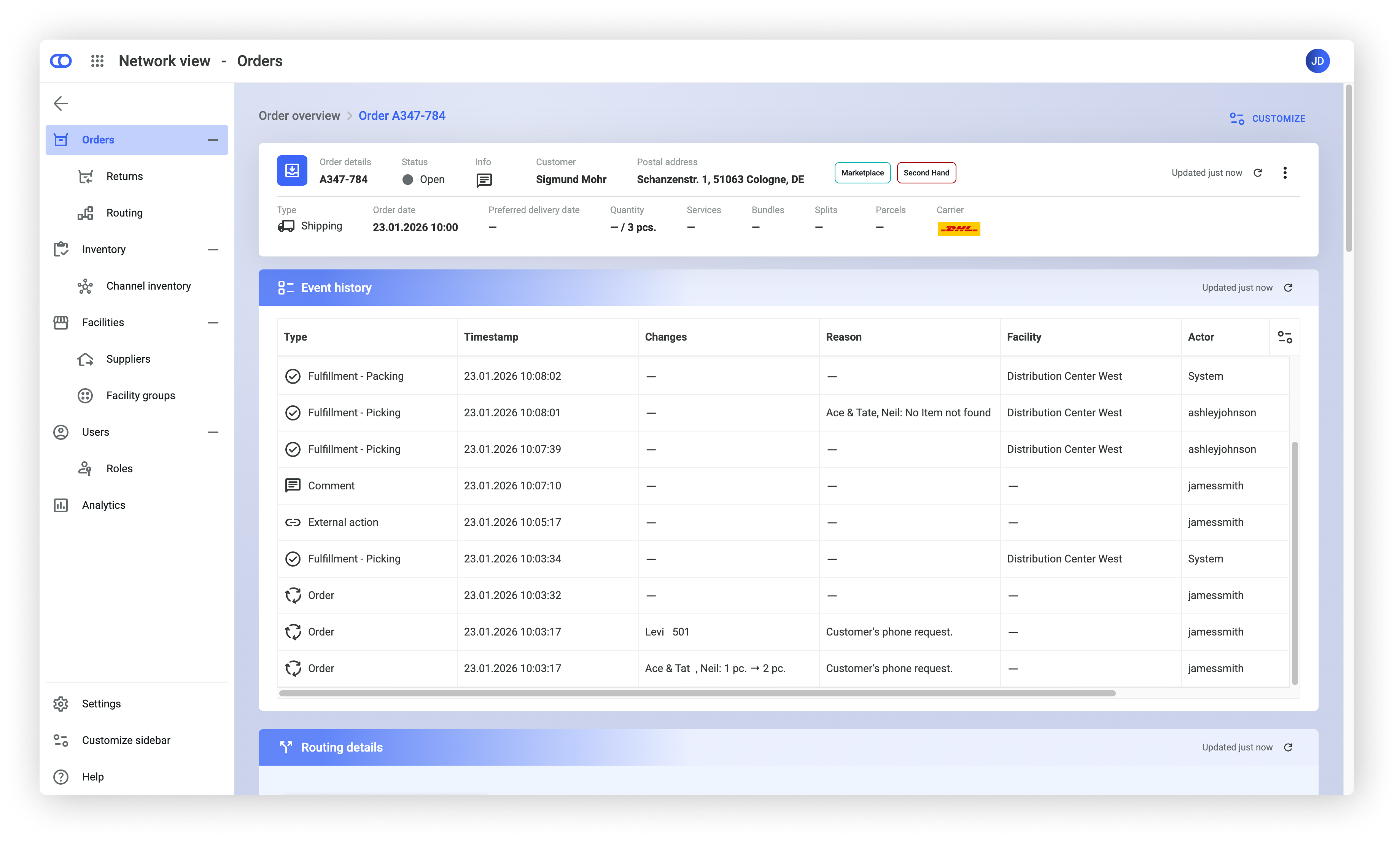
### Event history

This module provides a chronological overview of all relevant events during the order's lifecycle. It includes system‑generated events (such as status reroutes and task creation) as well as operational actions performed by employees (for example, manual edits, cancellations, or fulfillment adjustments). Each entry displays the timestamp, the event type, and additional context where available to help users understand why the event occurred and how it affected the order. If permitted by the [GDPR‑related actor anonymization](https://docs.fulfillmenttools.com/documentation/by-pillar/order-management/gdpr-configuration), the timeline also displays the user who triggered the event.&#x20;

Access to this module requires the permission `PROCESS_LOG_READ`, ensuring that only authorized roles can view the event history. Displaying the triggering user also requires the `AUDIT_READ` permission, which grants access to actor‑level audit information in compliance with GDPR.

<figure><img src="https://4170739437-files.gitbook.io/~/files/v0/b/gitbook-x-prod.appspot.com/o/spaces%2FLrrr5jgTsDuR38gNJIrm%2Fuploads%2FYFDwI7Y8n1JrrkOcuFUD%2FEvent%20history.png?alt=media&#x26;token=edcfe9ed-b8d0-420f-95b2-15fd85e5d274" alt=""><figcaption></figcaption></figure>

### Customization

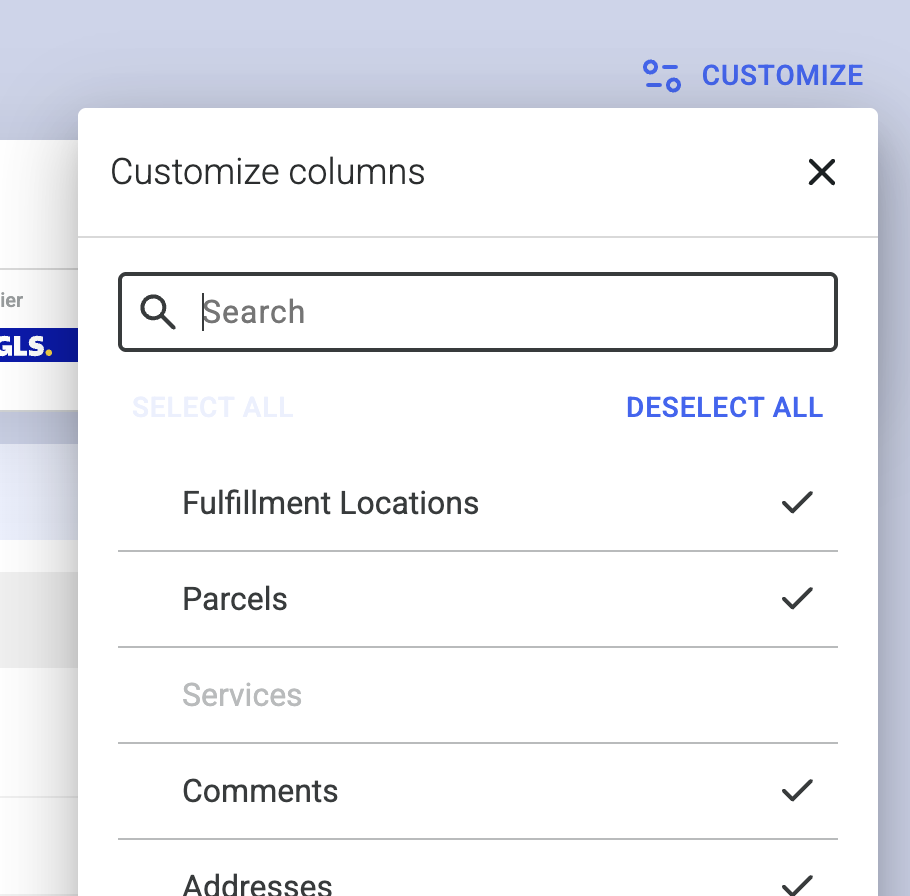
* Table columns can be rearranged or made sticky on either side. The action is available via the three-dot menu in each column header.
* Table columns can be shown or hidden using the edit button located at the right end of the table. The reset button restores the visibility of all columns and reverts the table to its original sorting order.
* To rearrange or hide specific modules on the detail page, click the **Customize** button located at the top of the detail page.

{% hint style="info" %}
A reset re-displays all columns and containers, clears any sticky settings, and resets the sorting.
{% endhint %}

<figure><img src="https://4170739437-files.gitbook.io/~/files/v0/b/gitbook-x-prod.appspot.com/o/spaces%2FLrrr5jgTsDuR38gNJIrm%2Fuploads%2FyzlTYHels816lFH7O3wN%2FBildschirmfoto%202025-07-25%20um%2008.33.31.png?alt=media&#x26;token=4795e87d-fd84-4f10-a83b-323dceba11a7" alt="" width="188"><figcaption></figcaption></figure>

## Order modification and operational actions

### Order modification

The three‑dot menu in the order items module or in the header allows you to edit the order as long as picking has not yet started.&#x20;

{% hint style="info" %}
This feature must be activated via the [order modification configuration API](https://fulfillmenttools.github.io/fulfillmenttools-api-reference-ui/#put-/api/configurations/ordermodification). See the [Order modification article](https://docs.fulfillmenttools.com/documentation/by-pillar/order-management/order-modification) for more information.
{% endhint %}

<figure><img src="https://4170739437-files.gitbook.io/~/files/v0/b/gitbook-x-prod.appspot.com/o/spaces%2FLrrr5jgTsDuR38gNJIrm%2Fuploads%2F8THFNblji7n2UoYNYJht%2FModify%20order%203.png?alt=media&#x26;token=ae4522c3-309c-416d-acd1-2d6d960e7bc7" alt=""><figcaption></figcaption></figure>

### Operational actions

The three-dot menu in each module provides actions to change the process or order, such as updating addresses, rerouting tasks, or resetting tasks. If specific actions aren't displayed, this might be due to insufficient [permissions](https://docs.fulfillmenttools.com/documentation/getting-started/authentication-and-authorization/user-management) or because the fulfillment process has progressed too far. All available actions are also listed in the header, but may appear greyed out if the selected action affects multiple tasks.

{% hint style="info" %}
All available actions and their preconditions are listed in the [operational actions section](https://docs.fulfillmenttools.com/documentation/backoffice/network-view/orders/..#operational-actions).
{% endhint %}

<figure><img src="https://4170739437-files.gitbook.io/~/files/v0/b/gitbook-x-prod.appspot.com/o/spaces%2FLrrr5jgTsDuR38gNJIrm%2Fuploads%2Fid333rM3C5IgGzo53Bc4%2FBildschirmfoto%202025-10-15%20um%2010.06.29.png?alt=media&#x26;token=4fbcb859-8900-4a02-b3d2-cdd420e07149" alt=""><figcaption></figcaption></figure>