> For the complete documentation index, see [llms.txt](https://docs.fulfillmenttools.com/documentation/llms.txt). Markdown versions of documentation pages are available by appending `.md` to page URLs; this page is available as [Markdown](https://docs.fulfillmenttools.com/documentation/backoffice/network-view/analytics/fulfillment-operations-pages.md).
# Store operations analytics
Store operations analytics includes [completed tasks](#completed-tasks), [process times](#process-times), and [returns](#returns) data. Use the **Explore dashboard** navigation to switch to the corresponding page.
You can filter by time frame and facility, and select the time granularity (daily, weekly, or monthly). For process times, you can also filter by the process. Once selected, click **Apply** to apply the filters.
You can download the data to an Excel file using the **Download** button at the bottom of all pages.
## Completed tasks
{% columns %}
{% column %}
The completed task charts shows the total number of completed entities by date. Completed means the entities have reached a successful final status. Final statuses that indicate a failure, such as a cancellation, aren't counted.
The assigned date reflects when the entity reached its final status. If an entity was reopened and closed again after completion, fulfillmenttools uses the time of the second completion.
{% endcolumn %}
{% column %}
{% endcolumn %}
{% endcolumns %}
### Completed pick jobs by order tag
{% columns %}
{% column %}
The completed pick jobs by order tag charts break down completed pick jobs by order tag value.
{% hint style="info" %}
These charts are only visible if the tag key has been configured in the dashboard. Contact [our Support team](https://ocfulfillment.atlassian.net/servicedesk/customer/portal/1) for more information.
{% endhint %}
For example, orders could have an order tag like customer type, with three possible values: B2B, B2C, and Internal. On the selected day, 16 pick jobs were completed for B2B customers.
{% endcolumn %}
{% column %}
{% endcolumn %}
{% endcolumns %}
### Incoming versus completed tasks
{% columns %}
{% column %}
The incoming versus completed task charts compare created pick jobs with successfully closed handover jobs (status is handed over) by date to show, for example, how order processing keeps up with the load.
{% endcolumn %}
{% column %}
{% endcolumn %}
{% endcolumns %}
### Pick job end status
{% columns %}
{% column %}
The pick job end status charts show how often pick jobs finished in each status. For pick jobs with a closed status, the charts distinguishes between completely and partially picked. The failed status includes several cases in which a pick job is considered unsuccessful, such as being canceled, aborted, or expired.
In this example, 45 pick jobs finished on 11 August, but only 18 were picked successfully and completely.
{% endcolumn %}
{% column %}
{% endcolumn %}
{% endcolumns %}
### Picked order lines and quantity
{% columns %}
{% column %}
The picked orders charts show the number of picked order lines and the total picked quantity, both per day and overall. The day the pick job was closed is used as the date. If items aren't counted in pieces but another [measurement unit](/documentation/by-pillar/global-inventory-hub/measurement-units.md), they're added with a quantity of 1 for each order line.
In this example, 15 order lines with a total quantity of 18 items were picked on 8 August. An item could have had a quantity of 500 grams, for example, but this would only have increased the displayed quantity by 1.
{% endcolumn %}
{% column %}
{% endcolumn %}
{% endcolumns %}
## Process times
Process times provides detailed information about how long different process steps take within the facilities. The page is divided into two parts. The first section provides a quick overview of three important durations (see [time until picking](#time-until-picking-picking-time-and-handover-time)). The bottom section provides further details on a single selectable process.
{% hint style="warning" %}
All durations shown are arithmetic means, with outliers removed based on anomaly detection.
{% endhint %}
### Time until picking, picking time, and handover time
{% columns %}
{% column %}
The following three durations are shown both aggregated as a total value and by day, week, or month:
* **Time until picking:** The time that elapses between the creation of a pick job and the first time picking starts. If a pick job ends for any reason, is reopened, and picked again, this isn't included here. An analogous restriction applies to the following periods.
* **Picking time**: The time that elapses between the first time picking is started and the first time a pick job is closed (status is closed).
* **Handover time:** The time that elapses between the creation of the handover job and the first time the handover job is closed (status is handed over).
{% endcolumn %}
{% column %}
{% hint style="info" %}
These numbers are unaffected by the **Show details for** filter.
{% endhint %}
{% endcolumn %}
{% endcolumns %}
### Process details
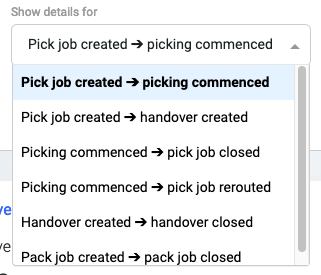
Because there may be many process times of interest, the details show a single selected time. The selection is made using the dropdown in the filter bar:
The following charts then refer to this selected process.
#### Total process time
{% columns %}
{% column %}
The total process time is the average calculated over all selected dates and facilities.
{% endcolumn %}
{% column %}
{% endcolumn %}
{% endcolumns %}
#### Process time by date
{% columns %}
{% column %}
In addition to the average value per day, week, or month, this view also shows the band within which 80% of all cases lie. This helps estimate how large typical deviations from the mean are.
{% endcolumn %}
{% column %}
{% endcolumn %}
{% endcolumns %}
#### Process time by facility
{% columns %}
{% column %}
The average process time is shown per facility, sorted from highest to lowest. The chart lists up to 30 facilities.
{% endcolumn %}
{% column %}
{% endcolumn %}
{% endcolumns %}
#### Process time and number of instances by facility
{% columns %}
{% column %}
A high process time might not be alarming if the total number of cases is low. For this reason, we plot both values against each other in a scatter plot, with each point representing a facility. Data points in the top right-hand corner are of particular interest, as they indicate facilities with both long durations and high instance counts.
In this example, the rather high number of 528 pick jobs in Berlin was created and then picked. The average time between these events was approximately 9 hours, which is in the middle range.
{% endcolumn %}
{% column %}
{% endcolumn %}
{% endcolumns %}
#### Process time distribution
{% columns %}
{% column %}
The process time distribution chart shows the frequency of cases requiring a certain amount of time.
For example, most selected durations were less than 10 hours. In 560 cases, however, the time was approximately 33 hours.
{% endcolumn %}
{% column %}
{% endcolumn %}
{% endcolumns %}
## Returns
Returns provides various data on [items that have been returned](/documentation/by-pillar/store-operations/returns.md). As a rule, returns are assigned to the facility that receives them, and the assigned date reflects when the return was initially created in that facility.
At the top of the page, you'll see some top-level return figures.
### Returns
{% columns %}
{% column %}
The returns chart shows the number of returns by date.
For example, 11 returns were created on 15 July.
{% endcolumn %}
{% column %}
{% endcolumn %}
{% endcolumns %}
### Returns per facility
{% columns %}
{% column %}
The returns per facility table shows the number of returns and the quantity of returned items by facility for the selected time period.
{% endcolumn %}
{% column %}
{% endcolumn %}
{% endcolumns %}
### Most frequently returned products
{% columns %}
{% column %}
The most frequently returned products table lists the most returned items in descending order of total quantity.
{% endcolumn %}
{% column %}
{% endcolumn %}
{% endcolumns %}
### Returned items condition
{% columns %}
{% column %}
The returned items condition table shows the number of items for which the condition was specified in the return.
{% endcolumn %}
{% column %}
{% endcolumn %}
{% endcolumns %}
### Return reasons
{% columns %}
{% column %}
The quantities returned for a particular return reason are displayed in a table and in a chart plotted by date. For example, on 20 July, 5 items were returned because the size was too big.
The table lists return reasons in descending order by quantity affected and shows the number of returns with that reason.
{% hint style="info" %}
Each item in a return can have multiple return reasons. So, the sum of the quantities shown can be higher than the total quantity returned.
{% endhint %}
{% endcolumn %}
{% column %}
{% endcolumn %}
{% endcolumns %}
### Total returned value
{% columns %}
{% column %}
This table shows the total value of the returned goods in the given time period, separated by currency.
{% endcolumn %}
{% column %}
{% endcolumn %}
{% endcolumns %}
---
# Agent Instructions
This documentation is published with GitBook. GitBook is the documentation platform designed so that both humans and AI agents can read, navigate, and reason over technical content effectively. Learn more at gitbook.com.
## Querying This Documentation
If you need additional information that is not directly available in this page, you can query the documentation by asking a question.
Perform an HTTP GET request on the following URL with the `ask` and `goal` query parameters:
```
GET https://docs.fulfillmenttools.com/documentation/backoffice/network-view/analytics/fulfillment-operations-pages.md?ask=&goal=
```
`ask` is the immediate question: it should be specific, self-contained, and written in natural language.
`goal` is what the user is ultimately trying to achieve, the reason they need the answer. Sharing it helps GitBook give you a better, more relevant answer. A goal is most helpful when it describes the outcome the user wants rather than restating the question. For example, with `ask=how do I create an API token`, a goal like `automate deployments from our CI pipeline` lets GitBook tailor the answer to that use case.
The response will contain a direct answer to the question and relevant excerpts and sources from the documentation.
Use this mechanism when the answer is not explicitly present in the current page, you need clarification or additional context, or you want to retrieve related documentation sections.