> For the complete documentation index, see [llms.txt](https://docs.fulfillmenttools.com/documentation/llms.txt). Markdown versions of documentation pages are available by appending `.md` to page URLs; this page is available as [Markdown](https://docs.fulfillmenttools.com/documentation/backoffice/facility-view/inventory/storage-locations.md).
# Storage locations
{% hint style="info" %}
This article focuses on using Backoffice. For information on APIs and customizations, see the [Storage locations and zones section](/documentation/by-pillar/global-inventory-hub/storage-locations-and-zones.md).
{% endhint %}
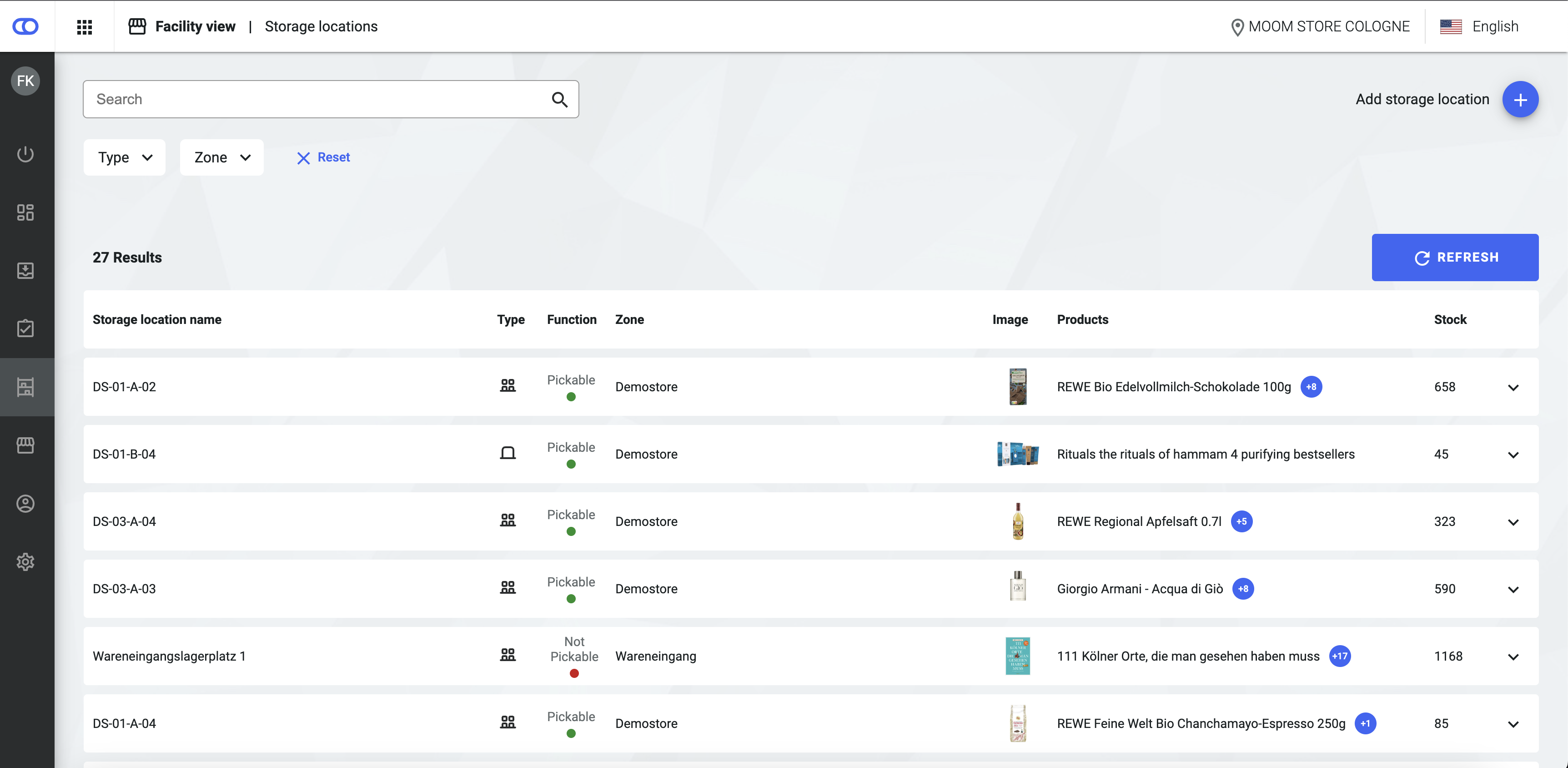
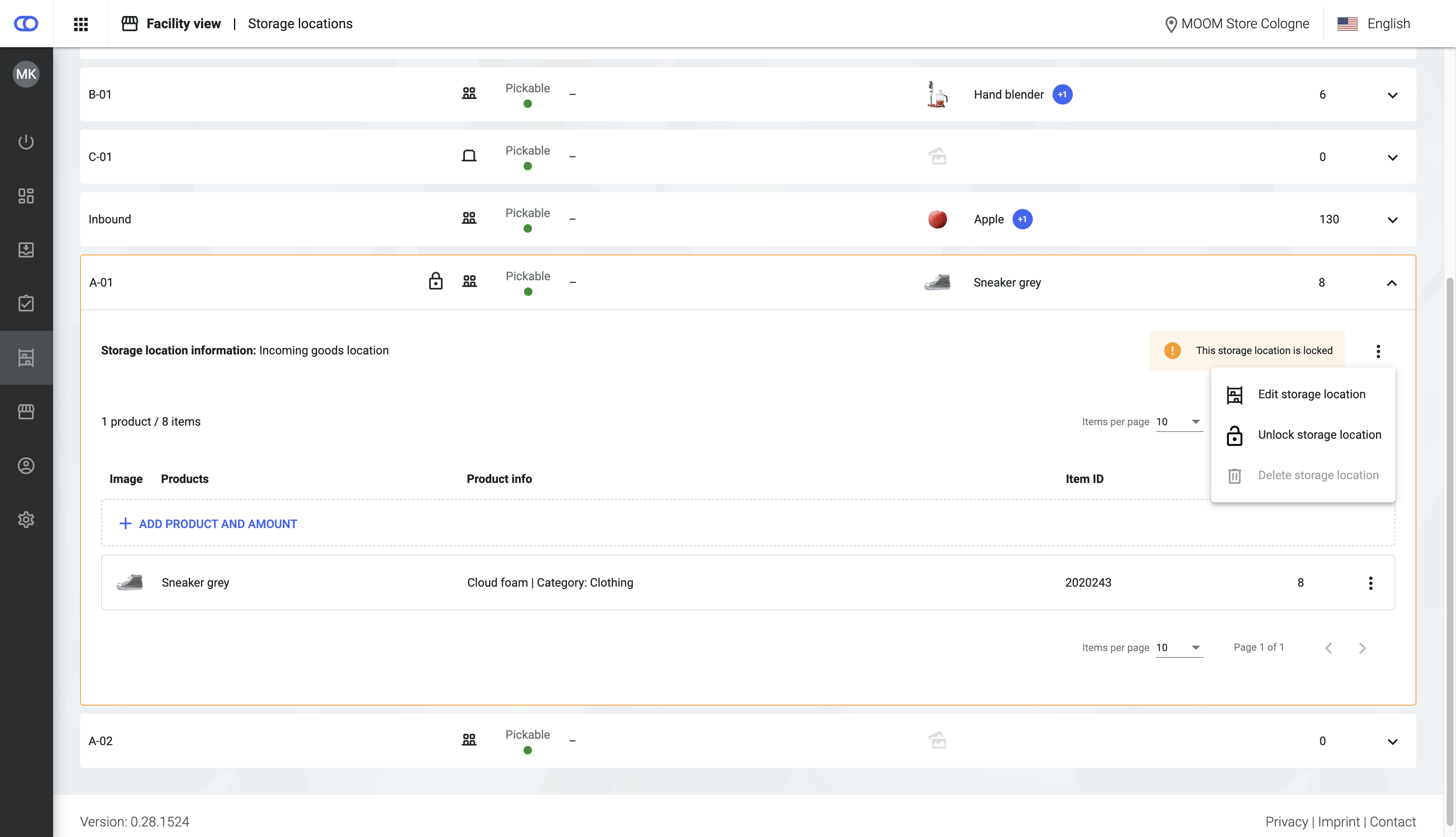
The storage location facility view shows all storage locations of a facility, the items placed on them, and other related information. In addition, you can perform other actions, such as locking a storage location or marking it as pickable or non-pickable.
{% hint style="success" %}
This view can be enabled via API in the [remote configuration](/documentation/by-pillar/store-operations/remote-configuration.md).
{% endhint %}
You can use the search bar and filter to find specific storage locations. The search supports queries by storage location name, product name, and item ID.
The overview displays the following information:
* **Storage location name:** A unique and mandatory value that identifies a storage location.
* **Type:** A value describing whether one product (single) or multiple products (bulk) can be stored at the location.
* **Pickable:** Indicates whether items can be picked from the location for orders.
* **Zone:** The zone in which the storage location is located.
* **Products:** Shows one or more products situated at that location. A plus icon (+) indicates when there are multiple products at the location.
* **Stock:** The total stock quantity of all items at the location. For example, if there are two products with 20 units each in the location, 40 is displayed.
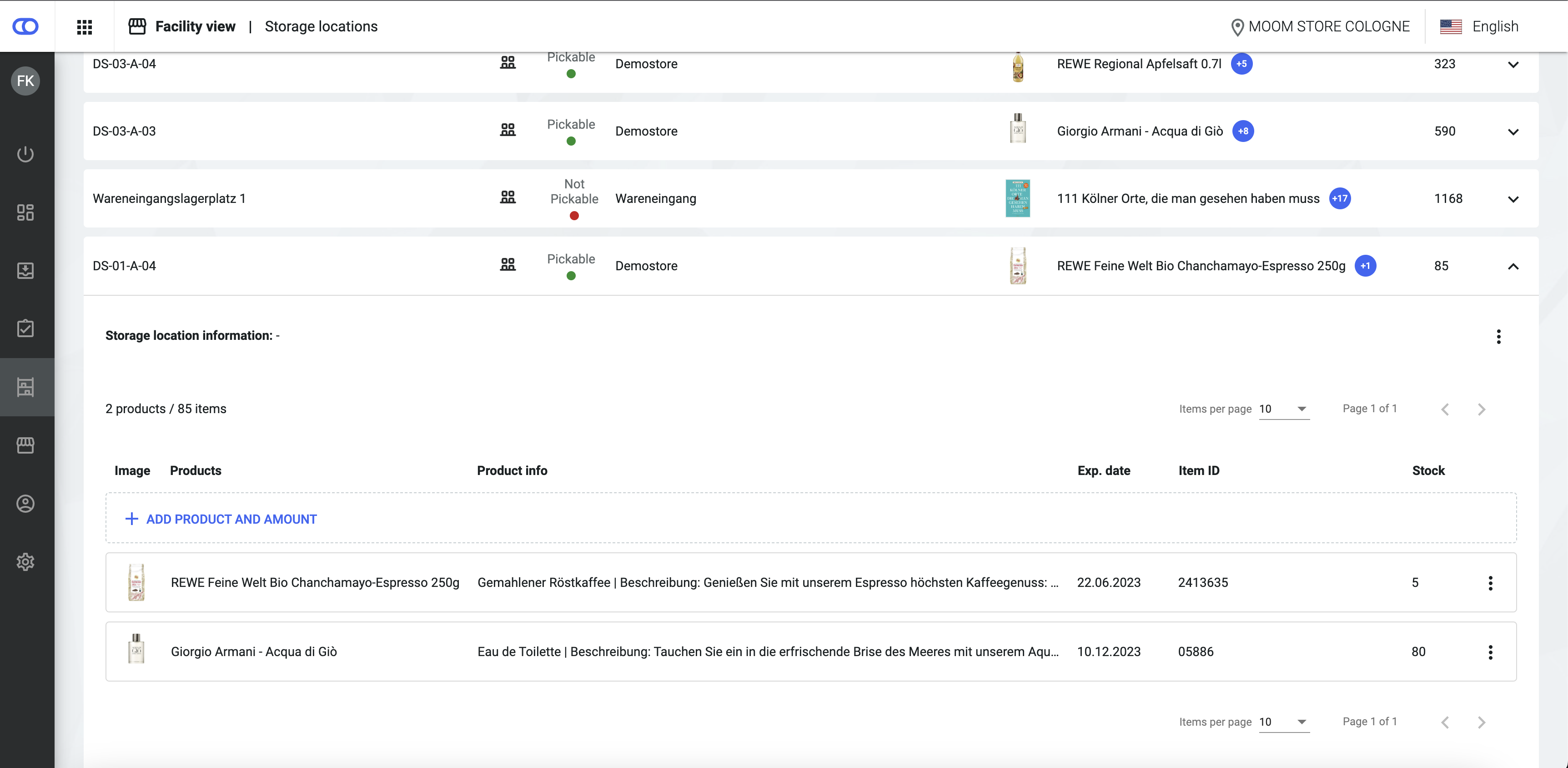
You can expand the storage location information by clicking the down arrow on the relevant row. This then displays all products and their stock in the respective location.
## Create a storage location
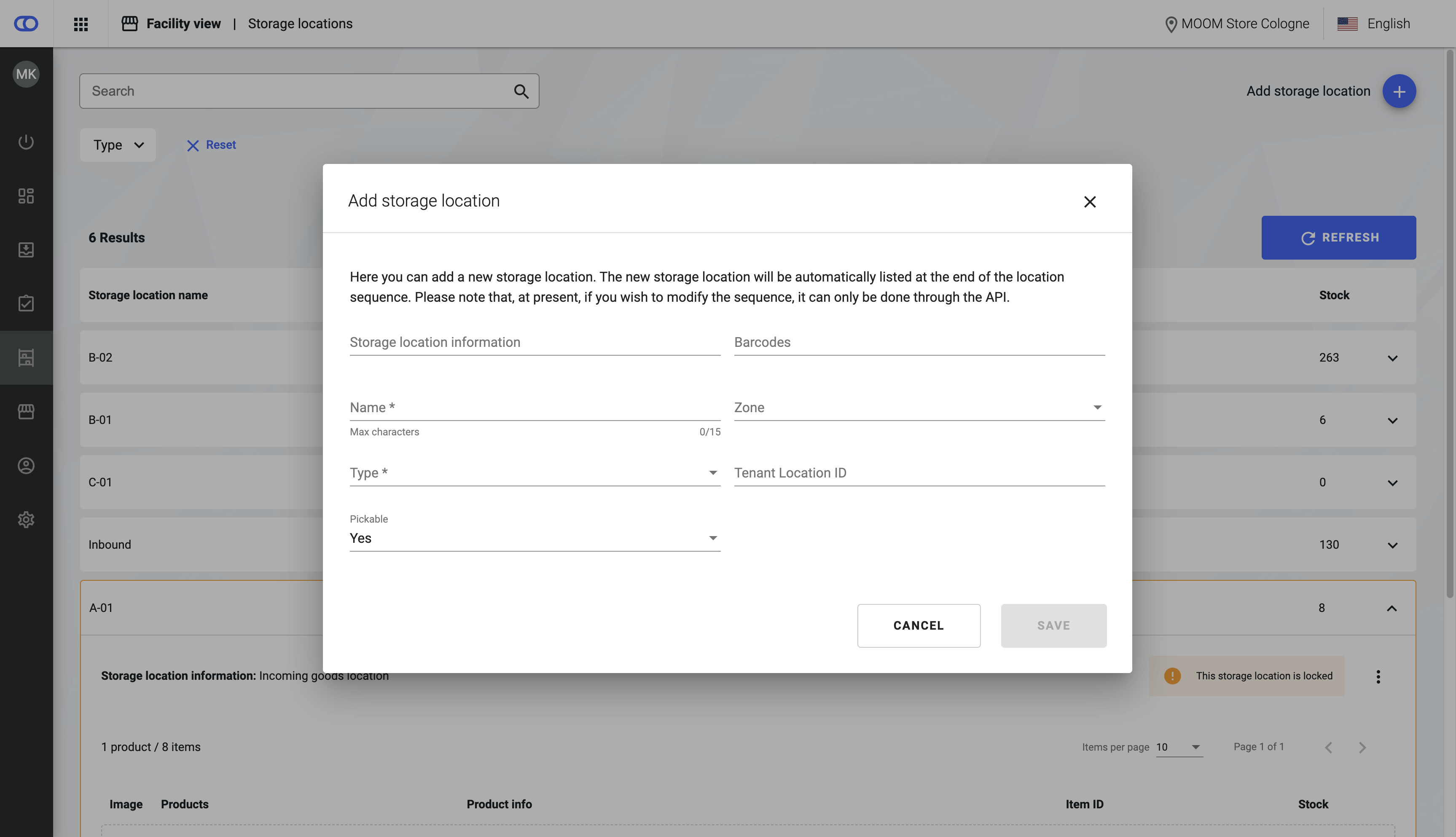
To create a new storage location, click the **Add storage location** button at the top of the page and input the relevant information.
The following fields are mandatory:
* **Storage location name:** Must be unique.
* **Type:** Select either **Single** (one product) or **Bulk** (multiple products)
* **Pickable:** Select either **Yes** or **No**. Products in a pickable location are ready to be picked for customer orders and are included in the [available for picking](/documentation/by-pillar/global-inventory-hub/stock/stock-availability.md) count. The pickable status is an [inventory trait](/documentation/by-pillar/global-inventory-hub/inventory-traits.md) that is inherited from a storage location to the stock on that location.
The following fields are optional:
* **Storage location information**: A brief description of the location, limited to 1024 characters.
* **Barcodes**: A string representing the scannable code that identifies the storage location.
* **Zone:** Select from the zones that your team has defined via API. Once selected, it can't be edited.
* **Location ID**: An additional value that uniquely identifies the location. If no value is set, an ID is automatically created, which can't be changed later.
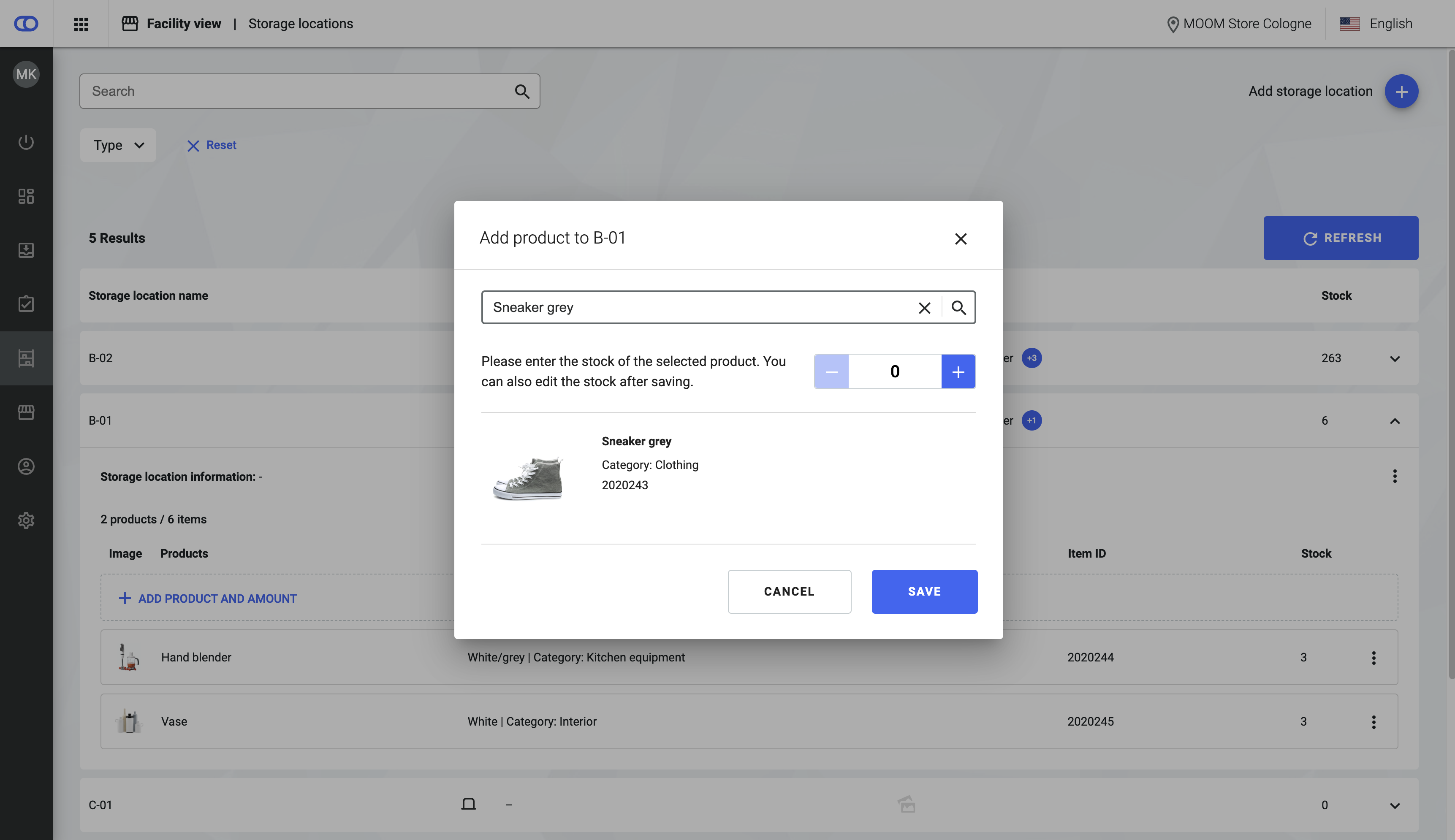
Once created, you can add stock to your storage location. In the expanded view, click the **Add stock** button. You can then search through existing listings, select one, and add the stock level for that location. If the storage location type is single, you can only add one listing at a time. If the type is bulk, you can add more products.
To edit stock already in a storage location, expand the location view and click the more icon.
To remove an item from the storage location, edit the stock level to 0. This will automatically remove it from the storage location.
## Edit a storage location
You can edit an existing storage location by clicking the more icon in the expanded storage location view and selecting **Edit storage location**.
You can change all fields except for the zone and the location ID.
You can lock a storage location by clicking the more icon in the expanded location view. Products in a locked location aren't included in the [available on stock](/documentation/by-pillar/global-inventory-hub/stock/stock-availability.md) and [available for picking](/documentation/by-pillar/global-inventory-hub/stock/stock-availability.md) counts. If you attempt to move a product from this location, you'll receive a notification. For more information, see the [inventory traits article](/documentation/by-pillar/global-inventory-hub/inventory-traits.md).
You can delete an existing storage location only if it contains no items.
---
# Agent Instructions
This documentation is published with GitBook. GitBook is the documentation platform designed so that both humans and AI agents can read, navigate, and reason over technical content effectively. Learn more at gitbook.com.
## Querying This Documentation
If you need additional information that is not directly available in this page, you can query the documentation by asking a question.
Perform an HTTP GET request on the following URL with the `ask` and `goal` query parameters:
```
GET https://docs.fulfillmenttools.com/documentation/backoffice/facility-view/inventory/storage-locations.md?ask=&goal=
```
`ask` is the immediate question: it should be specific, self-contained, and written in natural language.
`goal` is what the user is ultimately trying to achieve, the reason they need the answer. Sharing it helps GitBook give you a better, more relevant answer. A goal is most helpful when it describes the outcome the user wants rather than restating the question. For example, with `ask=how do I create an API token`, a goal like `automate deployments from our CI pipeline` lets GitBook tailor the answer to that use case.
The response will contain a direct answer to the question and relevant excerpts and sources from the documentation.
Use this mechanism when the answer is not explicitly present in the current page, you need clarification or additional context, or you want to retrieve related documentation sections.