> For the complete documentation index, see [llms.txt](https://docs.fulfillmenttools.com/documentation/llms.txt). Markdown versions of documentation pages are available by appending `.md` to page URLs; this page is available as [Markdown](https://docs.fulfillmenttools.com/documentation/backoffice/facility-view/inventory/inbound.md).
# Inbound
{% hint style="info" %}
This article focuses on using Backoffice. For information on APIs and customizations, see the [Inbound process section](/documentation/by-pillar/global-inventory-hub/inbound-process.md).
{% endhint %}
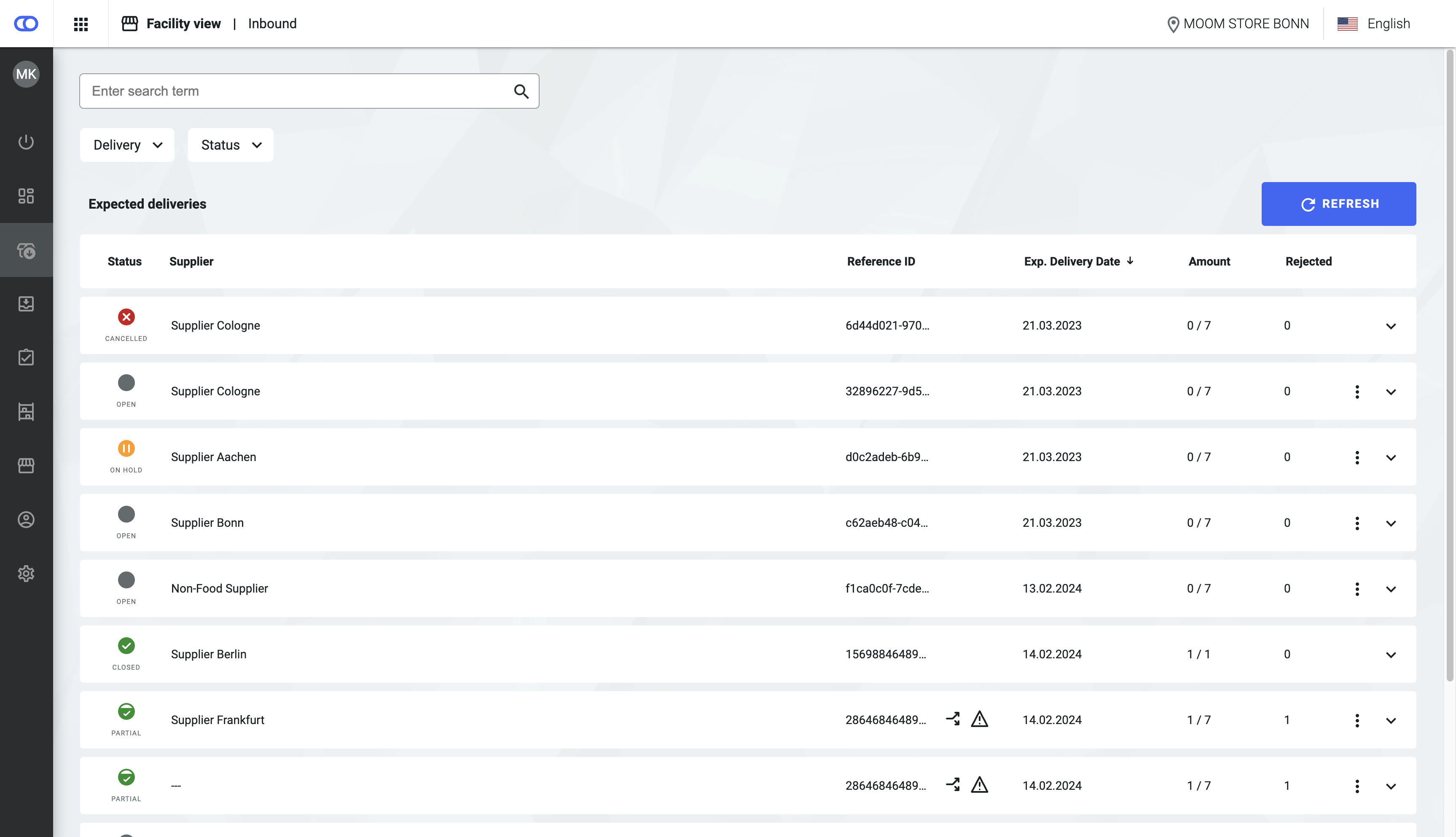
The inbound view displays all inbound processes for a facility, regardless of their current status. You can use the search bar and filter to find specific inbound processes. The search supports queries by reference ID, supplier name, item ID, and product name.
{% hint style="success" %}
An administrator can enable this view in the [remote configuration](/documentation/by-pillar/store-operations/remote-configuration.md) via the API.
{% endhint %}
The overview contains the following information:
* **Status:** The current status of the overall process. Possible statuses include:
* **Open**: The delivery hasn't arrived yet.
* **In progress**: The goods receipt has started.
* **Closed**: The delivery was confirmed, and all items were checked and placed in a [storage location](/documentation/backoffice/facility-view/inventory/storage-locations.md).
* **Partial delivery**: One or more items were missing from the delivery.
* **On hold**: The inbound process is paused.
* **Canceled**: An administrator or an external system canceled the inbound process. No further deliveries are expected.
* **Supplier**: The name of the supplier of the delivery.
* **Reference ID**: A unique ID that identifies the inbound process, such as a delivery note number.
* **Expected delivery date**: The date on which the delivery is expected to arrive, based on the information in the purchase order. Deliveries expected to arrive as soon as possible (ASAP) are sorted by order date. Hovering over ASAP shows the order date.
* **Amount:** The quantity of items accepted versus the quantity expected.
* **Rejected amount:** The quantity of items rejected due to being broken or damaged.
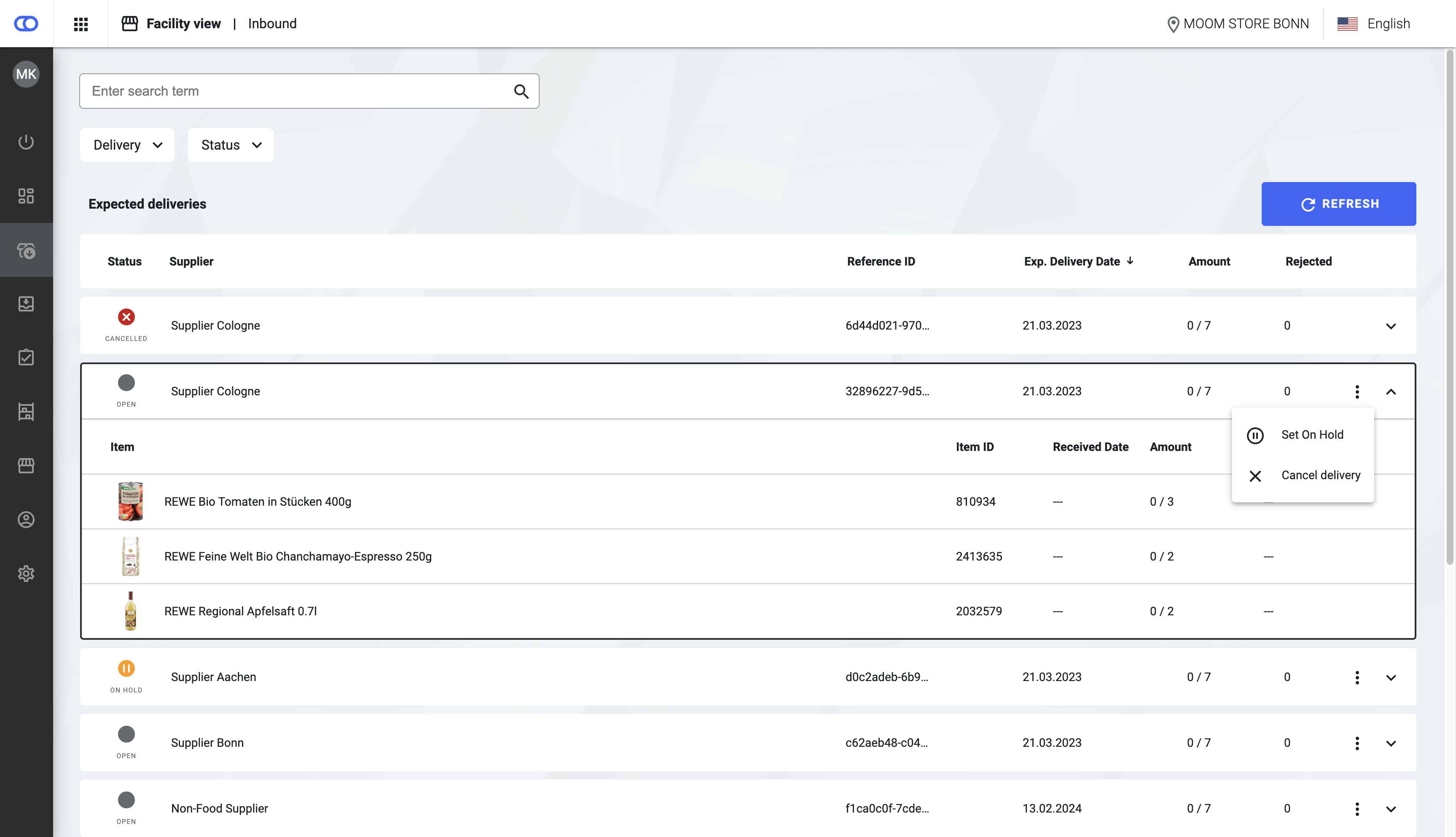
You can expand each inbound process by clicking the down arrow. This shows more detailed information about all deliveries within the process. The detail view contains the following information:
* **Item**: The image and name of the product (from listings).
* **Item ID**: The unique ID by which the product can be identified.
* **Received date**: The date on which the delivery was accepted in the facility.
* **Amount**: The quantity of items accepted versus the quantity expected for this specific delivery.
* **Rejected**: The quantity of items rejected for this specific delivery.
* **Stock properties**: If requested or accepted items have properties, such as an expiry date, the detail view displays them. This view shows up to two properties. If more properties are configured for an item, they can only be retrieved via the API. For more information, see the [Stock properties article](/documentation/by-pillar/global-inventory-hub/stock/stock-properties.md).
You can set an inbound process on hold by clicking the more icon on the relevant process and selecting **Set on hold**. This action pauses the inbound process and updates the status in the Inventory app. To resume the inbound process, click the more icon and select **Release**.
To cancel an inbound delivery process, click the more icon on the relevant process and select **Cancel delivery**. This action cancels the entire process. Deliveries that have already been accepted remain in a closed status, and no information is lost. A canceled inbound process can't be reopened from Backoffice and must be done via API.
---
# Agent Instructions
This documentation is published with GitBook. GitBook is the documentation platform designed so that both humans and AI agents can read, navigate, and reason over technical content effectively. Learn more at gitbook.com.
## Querying This Documentation
If you need additional information that is not directly available in this page, you can query the documentation by asking a question.
Perform an HTTP GET request on the following URL with the `ask` and `goal` query parameters:
```
GET https://docs.fulfillmenttools.com/documentation/backoffice/facility-view/inventory/inbound.md?ask=&goal=
```
`ask` is the immediate question: it should be specific, self-contained, and written in natural language.
`goal` is what the user is ultimately trying to achieve, the reason they need the answer. Sharing it helps GitBook give you a better, more relevant answer. A goal is most helpful when it describes the outcome the user wants rather than restating the question. For example, with `ask=how do I create an API token`, a goal like `automate deployments from our CI pipeline` lets GitBook tailor the answer to that use case.
The response will contain a direct answer to the question and relevant excerpts and sources from the documentation.
Use this mechanism when the answer is not explicitly present in the current page, you need clarification or additional context, or you want to retrieve related documentation sections.