> For the complete documentation index, see [llms.txt](https://docs.fulfillmenttools.com/documentation/llms.txt). Markdown versions of documentation pages are available by appending `.md` to page URLs; this page is available as [Markdown](https://docs.fulfillmenttools.com/documentation/apps/store-operations-app/orders-overview.md).
# Orders overview
The **Orders overview** is the central workspace of the Store Operations app. It lists all orders for the selected facility and provides access to the individual process steps required to fulfill them.
## **Order list**
Each order displays the short ID, tenant order ID, customer name, target handover time, and carrier. The current process step is indicated by an icon. Orders are sorted by urgency:
* Orders approaching their handover time are marked as urgent
* Orders that have missed their handover time are marked as overdue and shown with a negative time value
### **Starting a job from the order list**
Selecting an order starts the corresponding job for the icon shown.
Pick jobs behave differently depending on the picking method. Single order pick starts immediately, while batch and multi-order pick first show a selection screen where additional pick jobs can be added to the pick run before starting. For all other process steps, the user starts the corresponding task.
## **Order icons**
Each icon shows what type of work is involved and how far along it is in the process:
* Shopping cart: Picking
* Wrench: Services
* Box: Packing
* Truck: Ship-from-store (handover)
* Bag: Click-and-collect (handover)
The ring around the icon reflects progress:
* No ring: Open
* Partial ring with an orange 3 dot indicator: In progress
* Partial ring with an orange pause indicator: Paused
* Full ring with a green checkmark: Finished
* Partial ring with a green checkmark: Finished with a short-pick
## **Order details**
Order details are accessible via the more icon (3 dots) on each order. Depending on the configuration, additional options may be available from this menu. The details screen shows the process steps configured for the order. Tags are displayed at the top. If more than two lines of tags are present, the remaining ones can be expanded.
Steps that are ready to be started are active. Steps that are not yet available are greyed out and shown with a **Waiting** status. Selecting an active step opens the corresponding workflow, just as selecting directly from the order list does.
## **Search and filter**
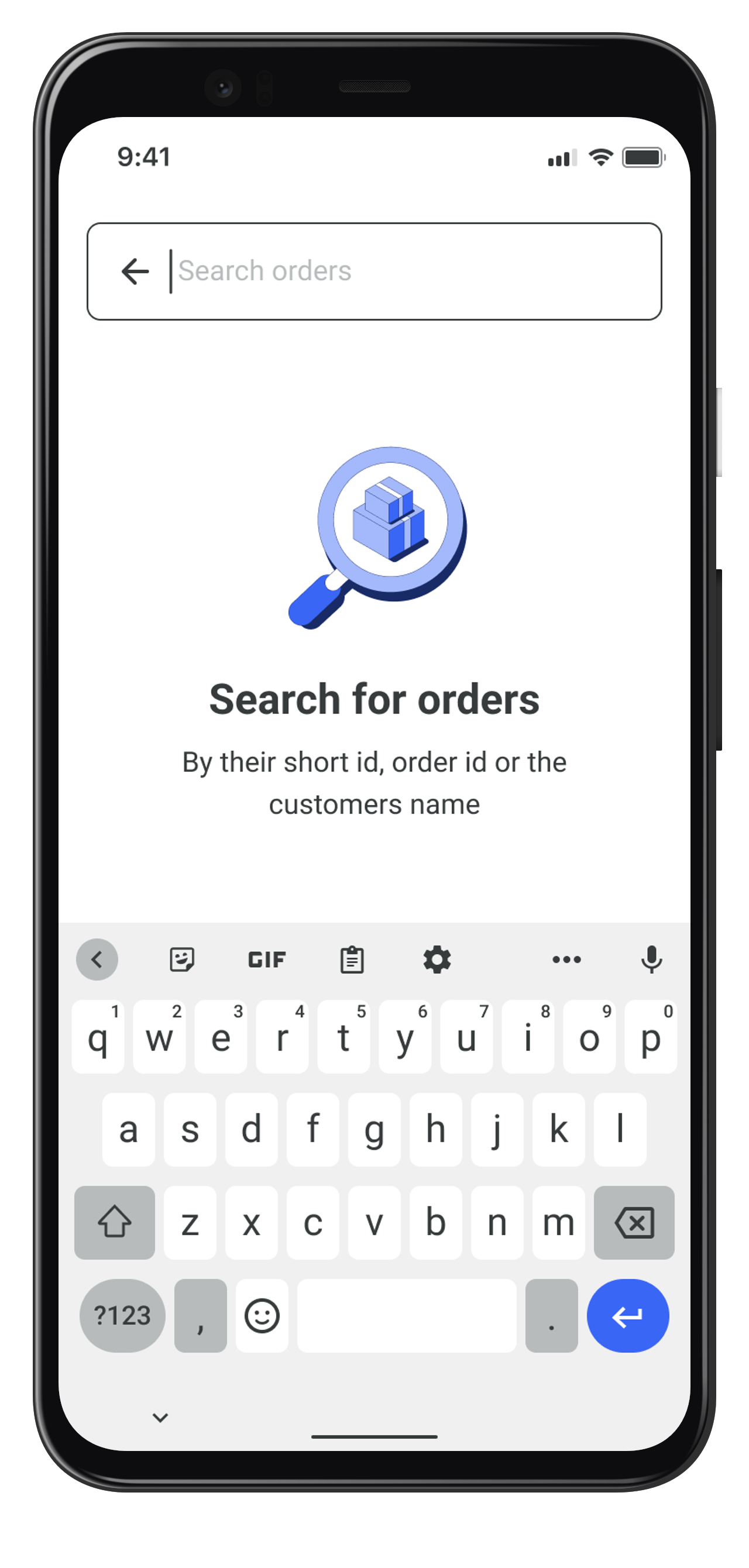
Orders can be searched by short ID, tenant order ID, or customer name. If no orders match the search or filter, an empty state is displayed.
The list can be filtered by process step and by status. Available steps are Picking, Services, Packing, and Handover. Available statuses are Open, In progress, Paused, and Finished. Filters are applied in the order: status first, then process step.
---
# Agent Instructions
This documentation is published with GitBook. GitBook is the documentation platform designed so that both humans and AI agents can read, navigate, and reason over technical content effectively. Learn more at gitbook.com.
## Querying This Documentation
If you need additional information that is not directly available in this page, you can query the documentation by asking a question.
Perform an HTTP GET request on the following URL with the `ask` and `goal` query parameters:
```
GET https://docs.fulfillmenttools.com/documentation/apps/store-operations-app/orders-overview.md?ask=&goal=
```
`ask` is the immediate question: it should be specific, self-contained, and written in natural language.
`goal` is what the user is ultimately trying to achieve, the reason they need the answer. Sharing it helps GitBook give you a better, more relevant answer. A goal is most helpful when it describes the outcome the user wants rather than restating the question. For example, with `ask=how do I create an API token`, a goal like `automate deployments from our CI pipeline` lets GitBook tailor the answer to that use case.
The response will contain a direct answer to the question and relevant excerpts and sources from the documentation.
Use this mechanism when the answer is not explicitly present in the current page, you need clarification or additional context, or you want to retrieve related documentation sections.