> For the complete documentation index, see [llms.txt](https://docs.fulfillmenttools.com/documentation/llms.txt). Markdown versions of documentation pages are available by appending `.md` to page URLs; this page is available as [Markdown](https://docs.fulfillmenttools.com/documentation/apps/inventory-app.md).
# Inventory app
{% hint style="info" %}
This article focuses on using the Returns app. For information on APIs and customizations, see the [Global Inventory Hub](/documentation/by-pillar/global-inventory-hub.md) section.
{% endhint %}
The Inventory app supports operational processes for inventory management in stores and warehouses. This includes accepting goods and transferring stock between storage locations. The [Inventory Android app](https://play.google.com/store/apps/details?id=com.ocfulfillment.inventoryapp\&gl=DE) is available for Android devices.
When you open the app, there are three options to choose from:
* [Inbound](#inbound)
* [Storage and relocation](#storage-and-relocation)
* Production: Opens the Operations app
## Inbound
The inbound section in the Inventory app supports handling the receipt of goods. You can accept items, perform a brief quality inspection, and stow the items in an inbound location. An administrative view of all closed and pending inbound processes is available in Backoffice in the [Inbound](/documentation/backoffice/facility-view/inventory/inbound.md) section.
### Incoming goods
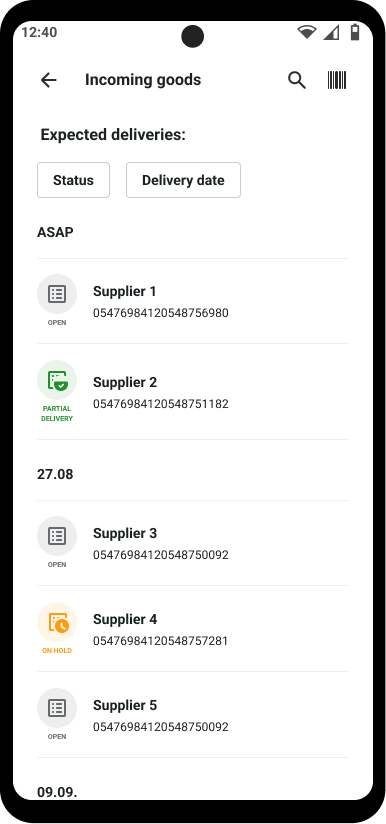
When opening the inbound section, you'll see an overview of all expected deliveries based on information within purchase orders.
For each entry in the overview, the app displays the supplier name in the headline, and the subtitle shows the value configured in the field `tenantInboundProcessId`, along with the status of the delivery.
There are four statuses that apply to an inbound process:
* **Open**: The delivery hasn't arrived, or the receipt of goods hasn't been completed.
* **Closed**: The delivery was confirmed to be complete, the items were checked and placed in a storage location, or the delivery was cancelled.
* **Partial delivery**: The delivery has arrived, and items were checked and placed in a storage location, but some items are missing.
* **On hold**: If a process is on hold, the app displays a modal asking for confirmation before a user can start the process.
* Example use cases:
* Some items were missing, and the order should only be stowed once the complete delivery has arrived.
* Items are damaged, and a supervisor must check the order before items can be stowed or written off.
The entries shown in the overview will only show deliveries with statuses Open, Partial delivery, or On hold. Closed deliveries won't show in the app.
You can search for specific processes by purchase order ID or supplier name, and filter entries by status and date.
### Goods acceptance in the Inventory app
You can start a goods receipt by either tapping on one of the entries or by scanning the delivery note. To scan, a user taps the symbol in the right corner and scans the barcode on the delivery note with an MDE device.
{% stepper %}
{% step %}
**Select the product you've received**
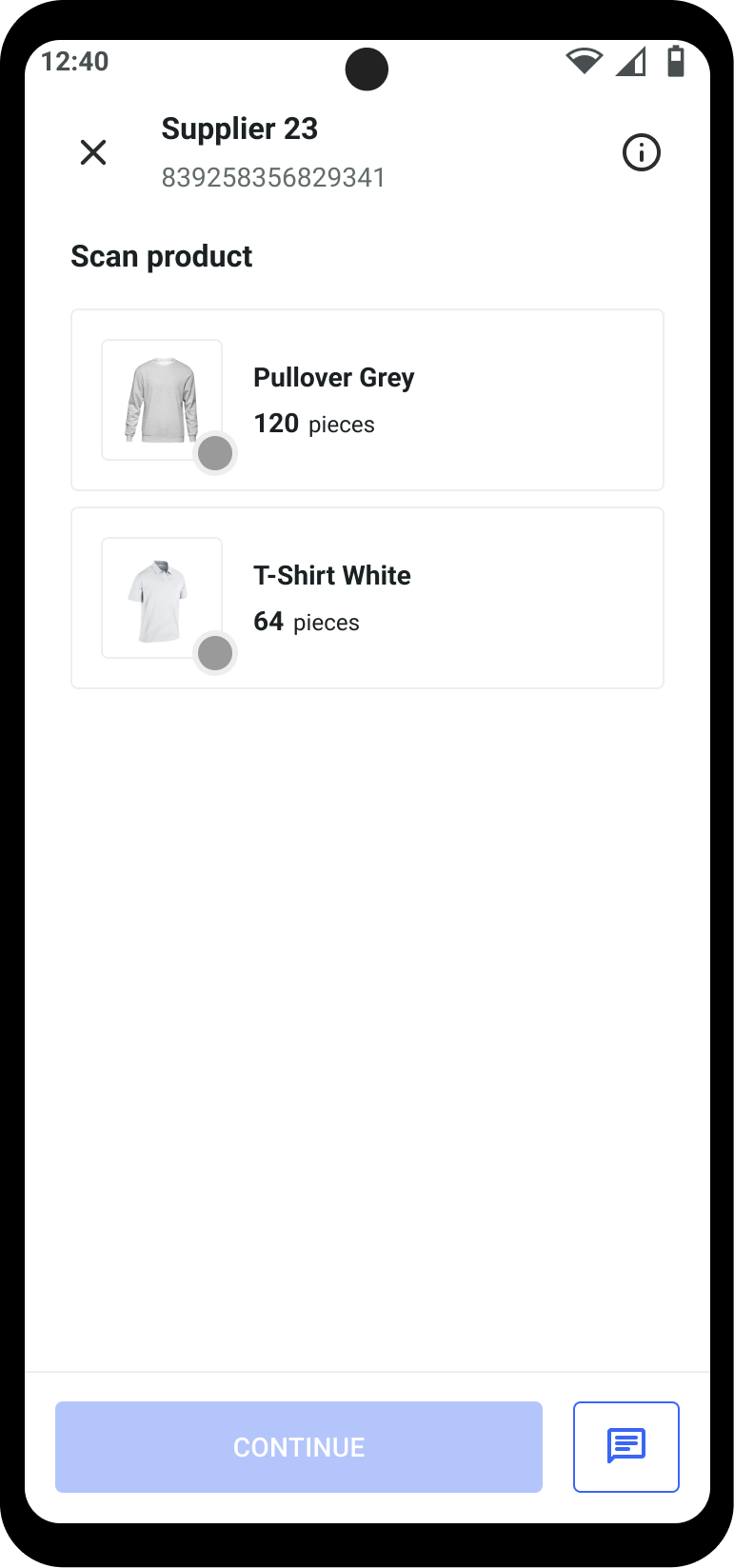
Upon opening an entry in the inbound overview, the user receives an overview of all items that are expected to arrive.
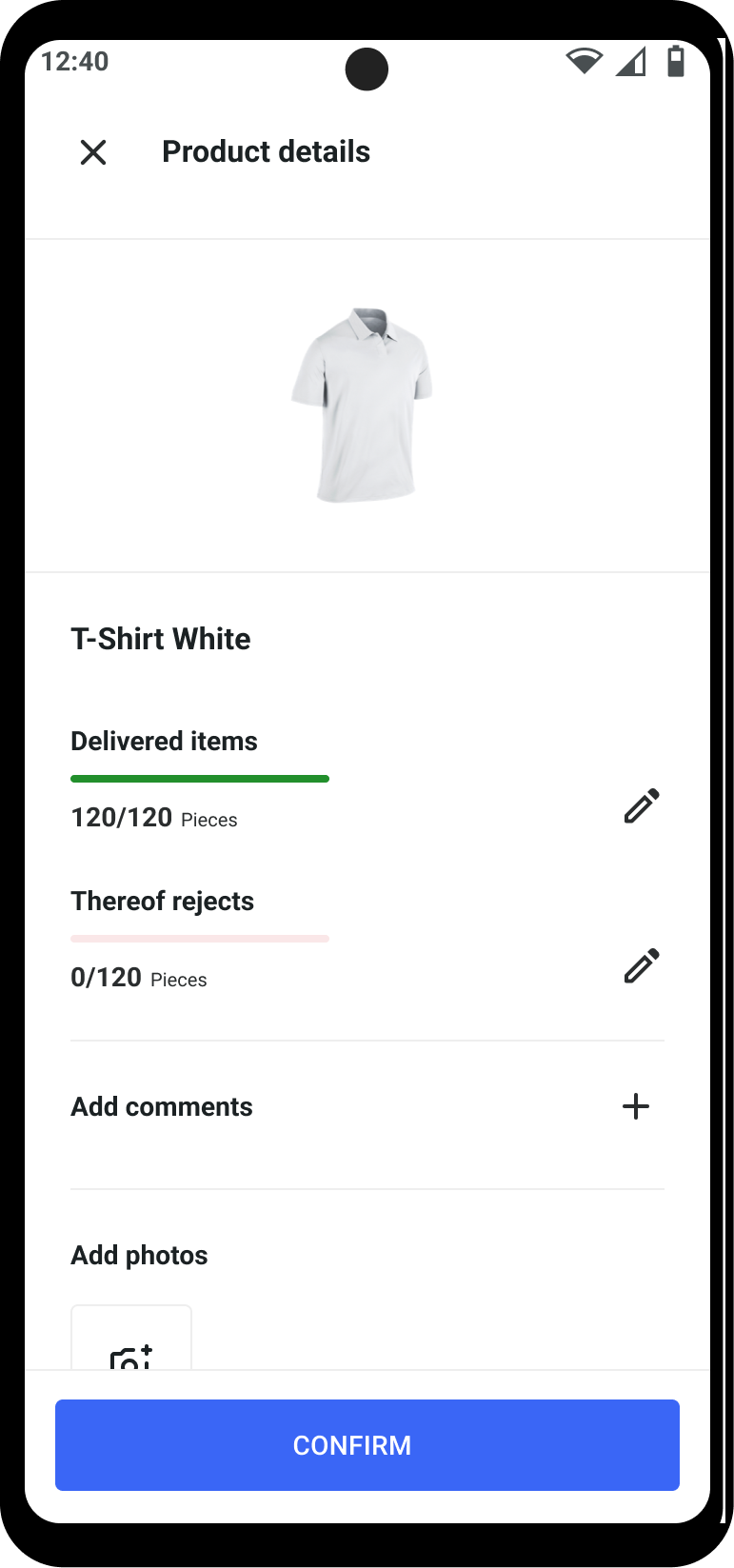
Tapping an entry starts the inbound process. For each product that has arrived, the user can indicate the total quantity and the quantity of rejected items.
You can add a comment and photos to explain, for example, the reasons for rejecting certain items. If at least one product has been confirmed, you can continue to scan the storage location.
{% endstep %}
{% step %}
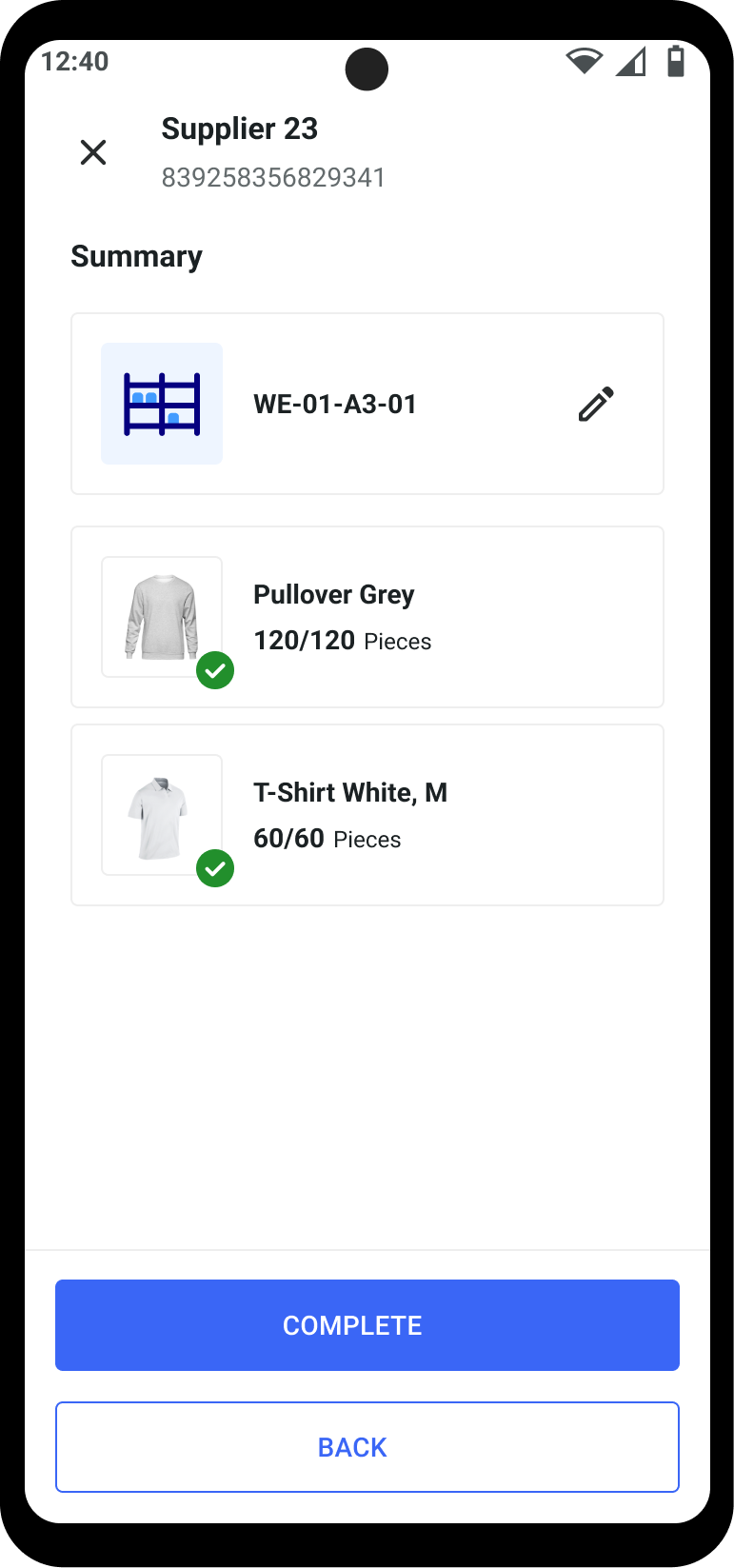
**Complete acceptance**
You'll be shown a summary of all accepted items and the scanned storage location, and the user can complete the receipt of goods.
{% endstep %}
{% endstepper %}
#### Partial deliveries
You can complete the receipt of goods without accepting all items. In that case, the entry receives the status `Partial delivery`. The process remains in that status until you either accept the rest of the delivery or cancel it.
If a subsequent delivery arrives that belongs to the same entry, you can continue the receipt of goods by tapping on the entry. In that case, you can edit the quantity and condition of items that have not been accepted. Items that have already been accepted can't be edited. If all remaining items have arrived in the subsequent delivery, the process status to `closed`, and the entry is no longer visible in the overview.
#### Products with stock properties
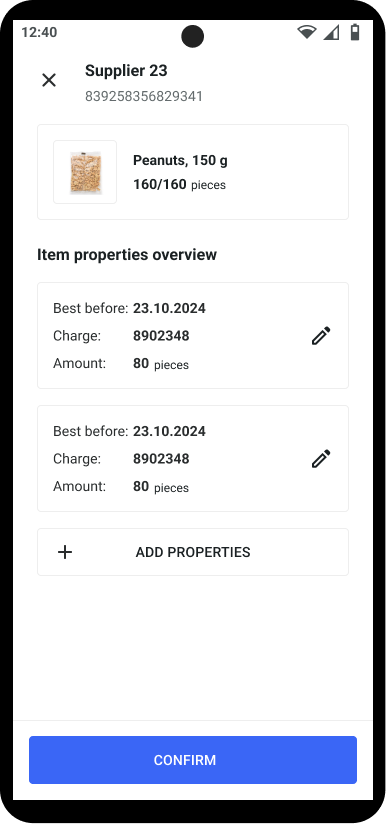
You can enter values for [stock properties](/documentation/by-pillar/global-inventory-hub/stock/stock-properties.md) during the receipt of goods. If stock properties are configured for a product, you'll be directed to a different product detail page upon scanning or tapping on a product in the inbound overview.
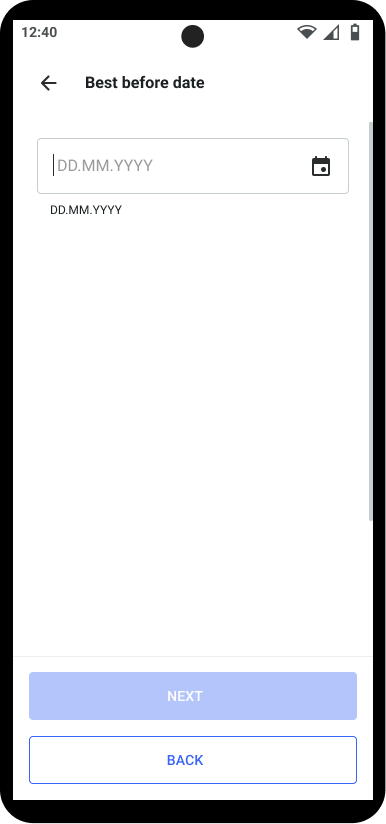
In the detail page, you can add values for stock properties such as an expiry date or batch number.
If there are different properties for the same product, you can add several property sets (for example, several expiry dates) by scanning or selecting the product again and tapping the **+** button on the product detail page.
After adding the stock property information, you can enter the total and rejected quantity of received items. If tracking for the respective [stock properties](/documentation/by-pillar/global-inventory-hub/stock/stock-properties.md) is configured as mandatory, the process can't be completed without entering the property information.
#### Adding attachments to receipts
You can add more details about the delivery or specific items using comments and photos.
You can add comments concerning the whole delivery on the overview page by tapping on the comment icon.
You can add comments concerning a specific product by tapping on the **Add comment** section in the product detail view. A user can add photos of delivered products by tapping on the **Add photos** section in the product detail view.
## Storage and relocation
The storage and relocation section in the Inventory app supports stowing and relocating items within a store or warehouse.
### Relocating goods with the Inventory app
{% stepper %}
{% step %}
**Access storage and relocation**
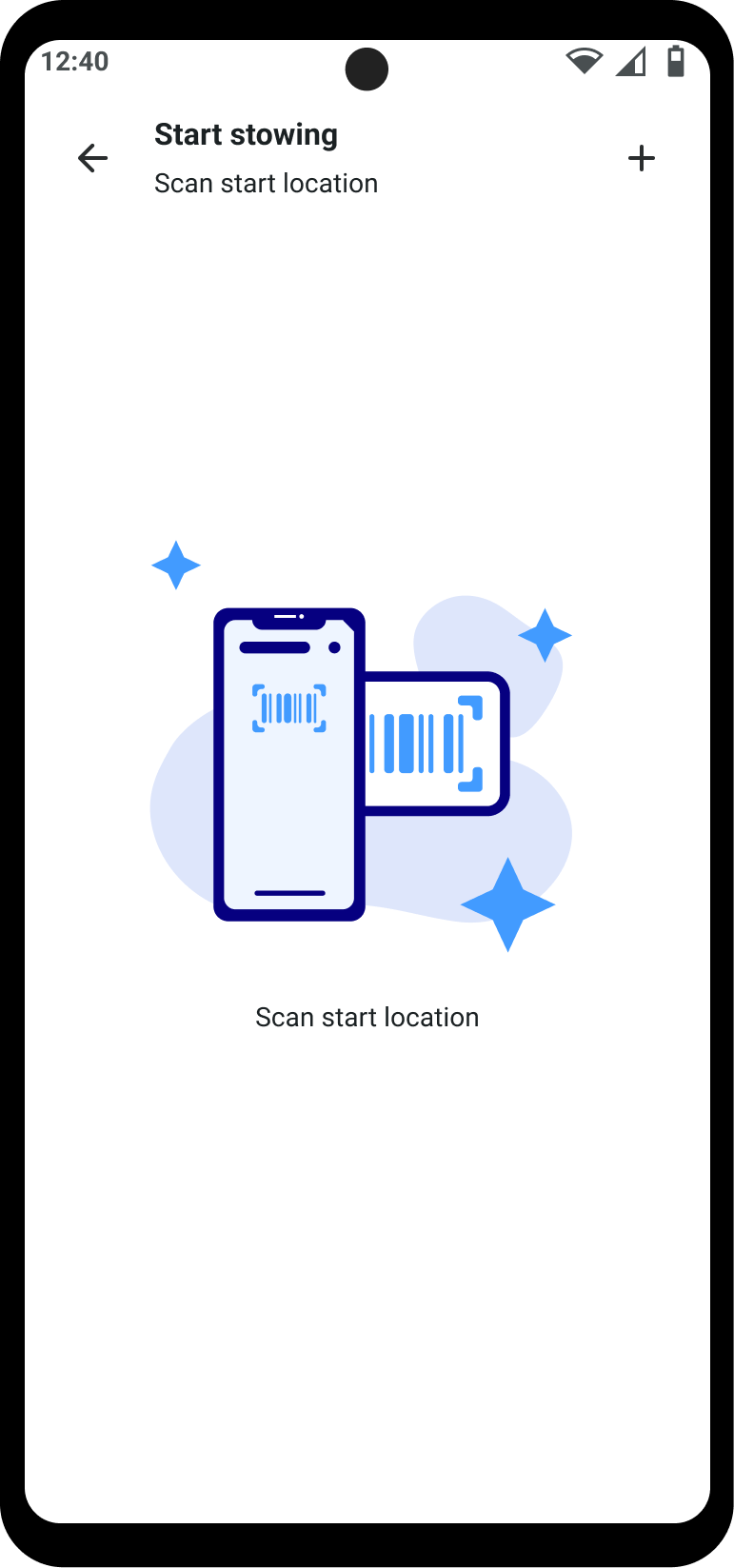
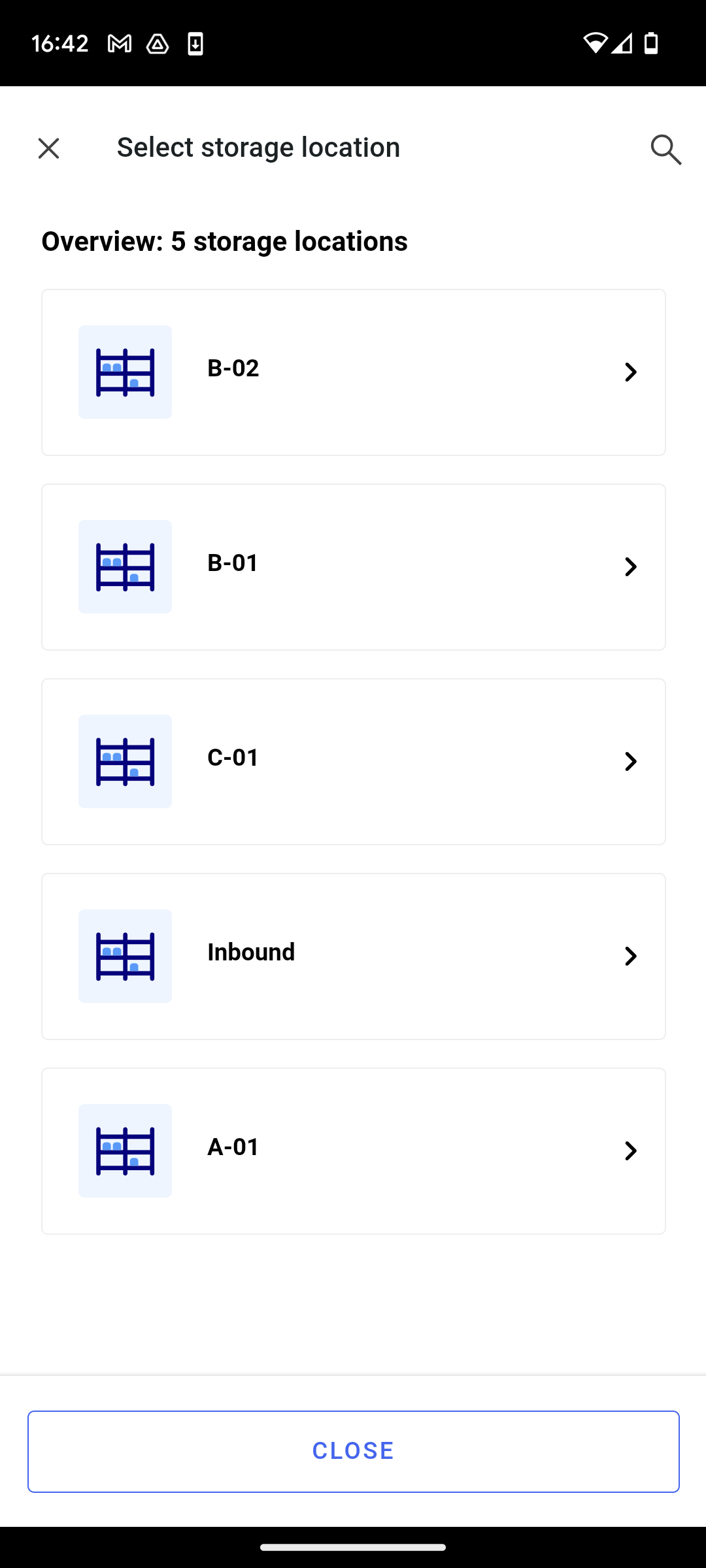
Open the Inventory app and select **Storage and relocation**. You'll see a screen like below:
{% endstep %}
{% step %}
**Scan the location barcode**
You can either can the barcode of the storage location using your device, or tap the + icon in the top right of the screen to search the available location list.
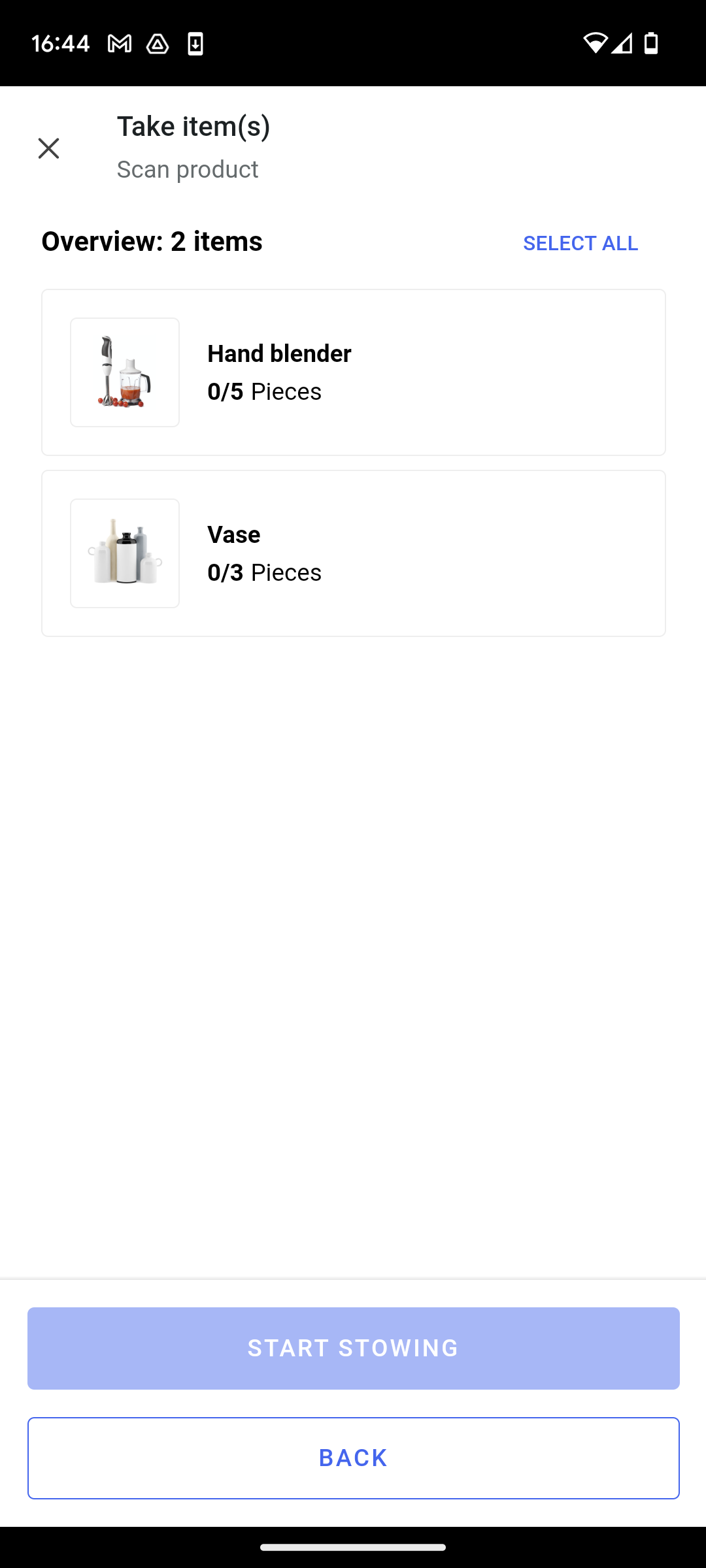
You'll be shown a list of items that are available at the location you've selected.
{% endstep %}
{% step %}
**Select the items to relocate**
Select the items for relocation by selecting them in the list and inputting the number of items you'll be removing. Then tap the **Start stowing** button.
{% endstep %}
{% step %}
**Select the new location**
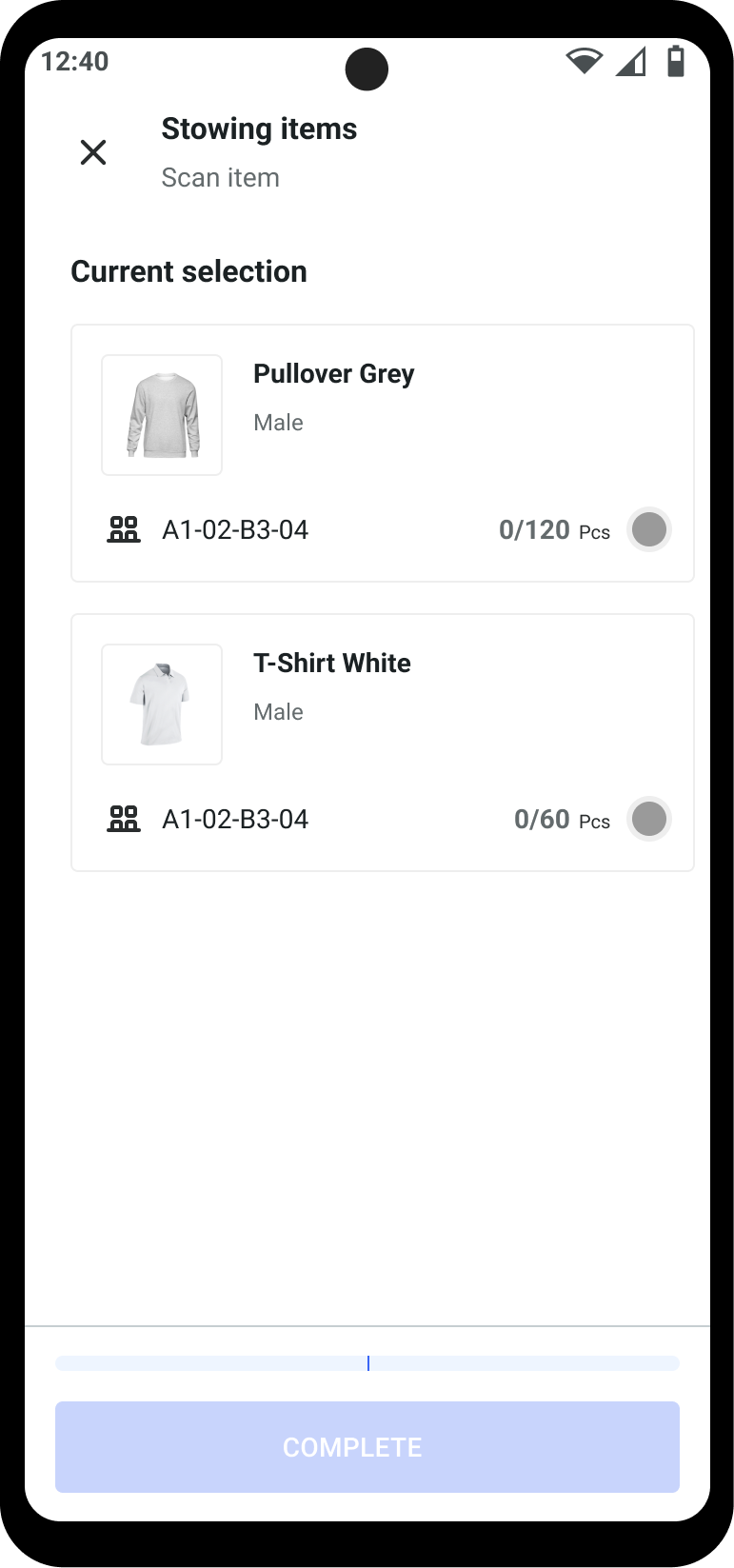
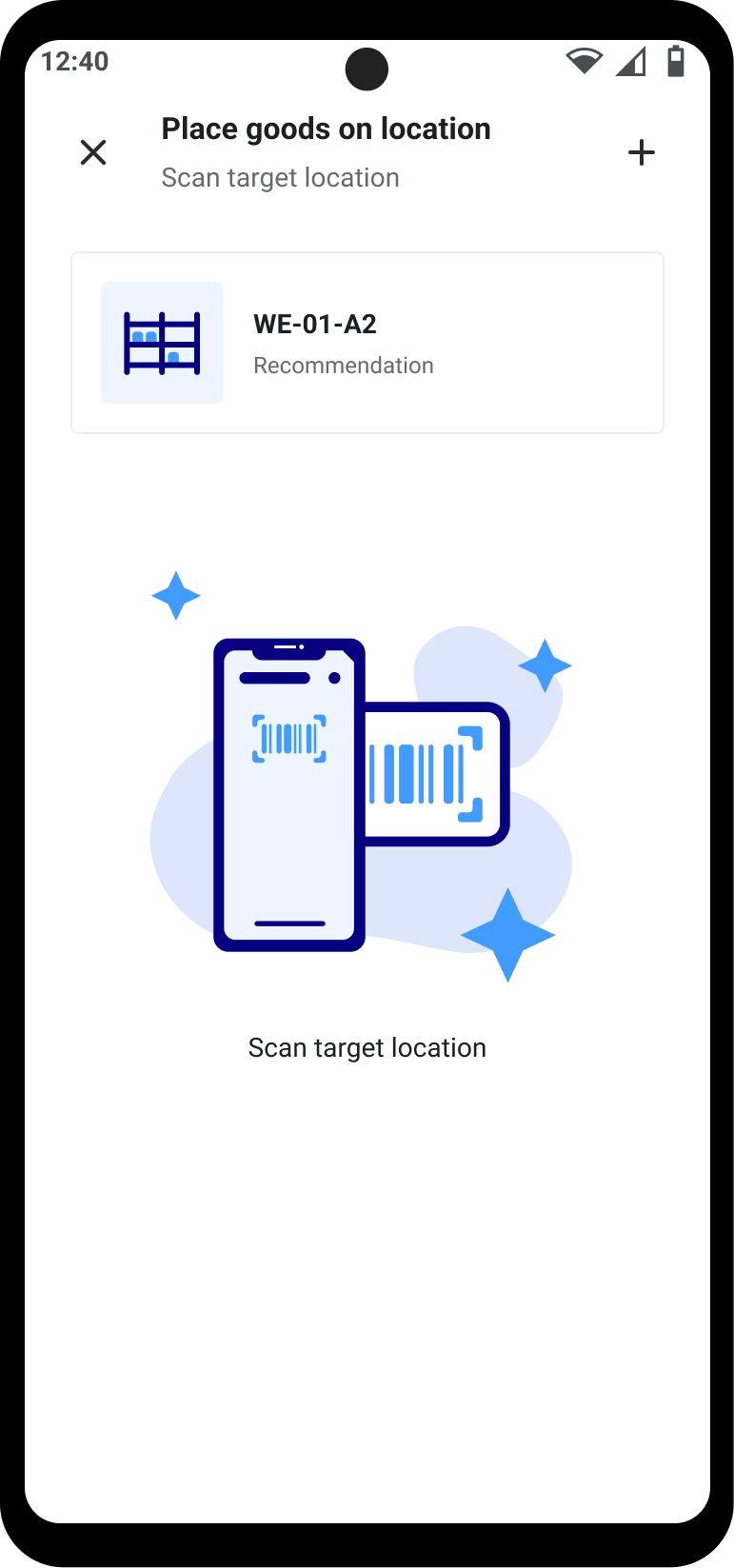
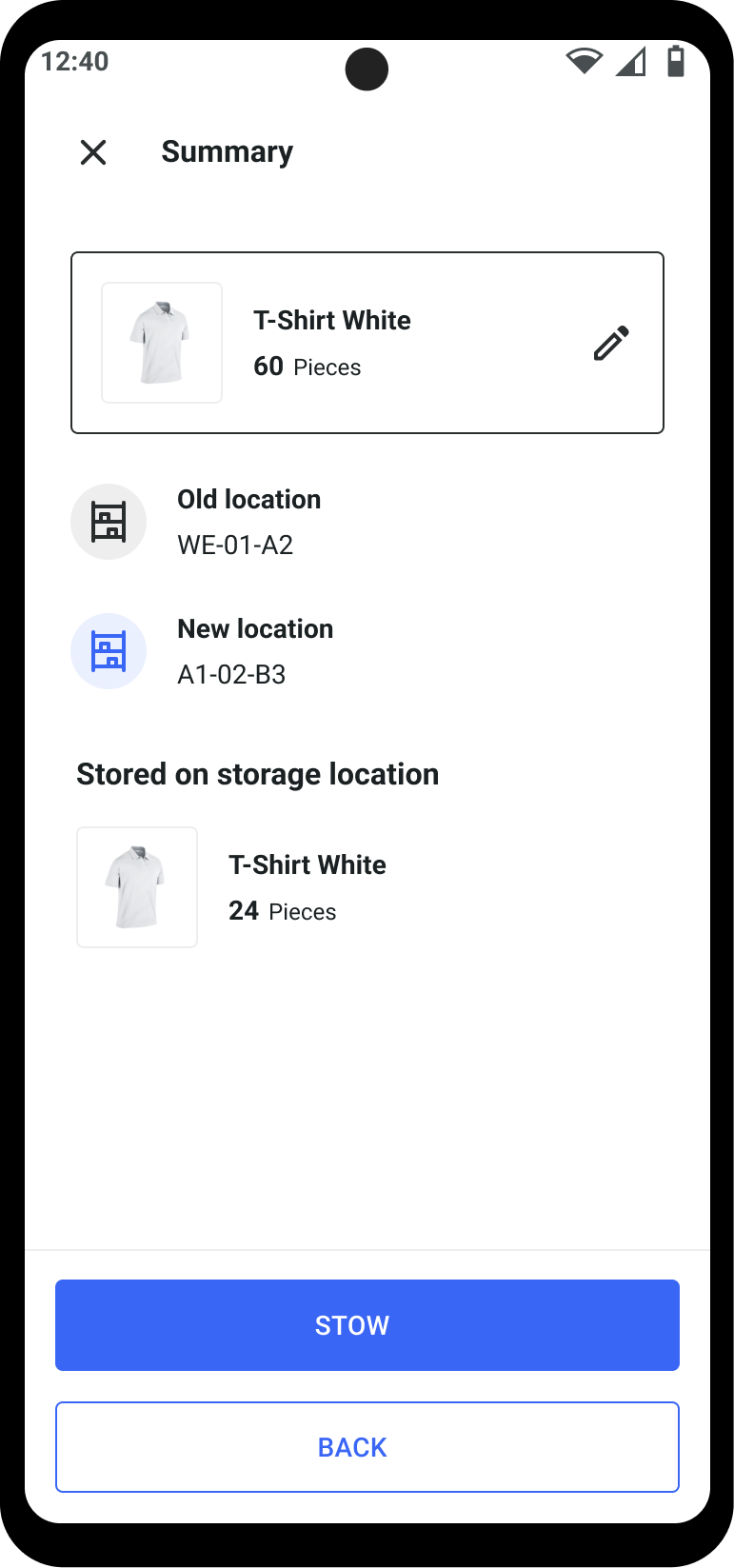
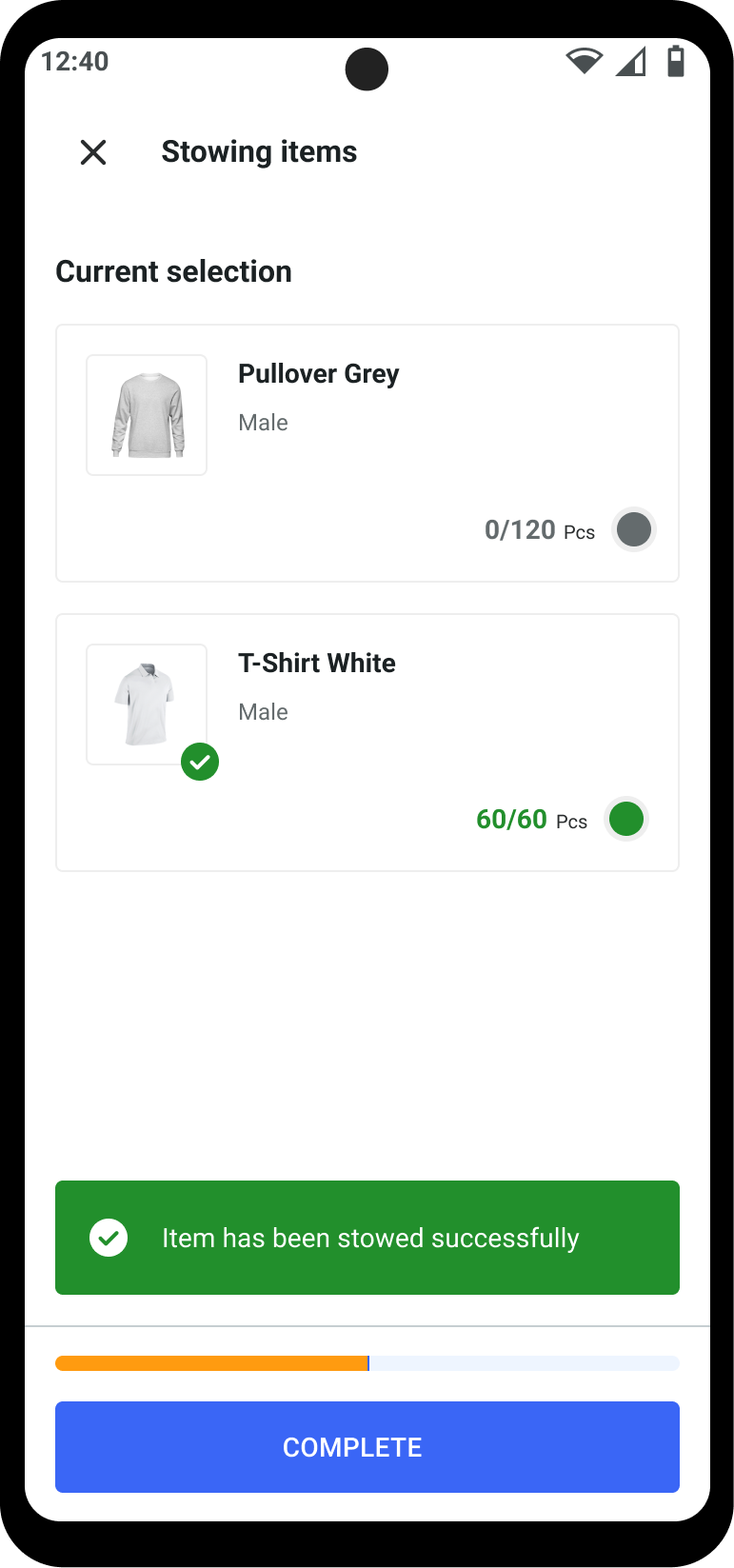
You'll be shown an overview of all the collected products, along with the respective [storage location recommendations](#storage-location-recommendations). Select each item and update its new location. Once each item has been put in place, tap the **Stow** button.
Repeat this until all items in the list are stowed. Then tap the **Complete** button.
{% endstep %}
{% step %}
{% endstep %}
{% endstepper %}
### Storage location recommendations
When relocating a product to a new location, the Inventory app offers recommendations for storage locations. The system generally recommends locations where the same product is already stored and that contain the fewest products.
The recommendation logic also changes depending on the configured [storage principles](/documentation/by-pillar/global-inventory-hub/storage-locations-and-zones.md#working-principle). For example, if unmixed storage is enabled, the system prefers locations where the same product with the same stock properties is already stored.
### Products with stock properties
When removing a product with [stock properties](/documentation/by-pillar/global-inventory-hub/stock/stock-properties.md) from a location, you must specify which items with their corresponding properties are being removed. This step is skipped if all products at the location with the same product ID have identical properties.
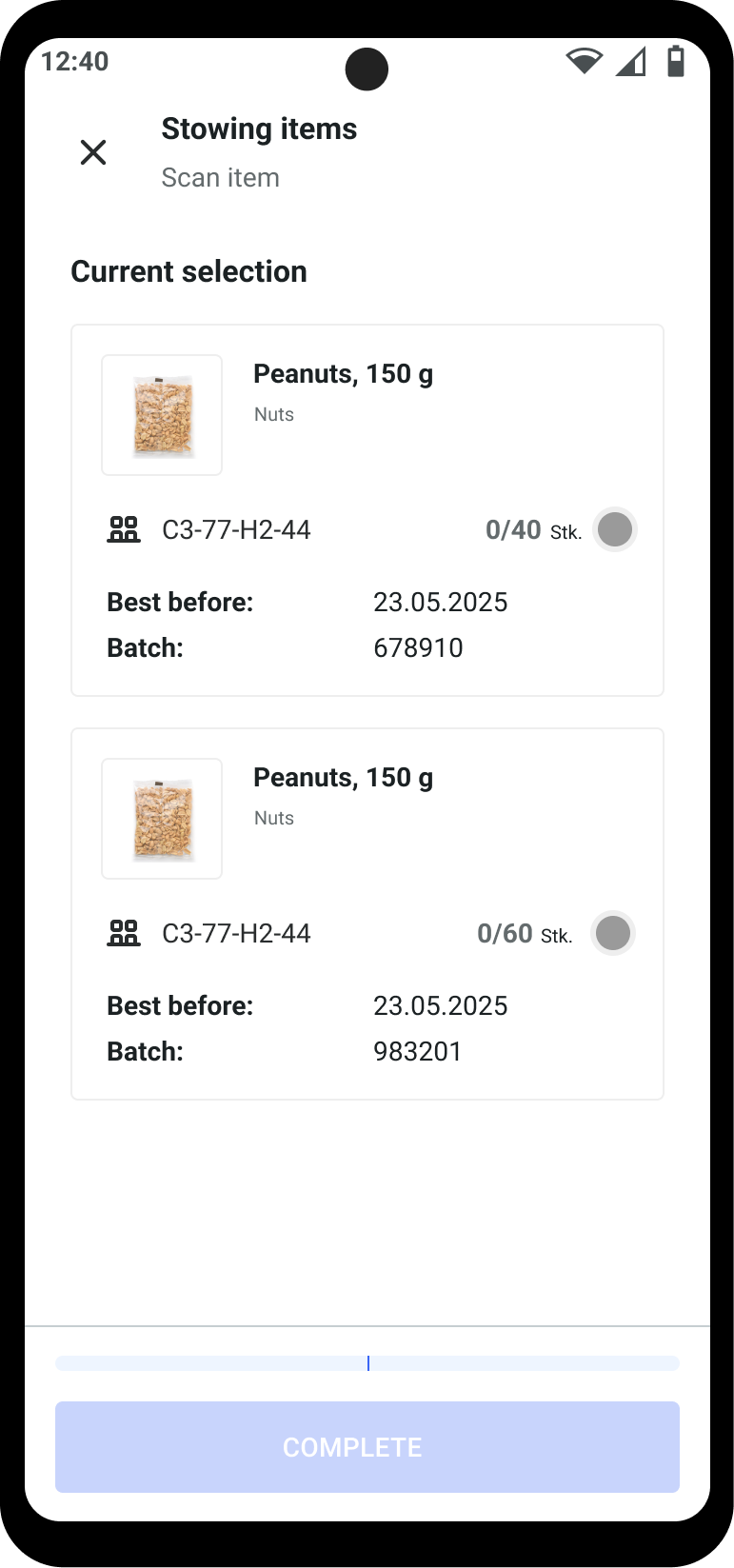
When stowing products with properties at a location, the app shows each collected property set (for example, expiry date) as a separate line item. The system displays different storage location recommendations depending on the defined properties.
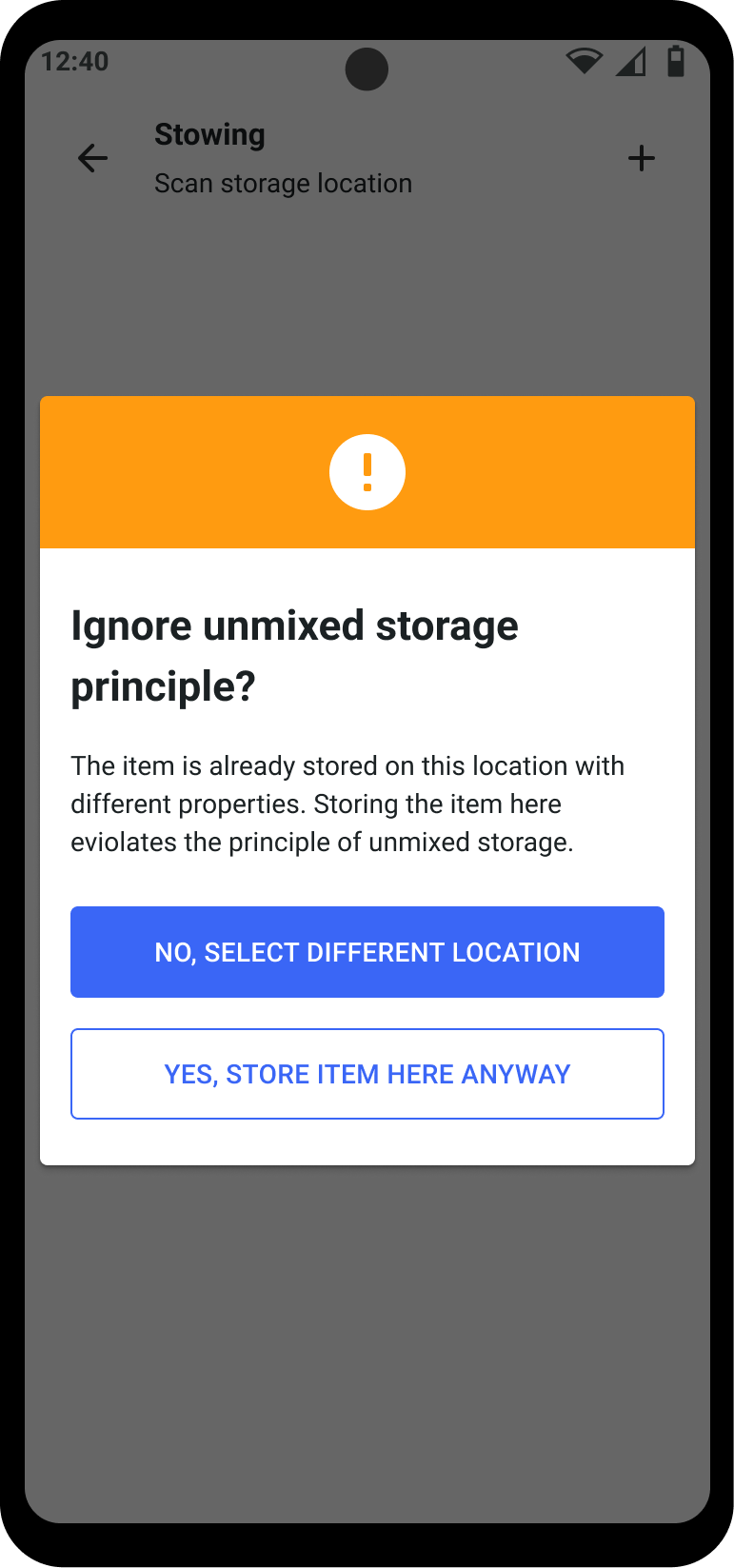
If unmixed storage is enabled and the user chooses a location for a product with properties, the app displays a modal if items with the same `product ID` and different properties already exist there. The user can skip this modal, select the storage location, and continue the process.
---
# Agent Instructions
This documentation is published with GitBook. GitBook is the documentation platform designed so that both humans and AI agents can read, navigate, and reason over technical content effectively. Learn more at gitbook.com.
## Querying This Documentation
If you need additional information that is not directly available in this page, you can query the documentation by asking a question.
Perform an HTTP GET request on the following URL with the `ask` and `goal` query parameters:
```
GET https://docs.fulfillmenttools.com/documentation/apps/inventory-app.md?ask=&goal=
```
`ask` is the immediate question: it should be specific, self-contained, and written in natural language.
`goal` is what the user is ultimately trying to achieve, the reason they need the answer. Sharing it helps GitBook give you a better, more relevant answer. A goal is most helpful when it describes the outcome the user wants rather than restating the question. For example, with `ask=how do I create an API token`, a goal like `automate deployments from our CI pipeline` lets GitBook tailor the answer to that use case.
The response will contain a direct answer to the question and relevant excerpts and sources from the documentation.
Use this mechanism when the answer is not explicitly present in the current page, you need clarification or additional context, or you want to retrieve related documentation sections.
.png)
.png)
.png)